Please note: If Calculation Mode is enabled in your survey, the system will automatically clear the default values previously filled in for certain questions to prevent mechanism conflicts that may cause the survey to fail to open properly. This includes questions skipped by skip logic, as well as hidden questions that are not set as Required.
If a hidden question is set as Required, the system will automatically restore the default value when the survey is submitted.
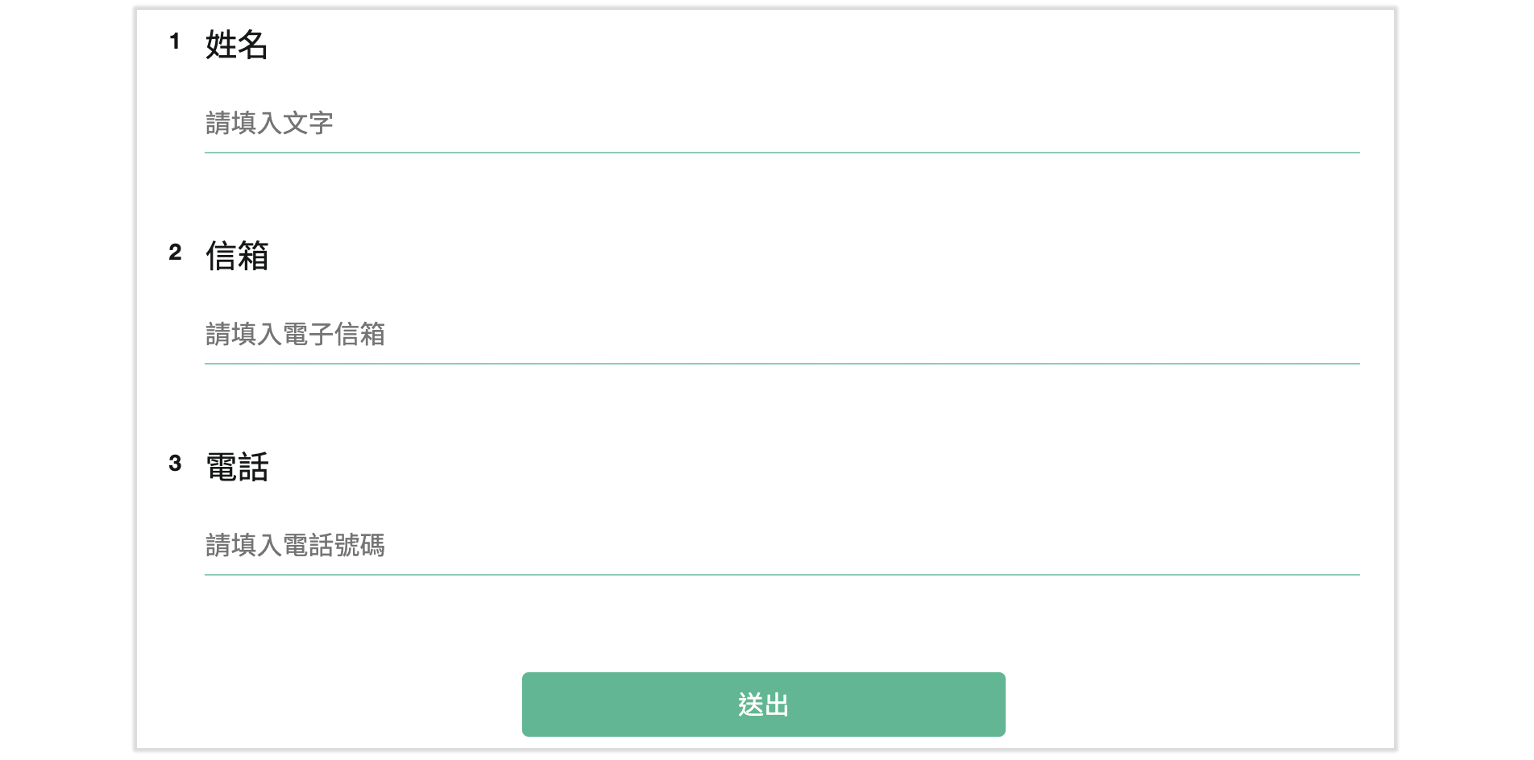
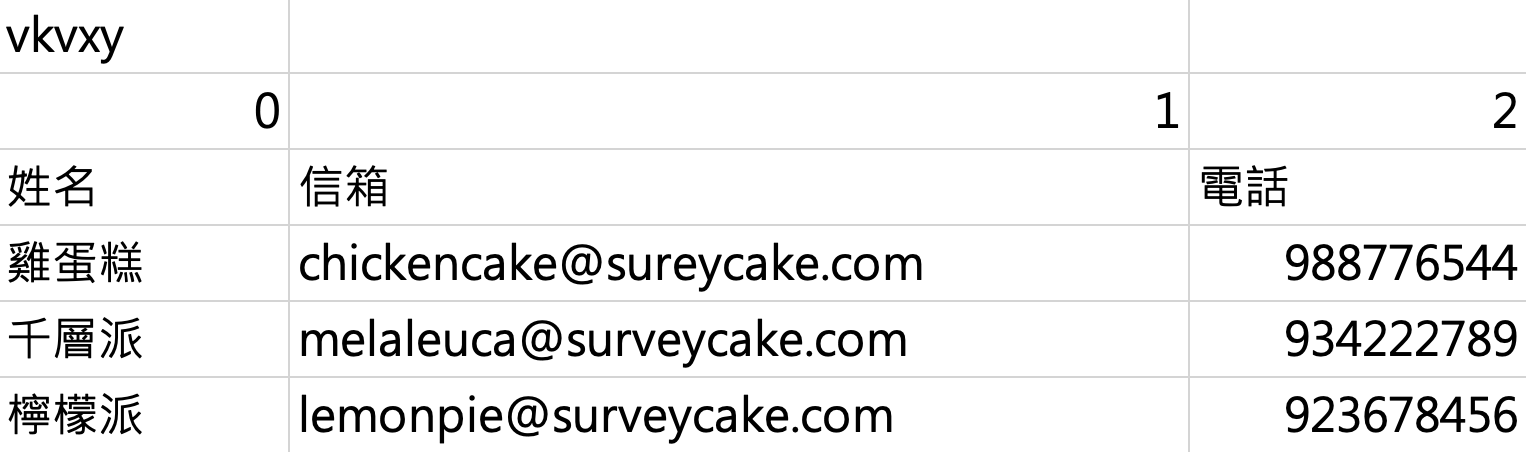
At the first step, most surveys begin with Short response or Number question types. For example, take the following 3 question prompts: Name, Email and Phone number
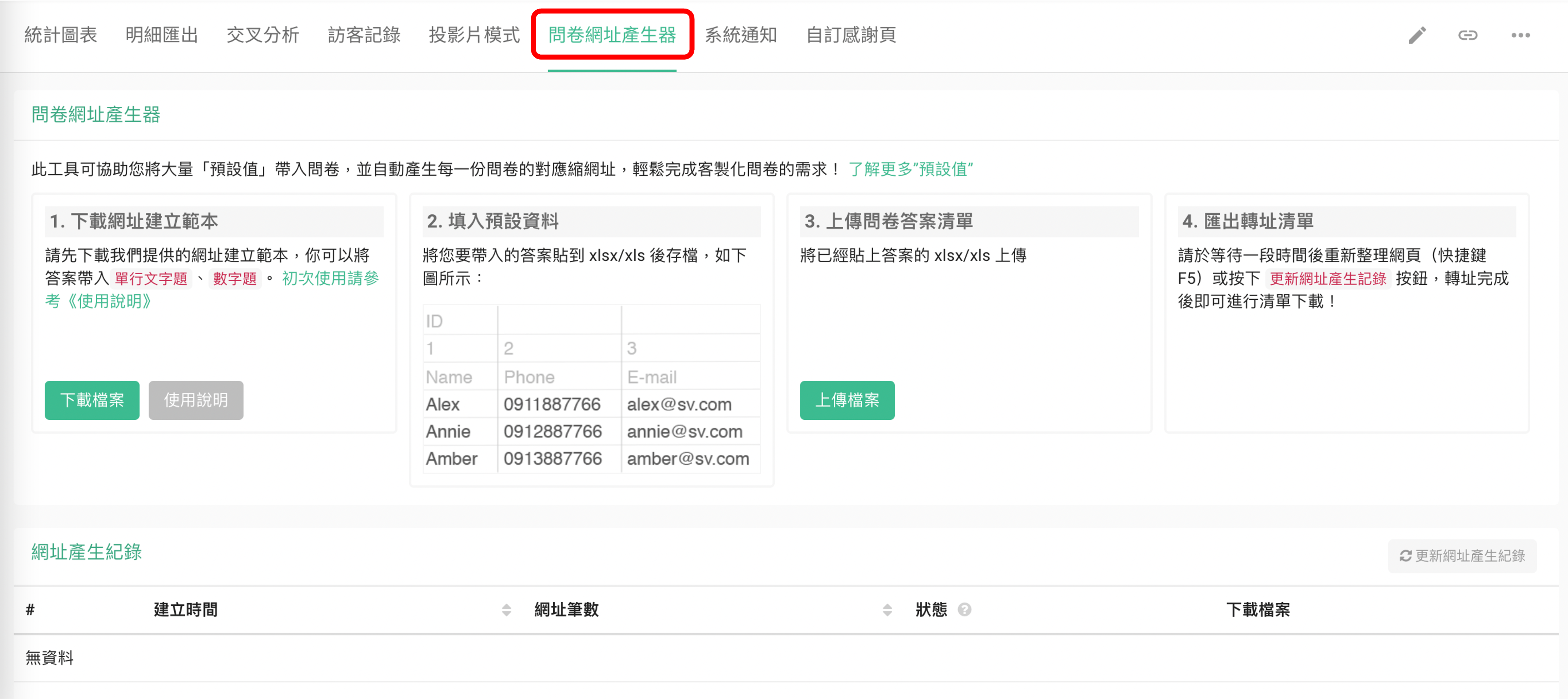
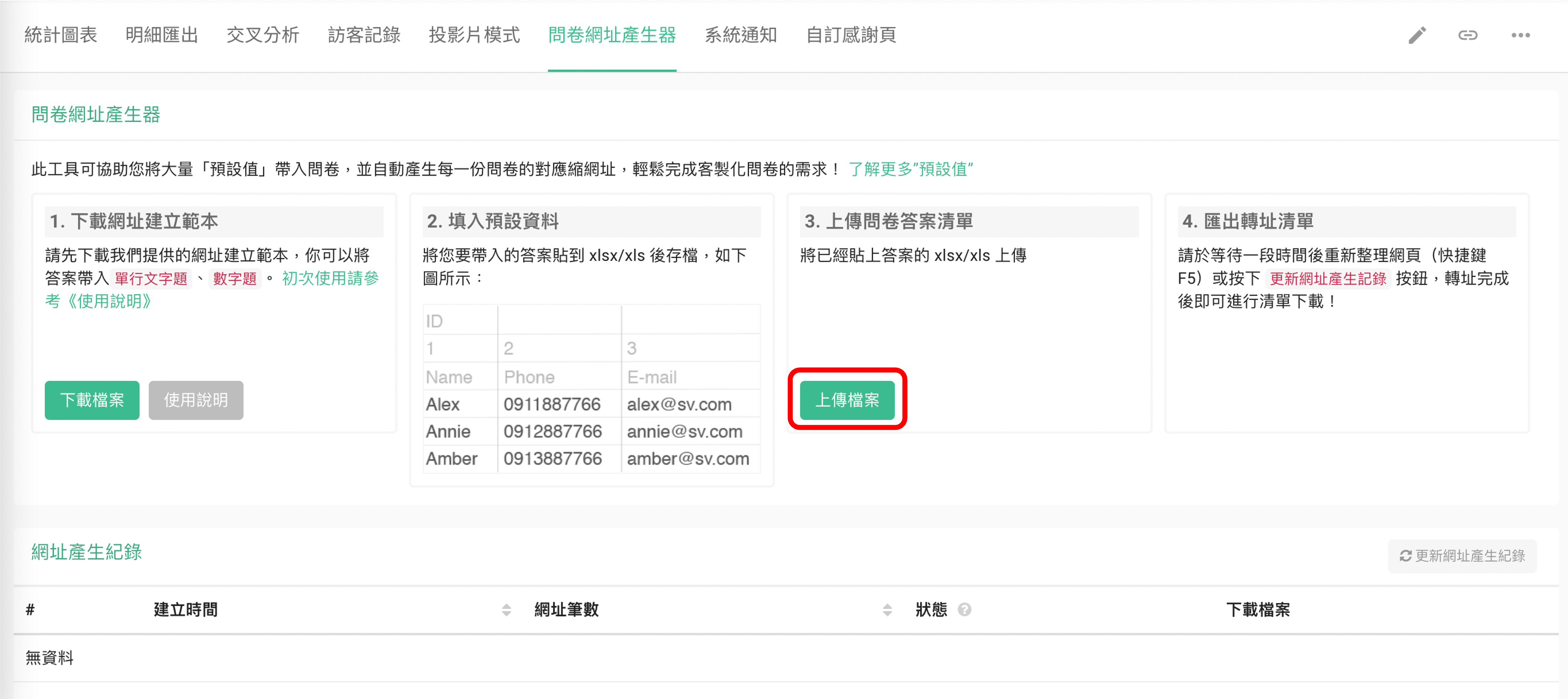
After creating a survey, go to the survey's backend data system and click the URL Assistant tab. Then follow the next four steps to customize your surveys in bulk.
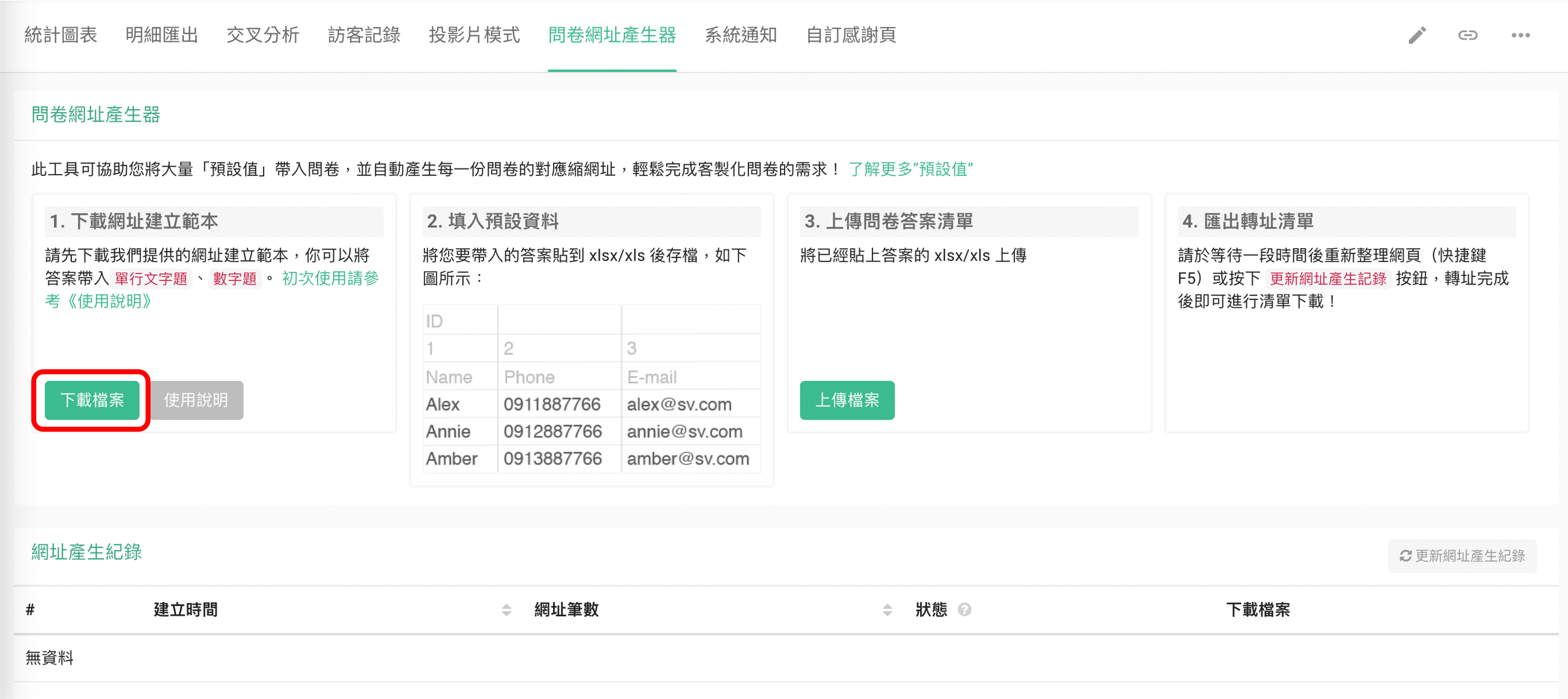
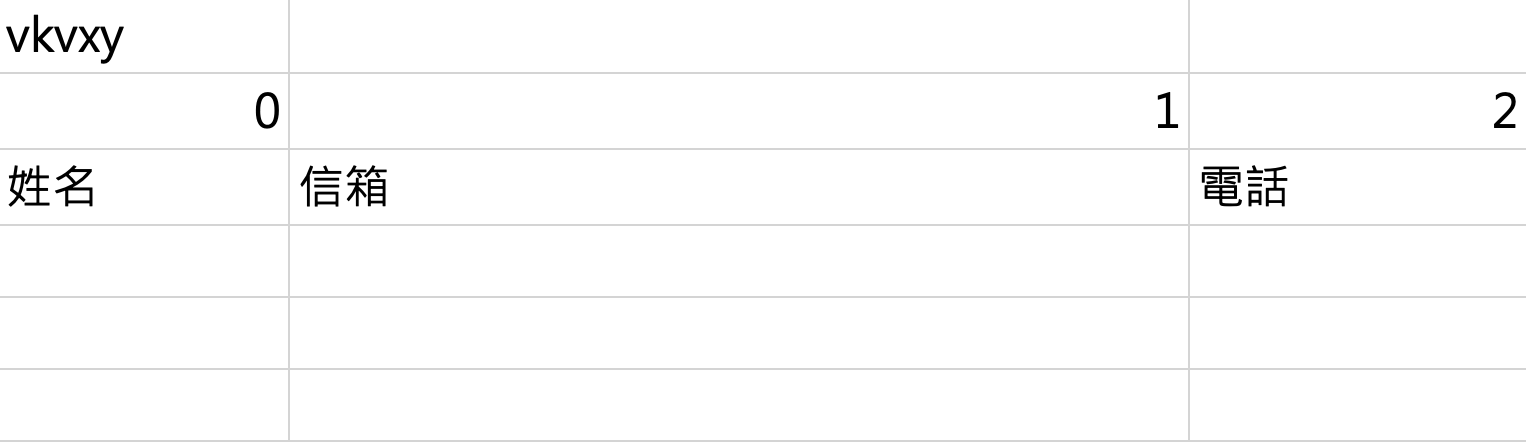
Click DOWNLOAD in the first column to download a template file. Open the file in Excel, and you will find that columns for each question have already been prepared for the file.
Next, just input your list of respondent info into each column.
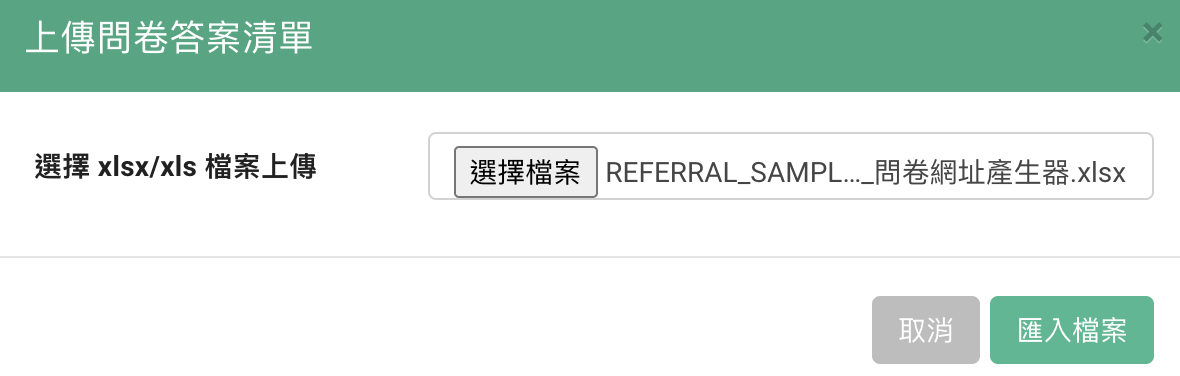
After saving the document, go back to the survey's backend data system and click IMPORT in the third column. Select your completed file and click UPLOAD.
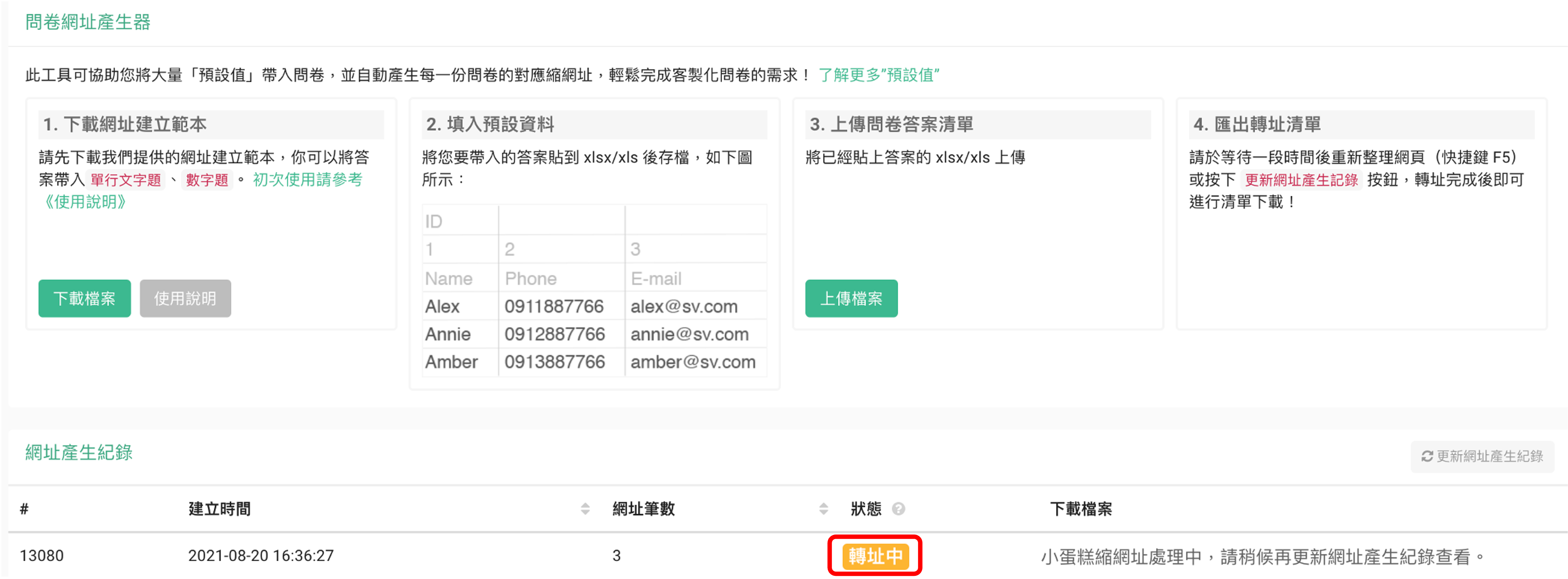
Once the file has been imported, it will appear in the lower portion of the page with the status PENDING.
Just click Refresh list and the file should be ready for download.
The updated file will contain customized URLs for each individual on your list, with the previously collected information already supplied for the survey.
Summary
Creating customized surveys with URL assistant!