When it comes to handovers, the biggest hassle is transferring massive data. There is no need to worry about survey data transfer in SurveyCake. With Transfer Survey and Workspace, you can transfer all of your surveys and workspaces to designated SurveyCake PRO users.
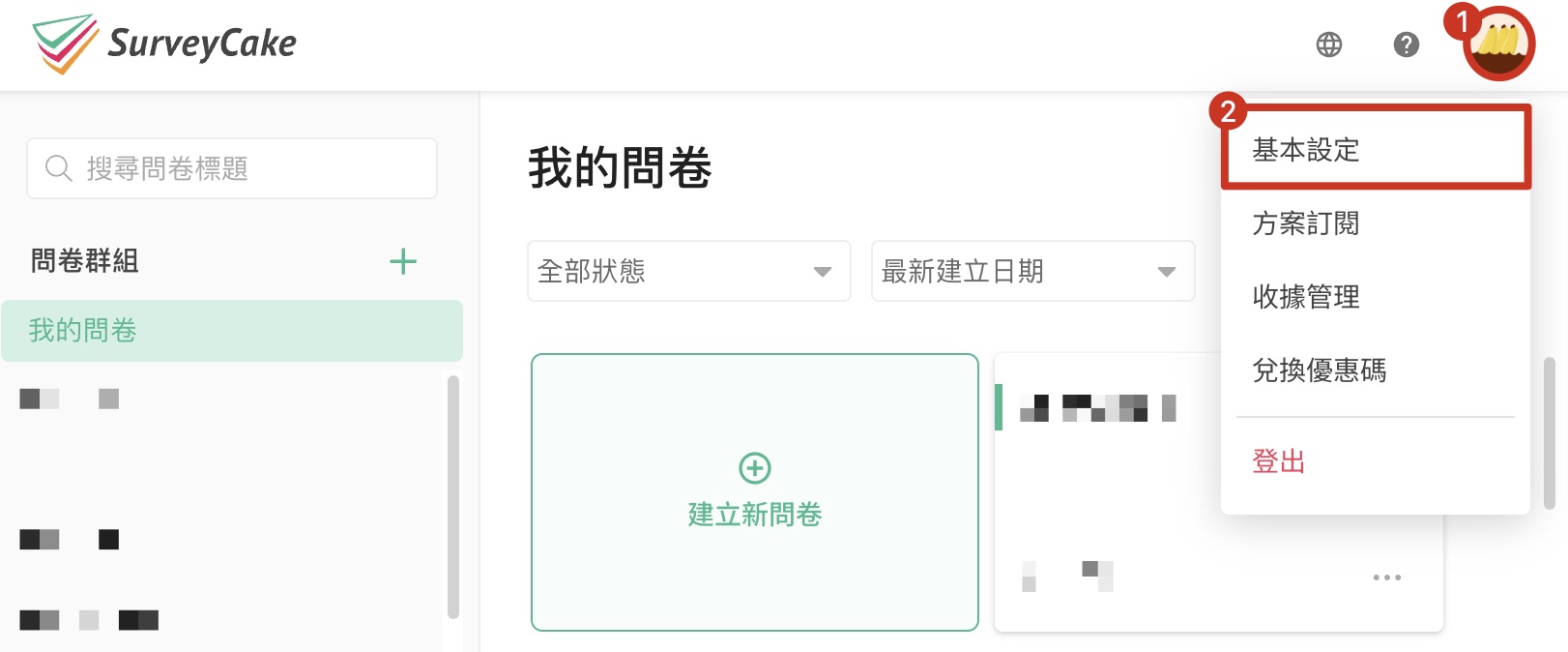
Log in to your SurveyCake account, click on Basic Settings to Transfer Survey and Workspace.
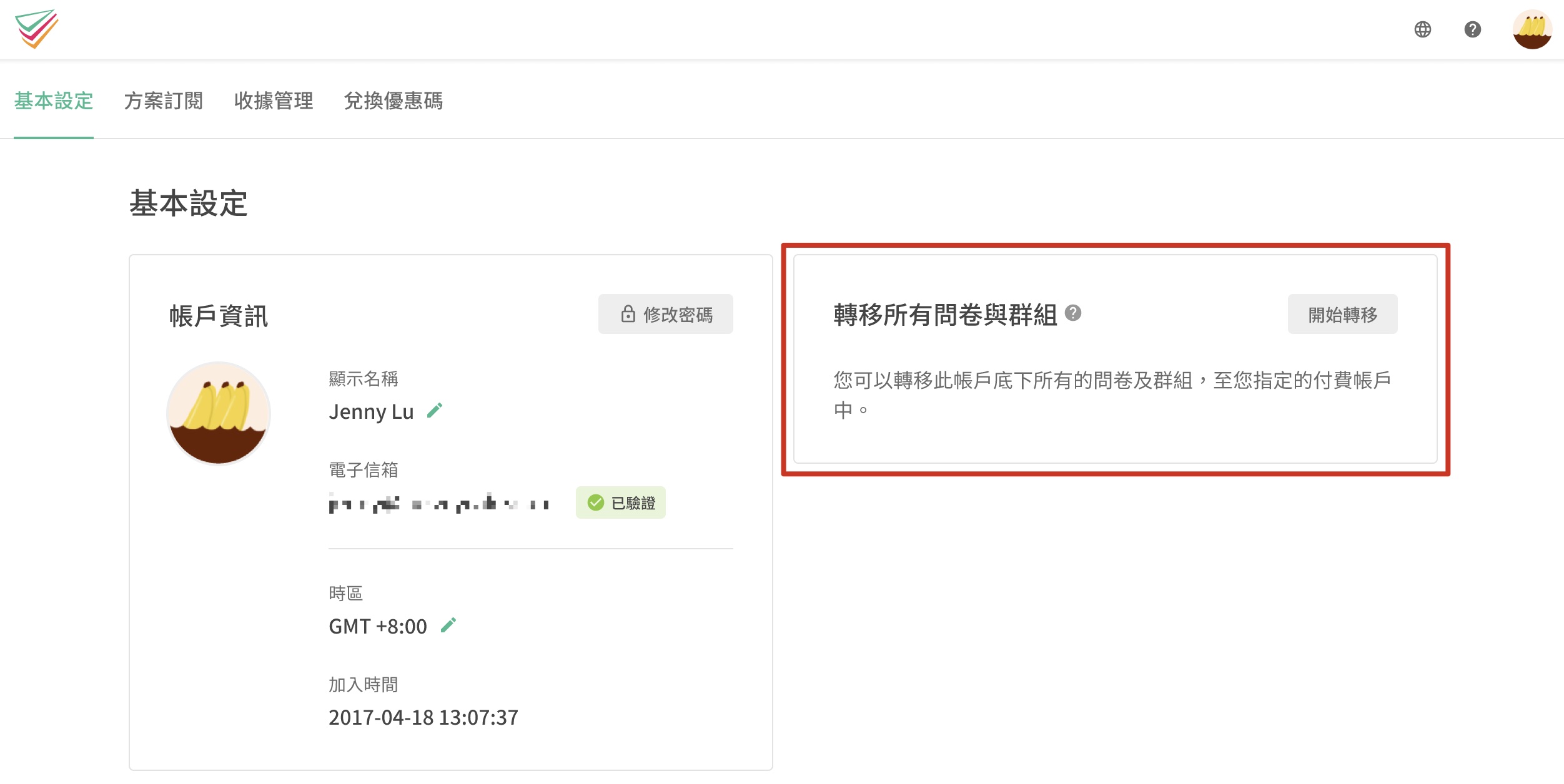
Transfer Survey and Workspace is at the right of the account overview page.
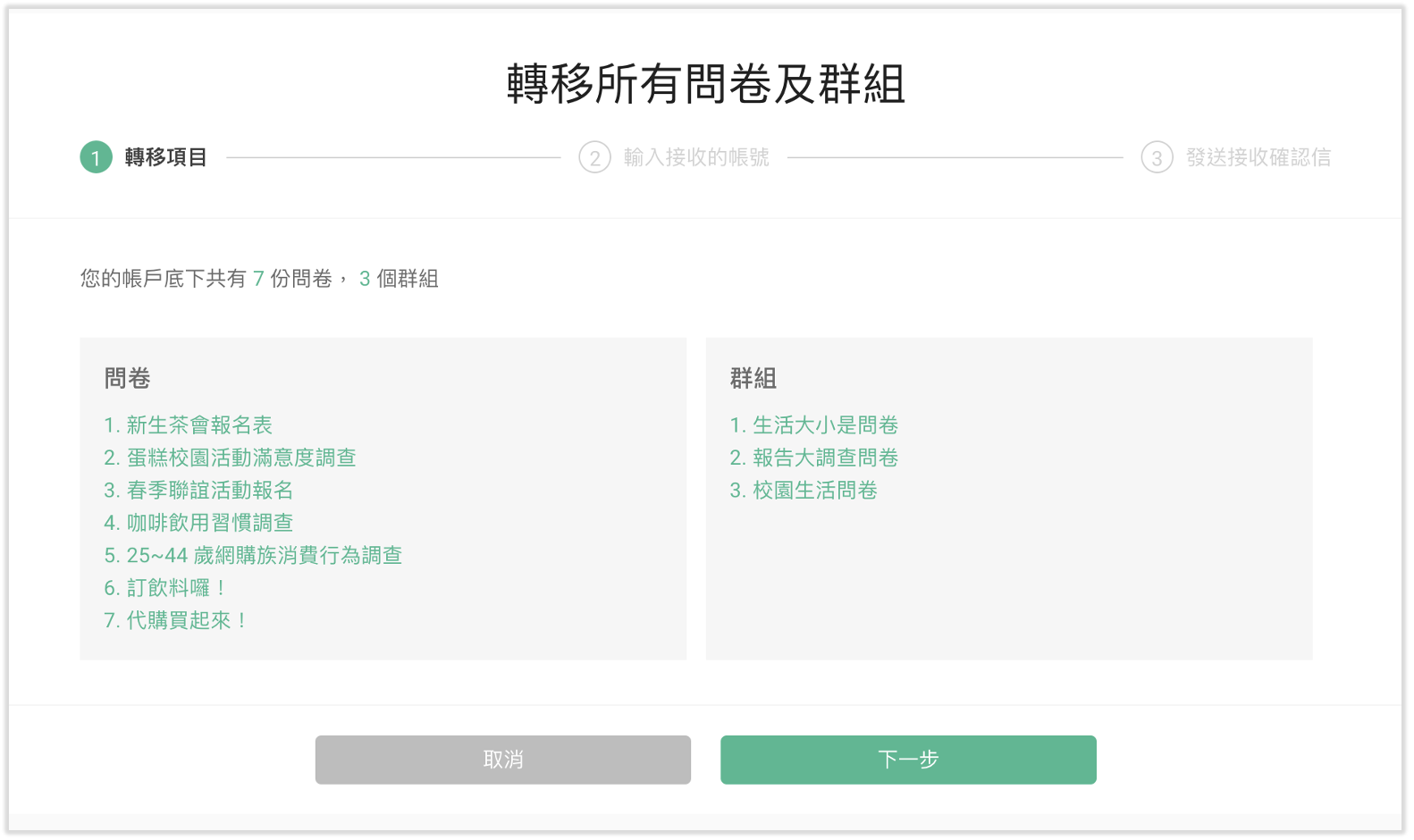
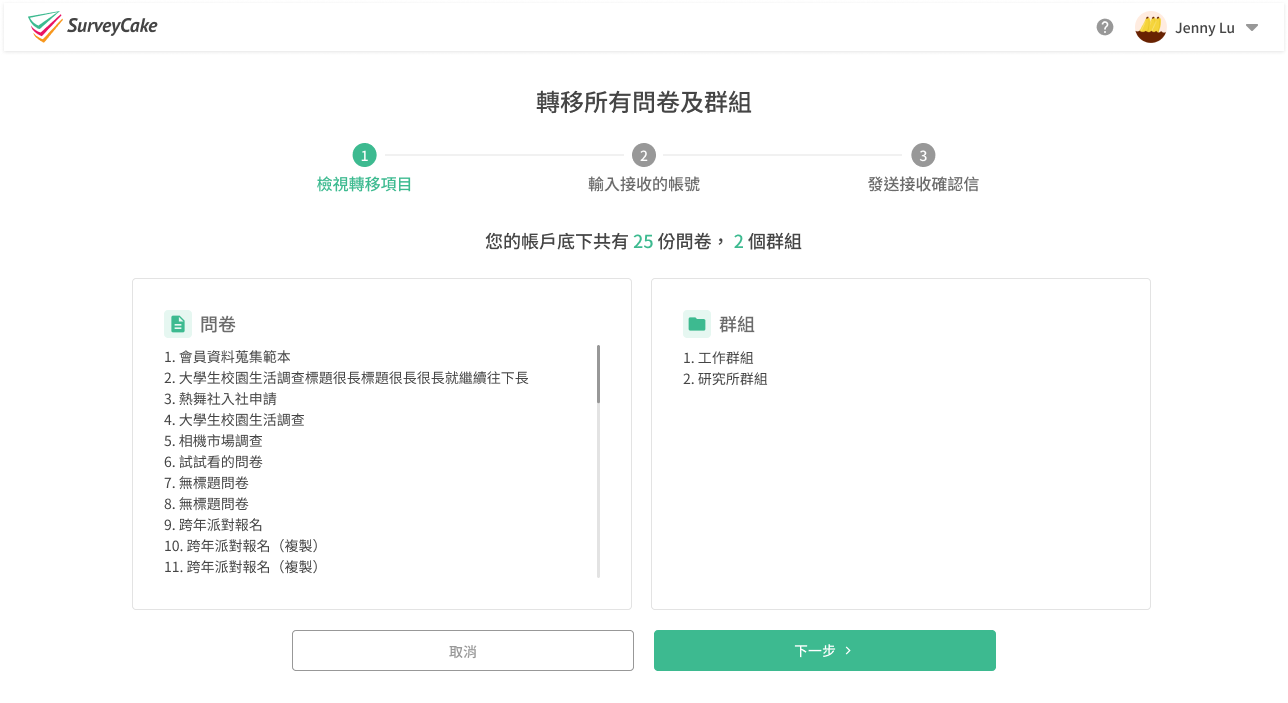
Transfer Survey and Workspace consists of three steps: Check list, Enter the account, and Send confirmation Email. Only after the three steps are complete will you be able to send an invitation to the other party for receiving the survey.
Step 1: In the "Check list" section, a list of all the surveys and workspaces under the account will be displayed. These surveys and workspaces will then be transferred to the designated account.
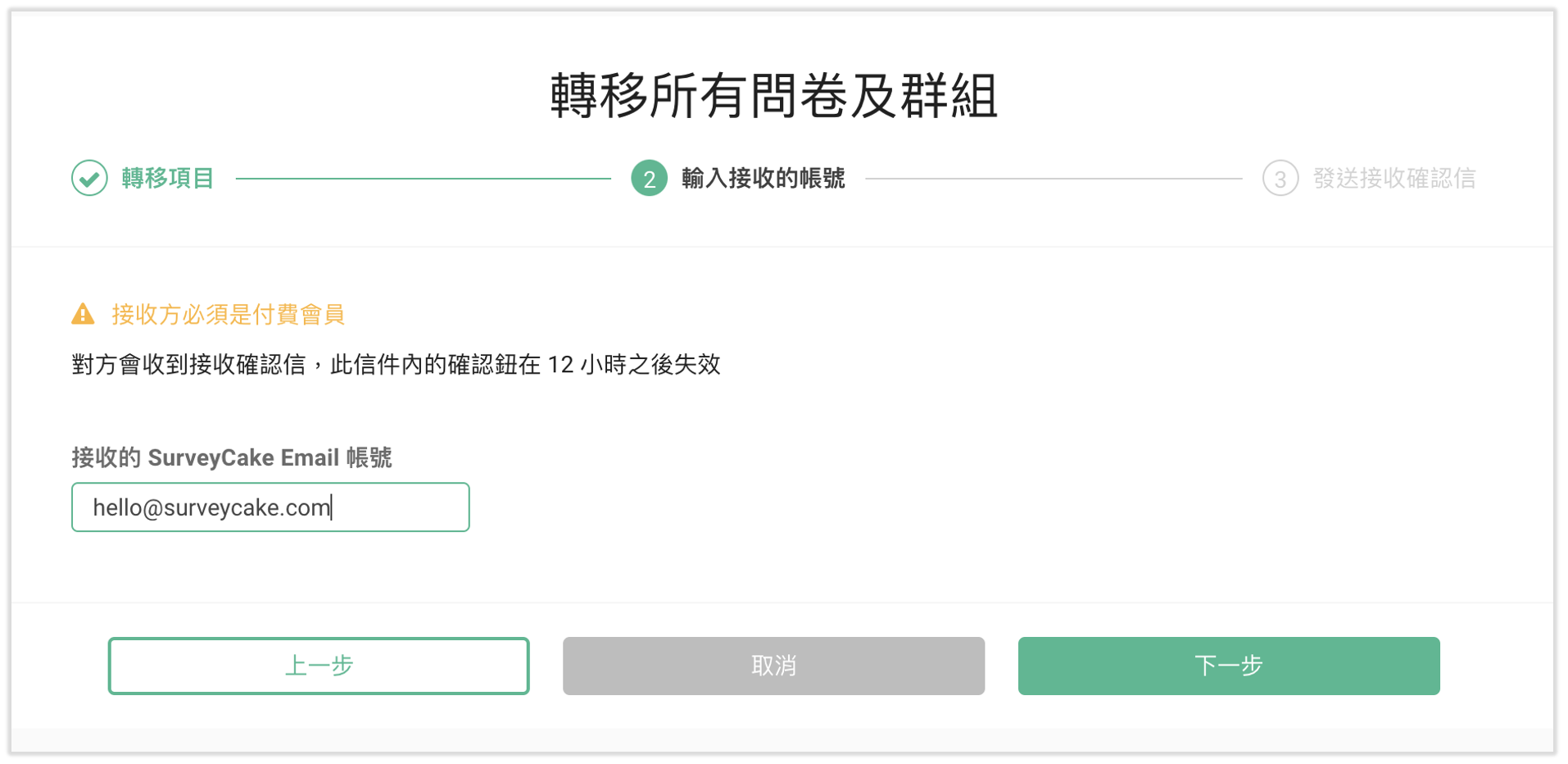
Step 2: "Enter the account" is for entering the SurveyCake email accounts that will receive the surveys and workspaces.
Note: Recipients must subscribe to the paid plan.
Step 3: In "Send confirmation Email", you are required to enter your password first to enhance security. You will then need to carefully read and agree to the terms by checking the boxes. Once confirmed, you can click the "Send" button to send out the confirmation email.
Important notes:
All surveys in your workspaces will be transferred and can't be undone.
Surveys from My Workspace will move to the receiver's My Workspace.
All settings will remain Google account binding in file upload setting, webhook, etc.
When the transferring process is done, the receiver won't be able to use Transfer Surveys and Workspaces in 6 months.
If you edit the survey, updates may be lost during the time waiting for confirmation.
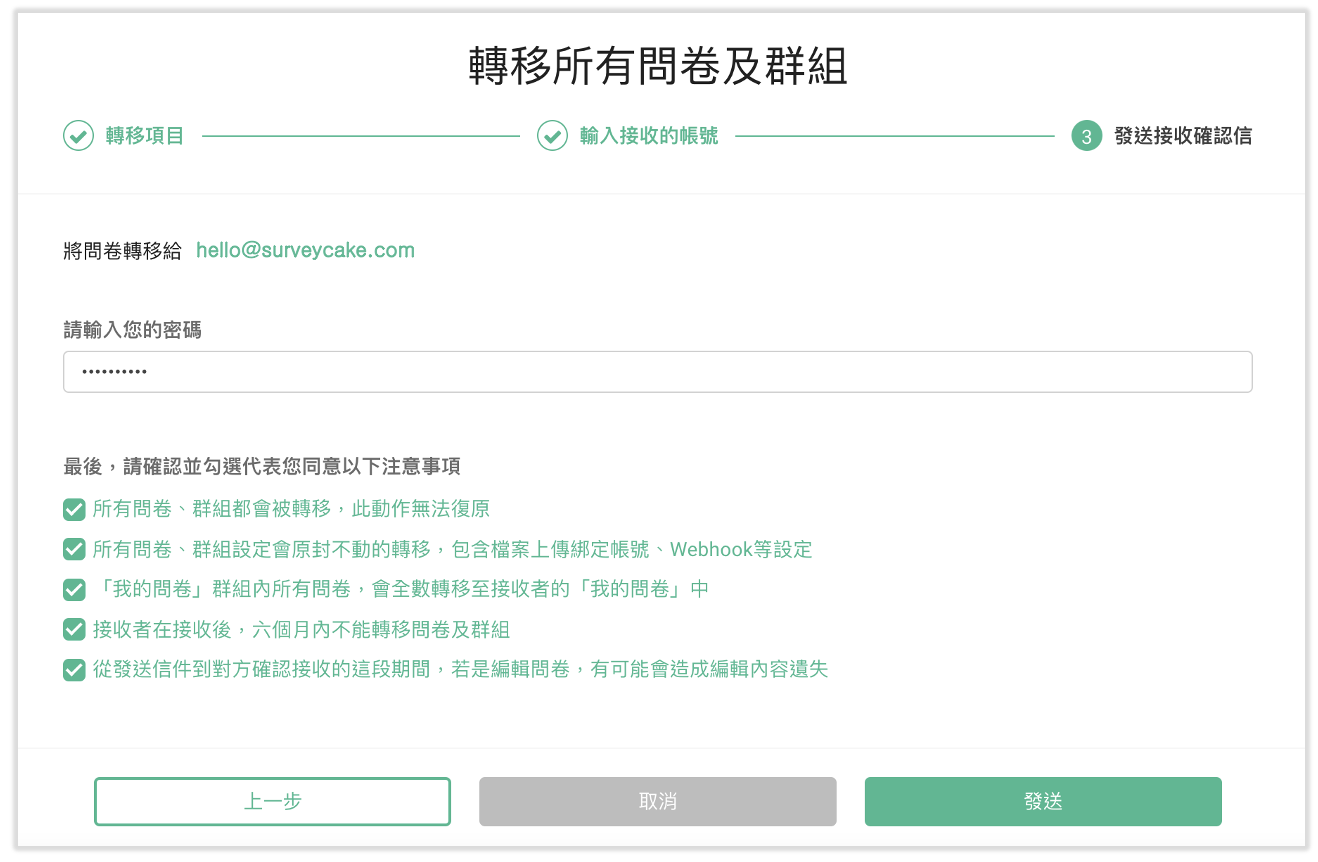
After clicking "Send," the system will send a confirmation email to the designated account for the transfer.
Attention! Please avoid editing any surveys during the period before the recipient confirms to prevent data loss!

The recipient will receive the following confirmation email:
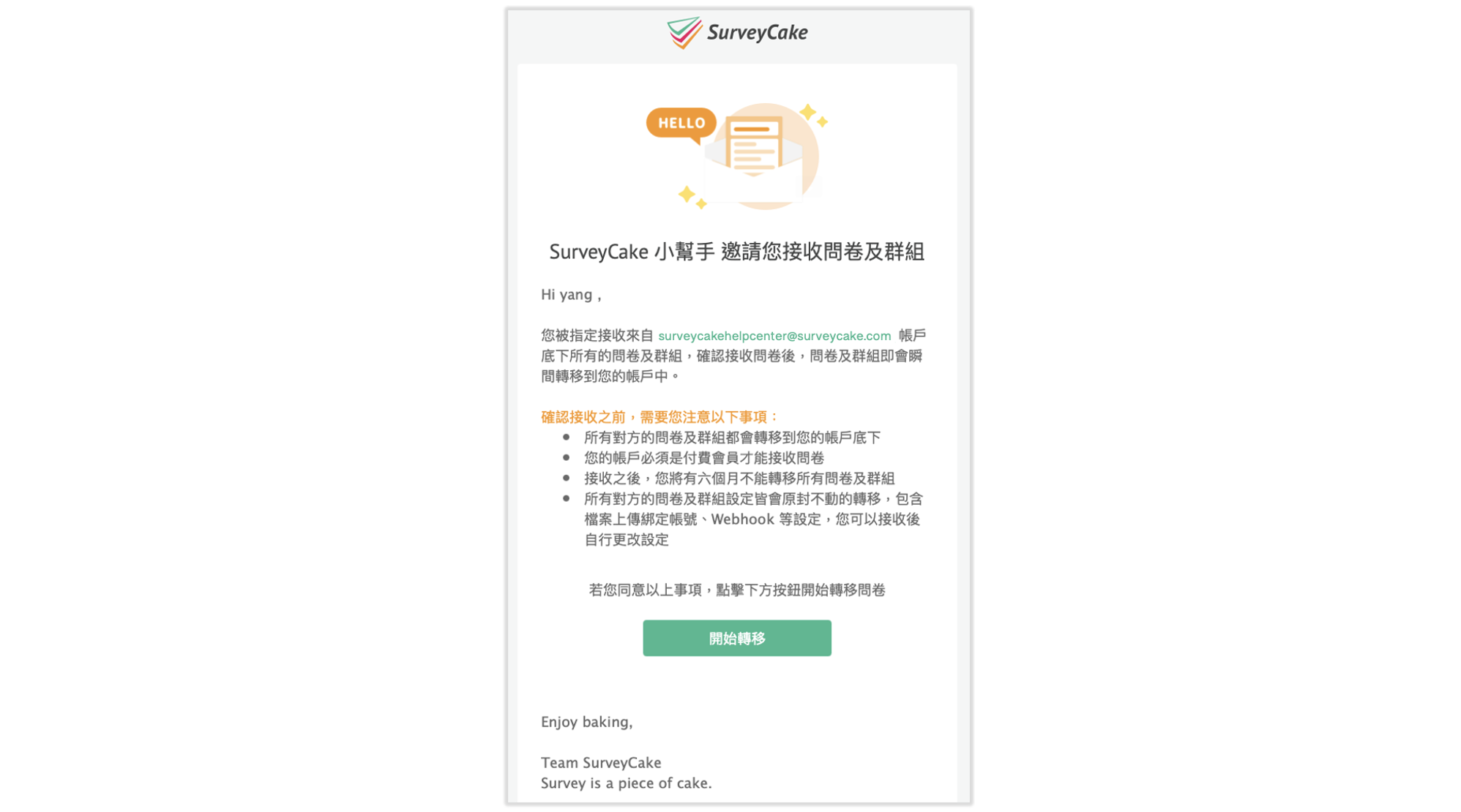
After the recipient clicks on Confirm to receive in the confirmation email and log in to SurveyCake, they can confirm to receive all of your surveys and workspaces.
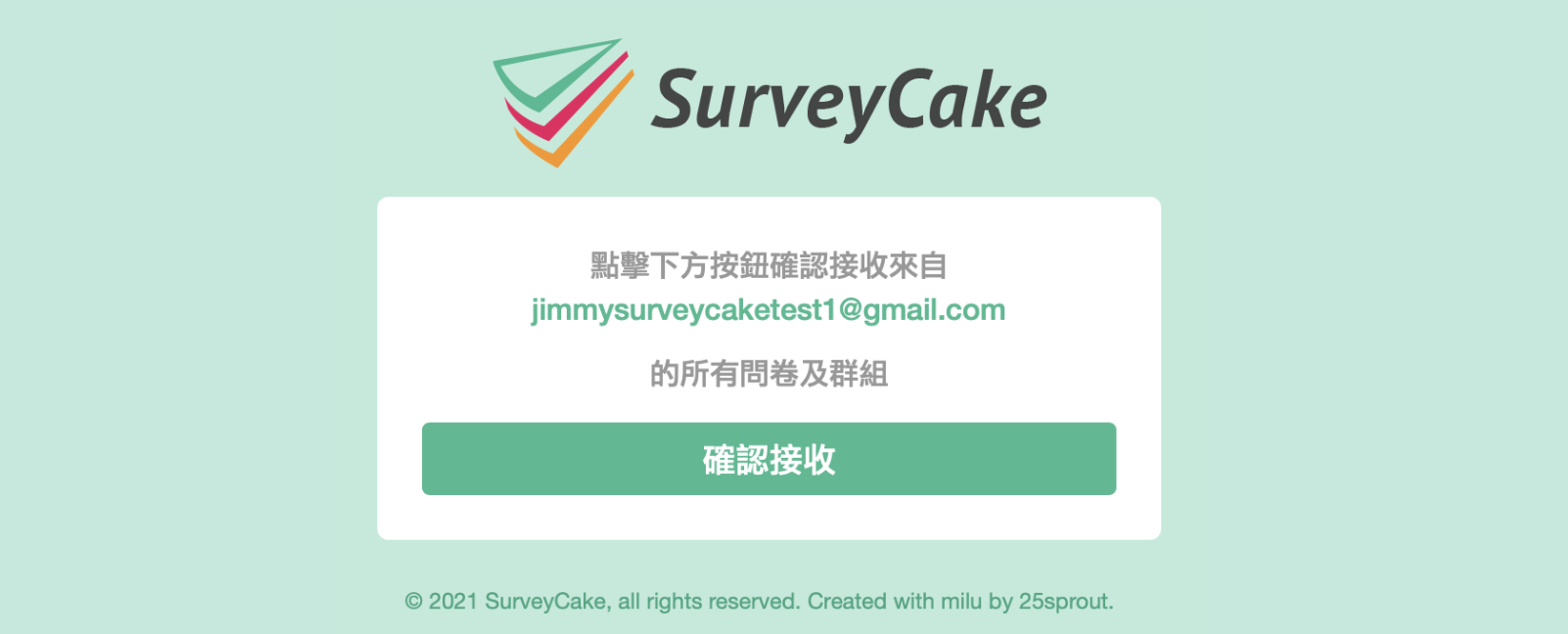
After the other party clicks on Confirm to receive, you will receive a confirmation email for successful transfer. The surveys and workspaces in the previous account have been transferred to the survey overview of this account!
Summary
Use Transfer Survey and Workspace to quickly complete transfer surveys and move data to other team members with ease.