Survey Workspace is the paid feature of ENTERPRISE & TEAM plan.
There are often situations where different team members need to create surveys together. The Survey Workspace feature allows members to collectively create and edit all the surveys within the same workspace, saving a lot of communication time and making team collaboration more efficient.
Workspace permissions:
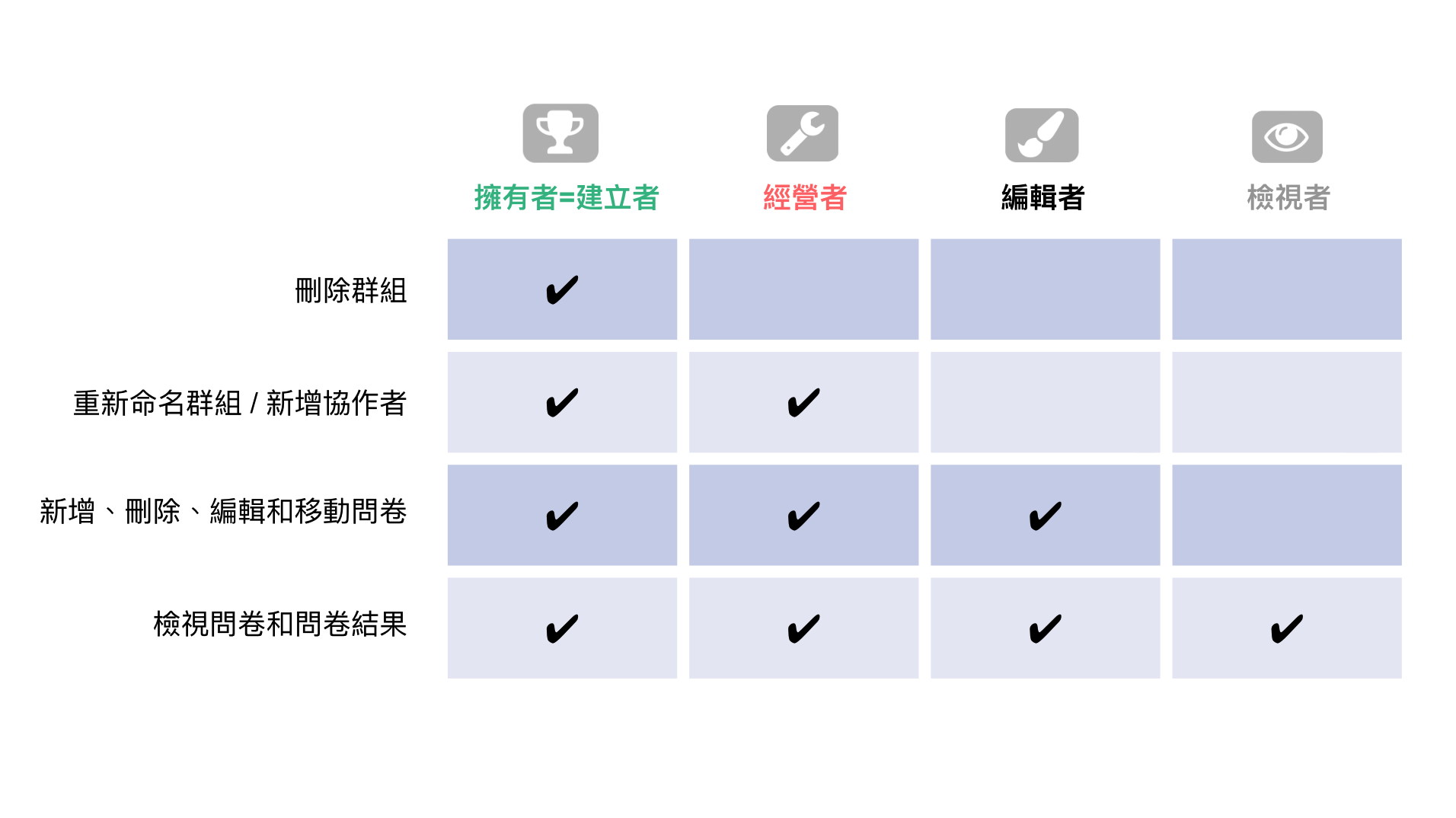
Member can be assigned to four roles based on their permissions: Owner, Maintainer, Editor, and Viewer.
Owner
The user who created the workspace has the authority to manage the created workspace and survey.
(In TEAM, only the admin-created survey group is a shared workspace, making the TEAM Admin the owner of all survey shared workspaces. Survey workspace created by members in TEAM plan are non-collaborated survey workspace.)
Within the shared workspace, when any role departs or is removed, the survey they created becomes the property of the group's owner.
Has the ability to add, edit, and delete collaborators in the group.
Maintainer
Can add and delete members in the group.
Can create, edit, and delete surveys.
Can view surveys.
Editor
Can add, edit, and delete surveys.
Can view surveys.
Viewer
Can only view the survey and utilize the public URL.
I. Creating the SurveyCake Workspace
You can classify different members by creating a "workspace" in order to distinguish between different departments, teams, purposes, or even related companies and subsidiaries.
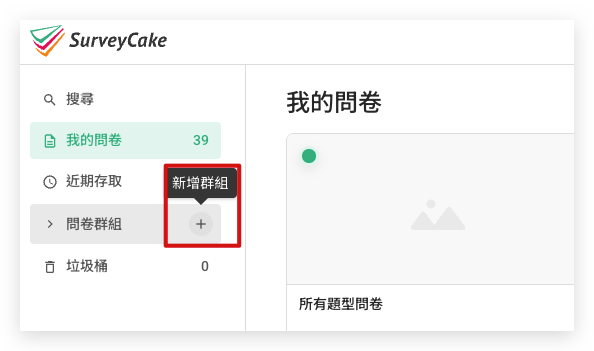
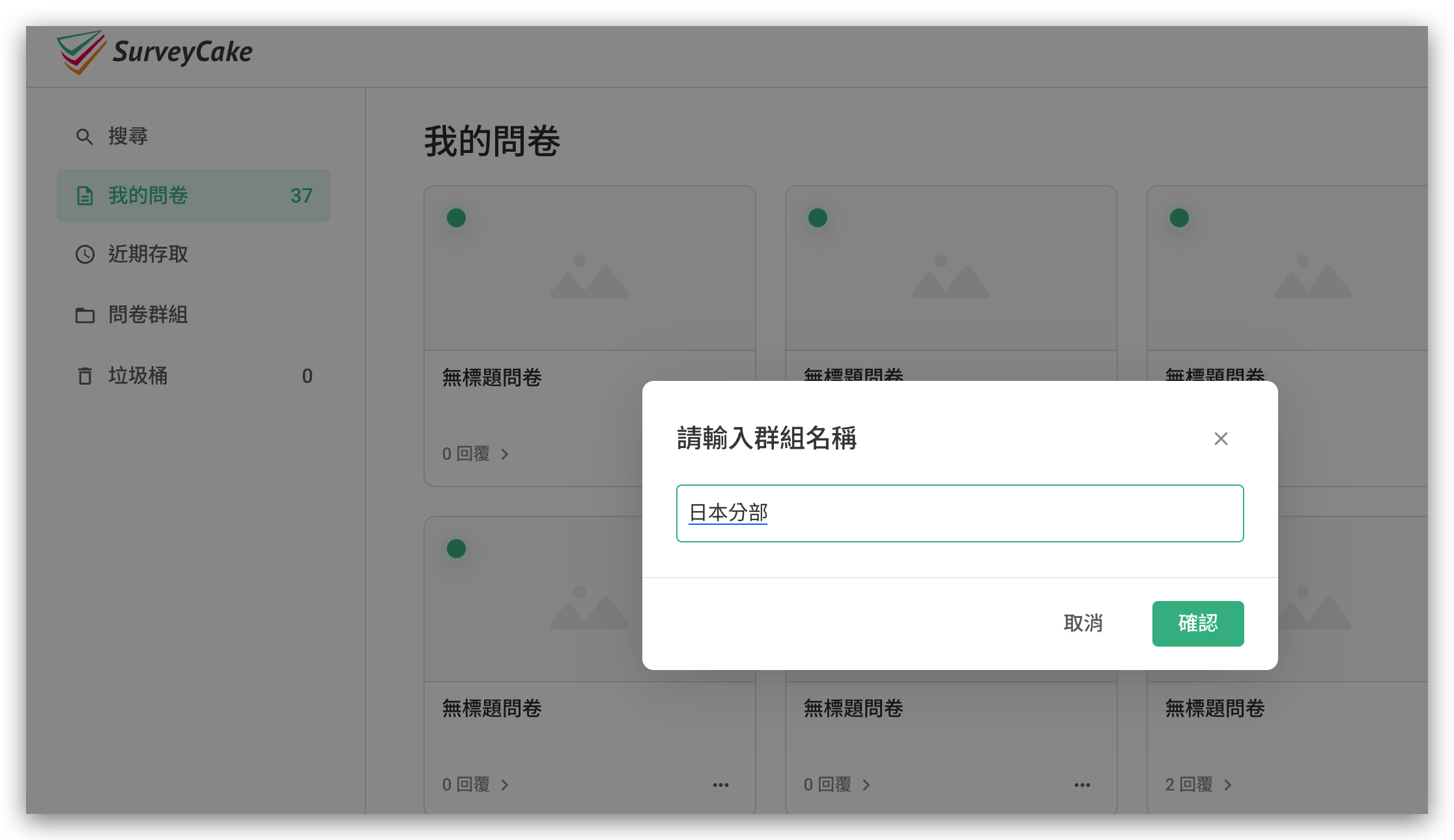
Click on the "+" next to the survey workspace in the left-hand menu, enter the workspace name and check it, to complete the creation of the workspace.
After creating a workspace, you can add or adjust members within the workspace at any time.
You can freely edit the role and access rights of each member within the workspace, and also delete workspaces that have been created. However, please remember that once a workspace is deleted, it cannot be restored through any means, so please use the delete workspace feature with caution.
II. Adding a Member to a Workspace
Assuming that you have already created a "Member" for John in the US office, and a "US Office" workspace has been set up, you can now add John to the "US Office" workspace. Here are the steps:
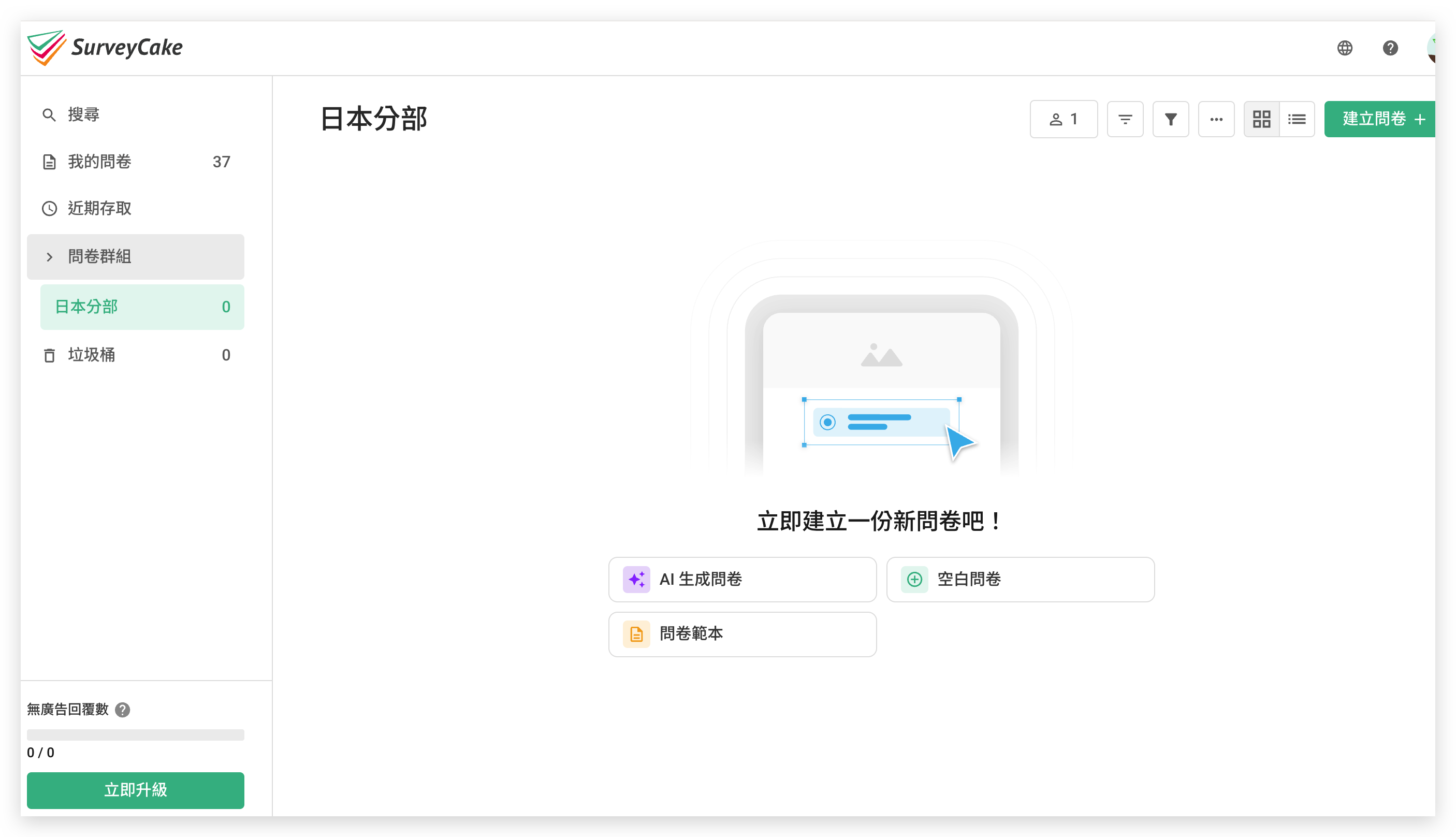
Find the workspace you have created from the list of workspaces on the left side of the page.
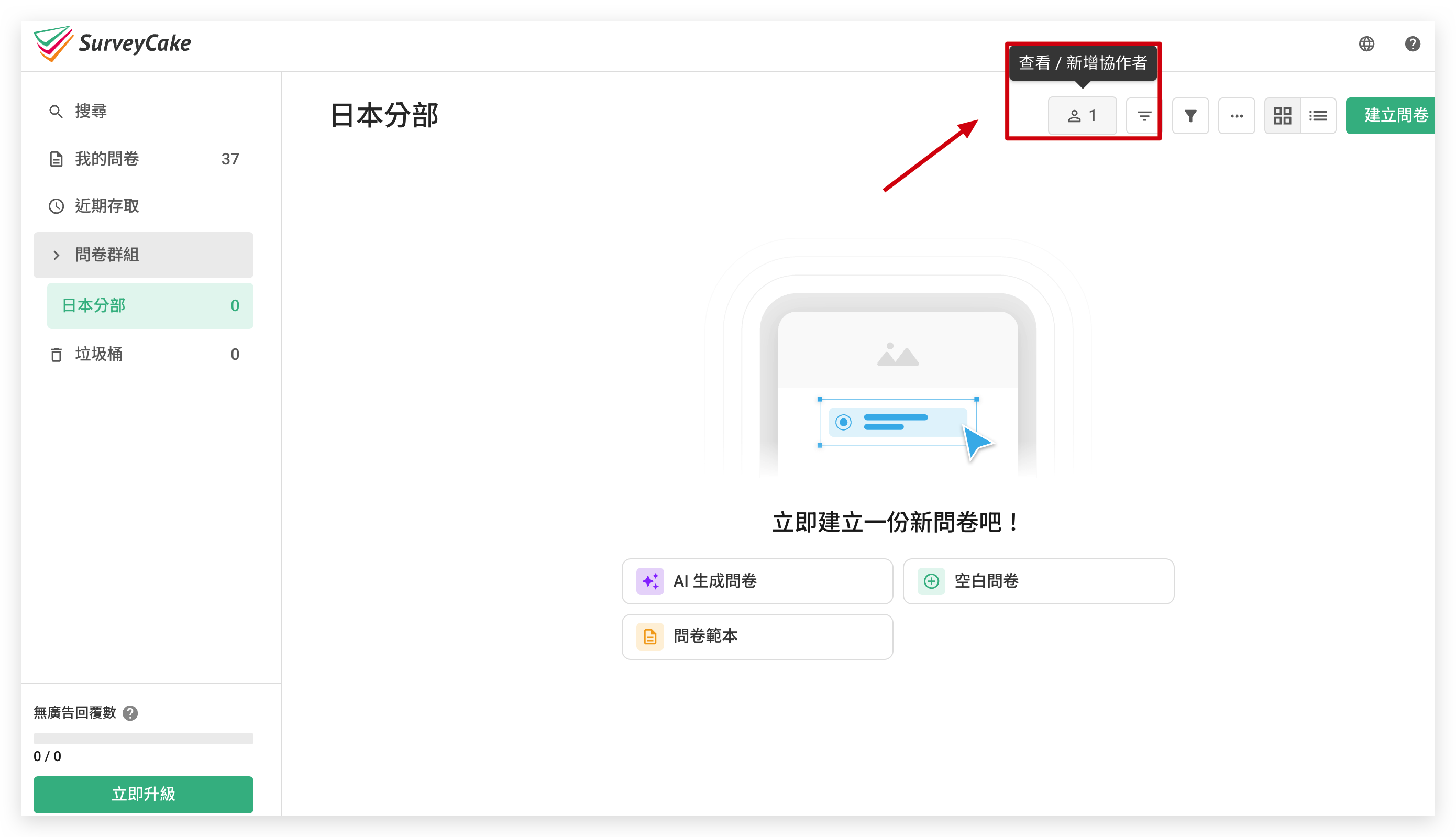
Click on the "Add Collaborator" icon on the top right corner.
Click on "ADD" to edit the role. Enter the member's email address to add a role.
Click on "+" to finish adding the member to the workspace.
Summary
Ideal for organizations with multiple team members collaborating on surveys, Team Collaboration features make it easier than ever to work together on survey creation.