How to enable Serial Number feature?
Go to the Build page.
In the left sidebar, click on the Settings icon.
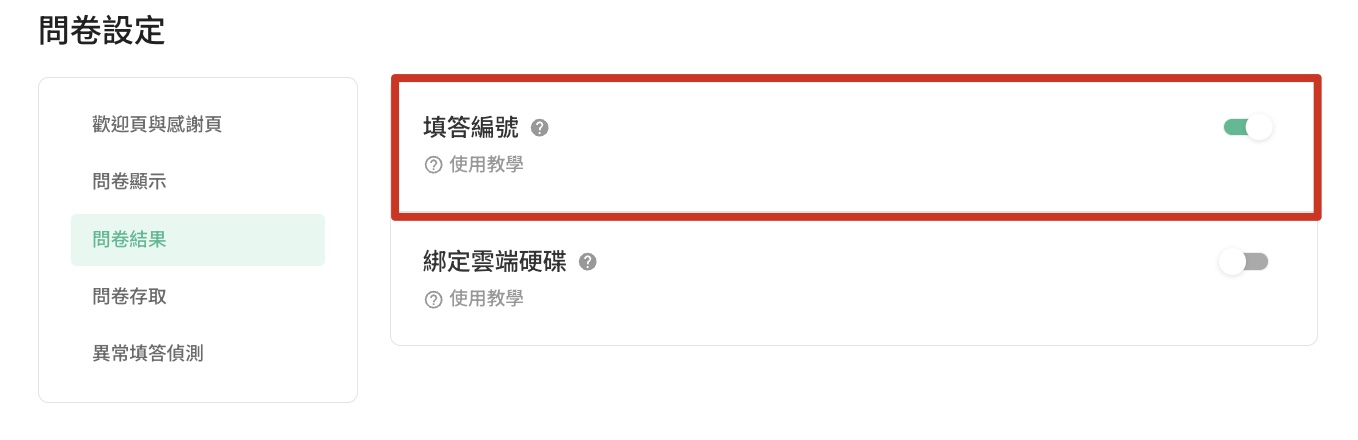
Select the Survey Results section.
Enable the 'Serial Numbers' feature. SurveyCake will automatically embed a serial number for each answer.
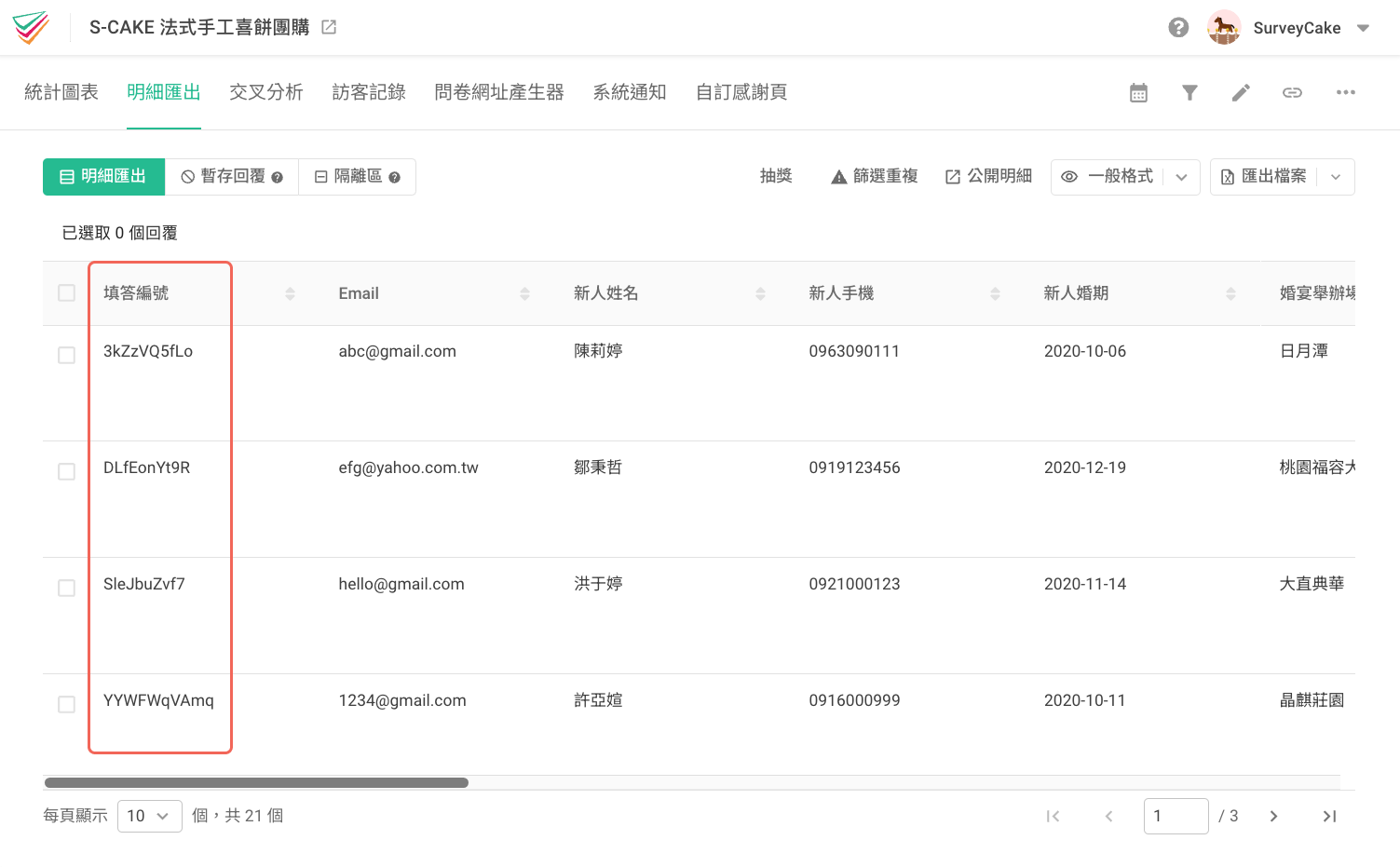
Serial Number for each answer will be shown at Data Report with details of all responses.
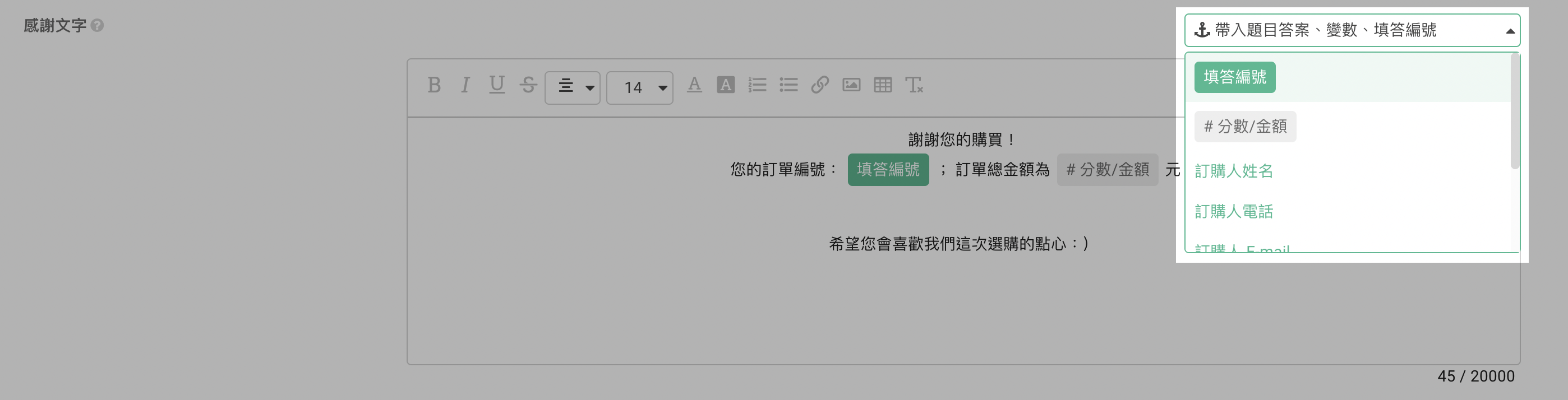
Also, if you wish the respondents to check their Serial Number as they finish their forms, go to Edit , to Set Up page, then scroll down to "Thank You Message" at Welcome and Thank You Message area, click "Import previous input, variable, serial number" to automatically insert an unique-serial number in the Thank You Message for each respondents, with customization to freely locate that serial number in the message.
Friendly reminder to press Save to make the modification in place.
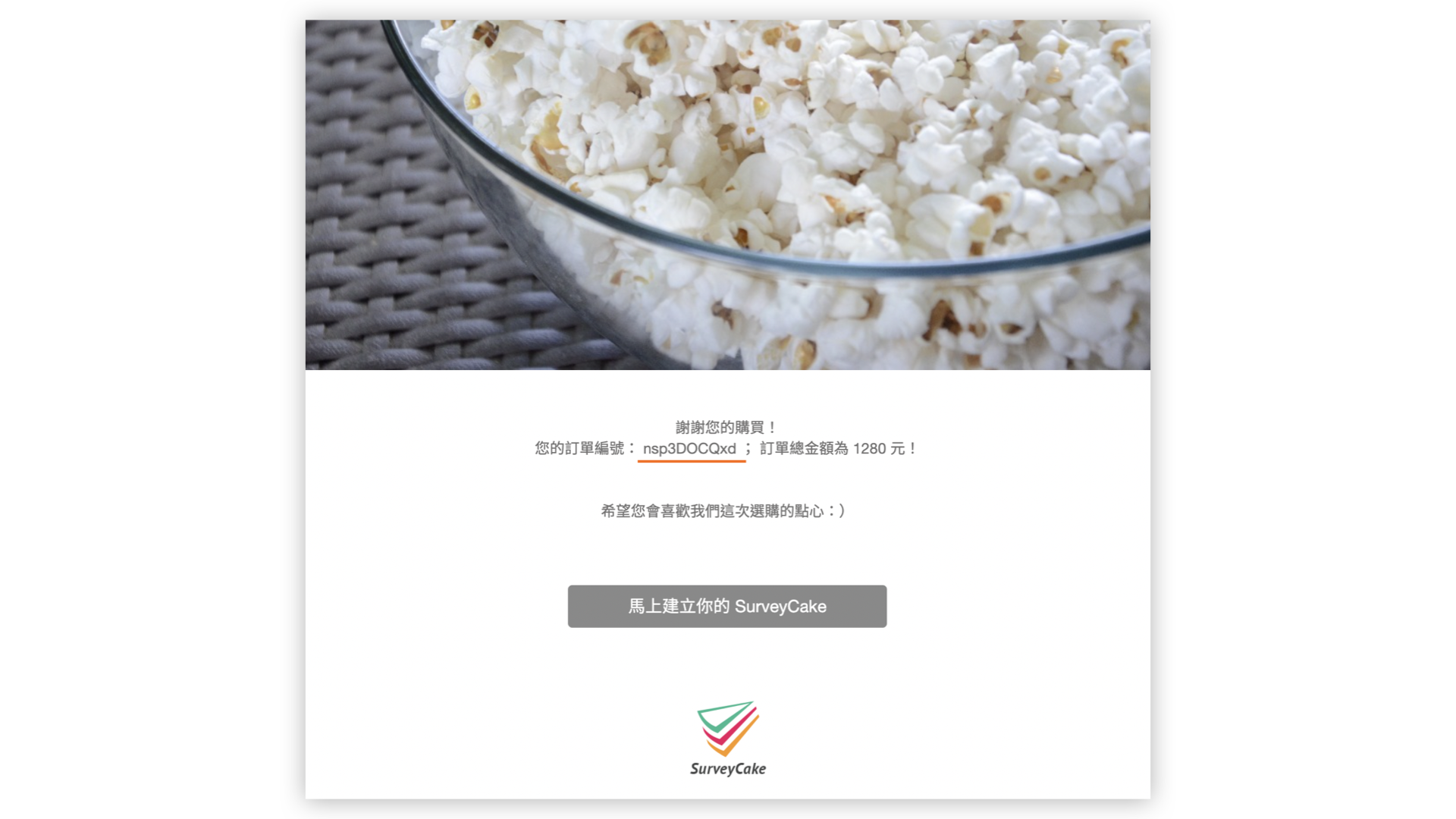
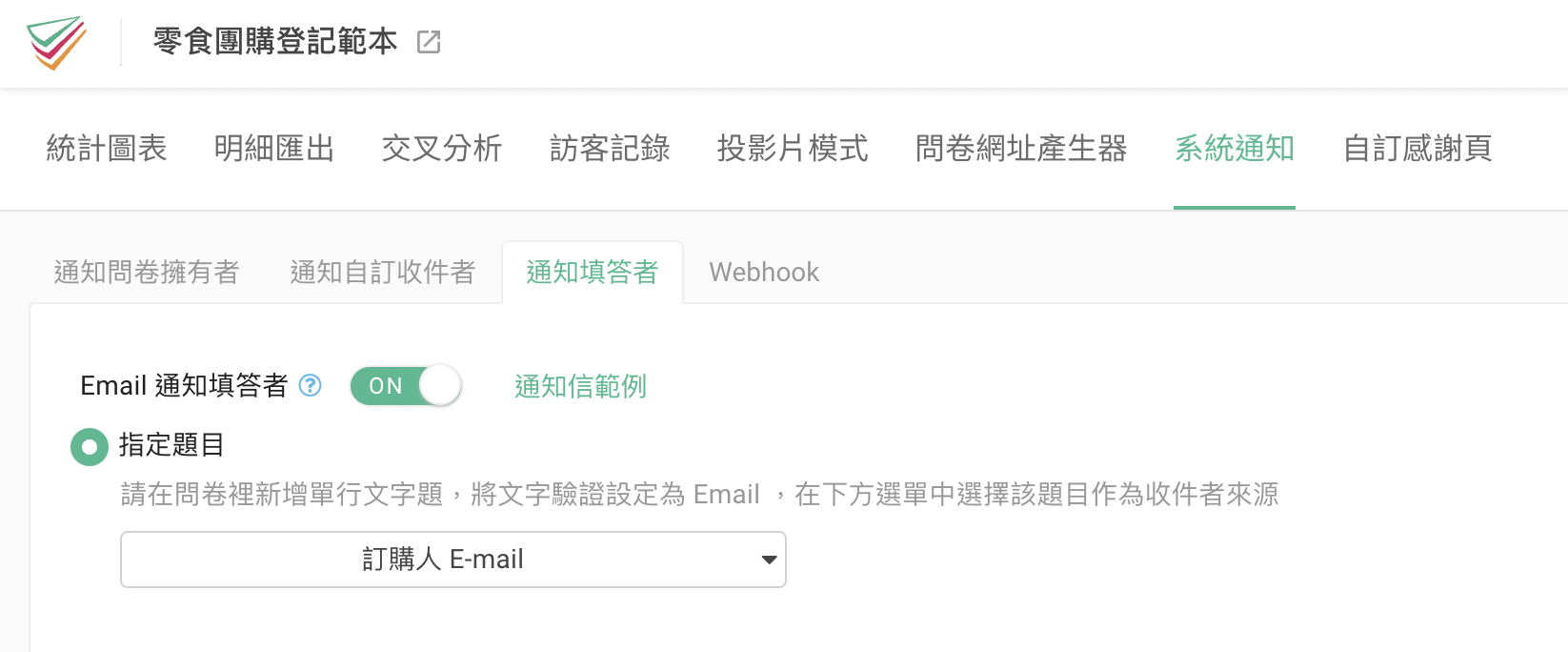
Also, if you wish the respondents to receive the email notification to display their orders, go to "Notification" section, then "Respondent Notification" to click on the "Respondent Email Notification". Depending on the type or modification, selections of email addresses are available, for example to respondents' email or to survey-owners. Learn more about Auto Email Notification.
Summary
Serial Number is suitable for the online-shop order, prize-winner selection, or the use with large-number respondents. This enables easier management, also enabling the respondent or consumer to check their designated number.