Option Quota is often used in surveys with a fixed sample size, such as registrations or orders. When an option reaches its capacity limit, respondents can no longer select that option, allowing you to control the number of selections.
In the example below: If Item 1 is a limited product with only 5 units available, click the three-dot menu of the Item 1 option and select "Option Quota".
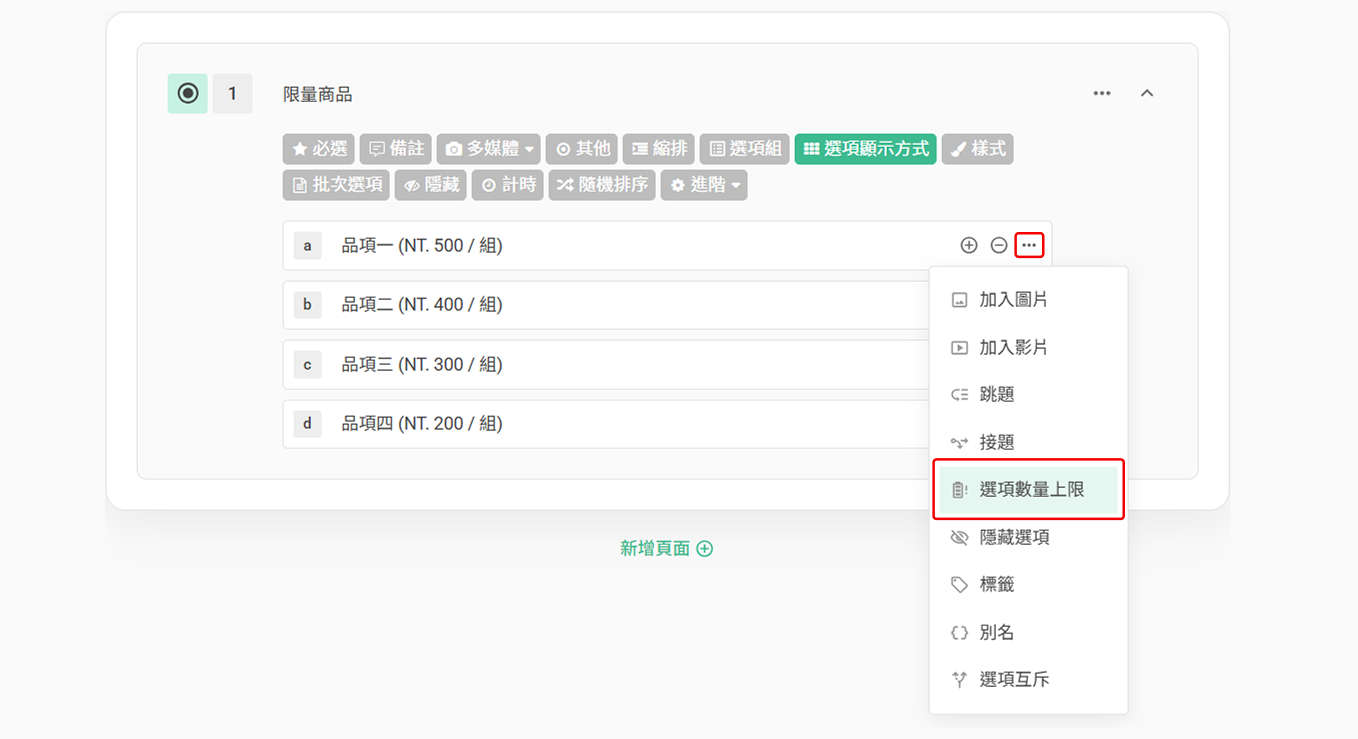
Next, when setting a quota for a single option, you need to further configure the "Number of times this answer can be chosen" and "Action when reaching option quota".
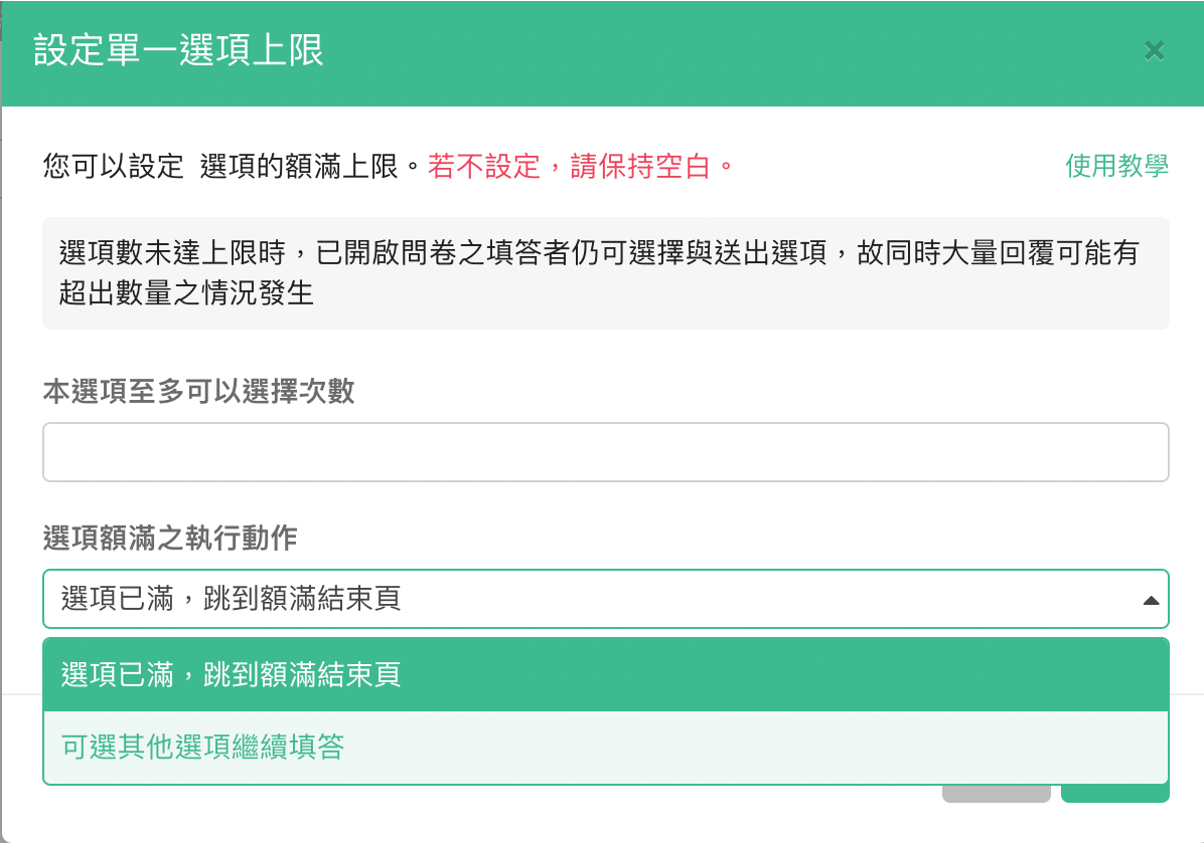
Maximum quota for this option
The maximum number of times a specific option can be selected.
Action when reaching option quota
When a specific option reaches its maximum limit, there are 2 different follow-up actions available:
Select other options to continue
When a respondent tries to select a specific option that has reached its limit, they will not be able to select it, and the option will display a reminder saying "The limit for this option has been reached. Please choose another option." However, the respondent can still continue to select other options.
Redirect to thank-you page
When a respondent tries to select a specific option that has reached its limit, the system will directly skip all subsequent questions, guide the respondent to submit the survey immediately, and redirect them to the "Option Quota Reached Page".
Select other options to continue
Using Item 1 with a quota of 5 units as an example:
If you want respondents to be able to continue selecting other items after all 5 slots for Item 1 have been filled, set the "Number of times this answer can be chosen" to 5 and set the "Action when reaching option quota" to "Select other options to continue".
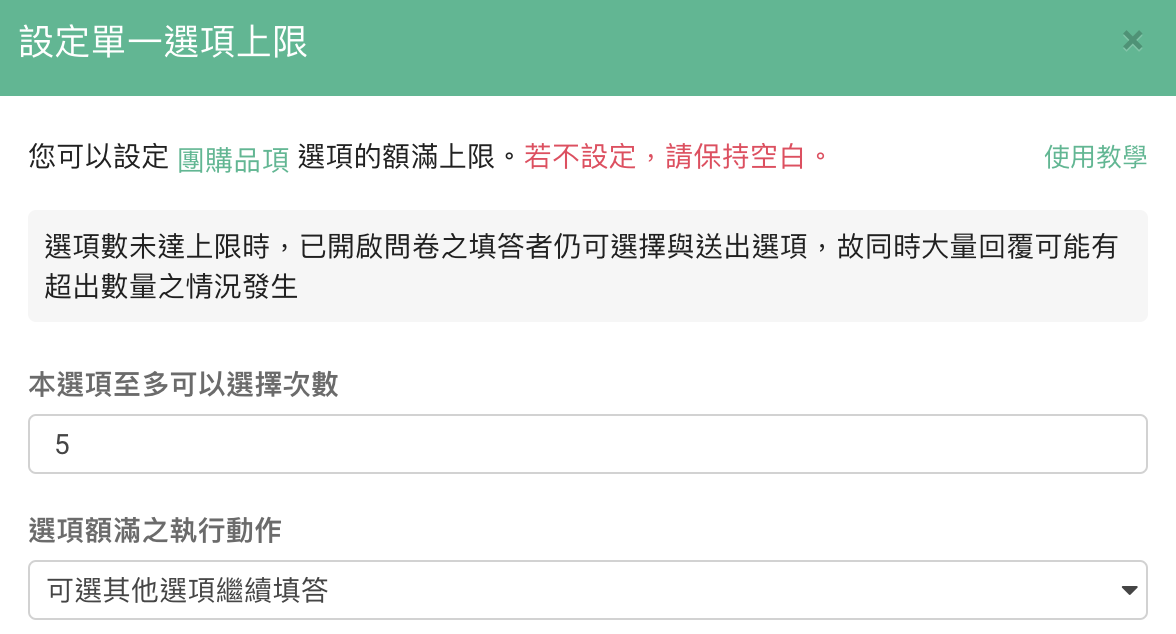
This way, when a respondent tries to select Item 1 which is already full, the option will display a reminder saying "The limit for this option has been reached. Please choose another option.", and the respondent can still continue to select Items 2, 3, or 4.

Redirect to thank-you page
However, if you want to directly guide respondents to submit the survey after all 5 slots for Item 1 have been filled, without giving them the opportunity to continue selecting other options or filling out subsequent questions, you can set the "Action when reaching option quota" to "Redirect to thank-you page".
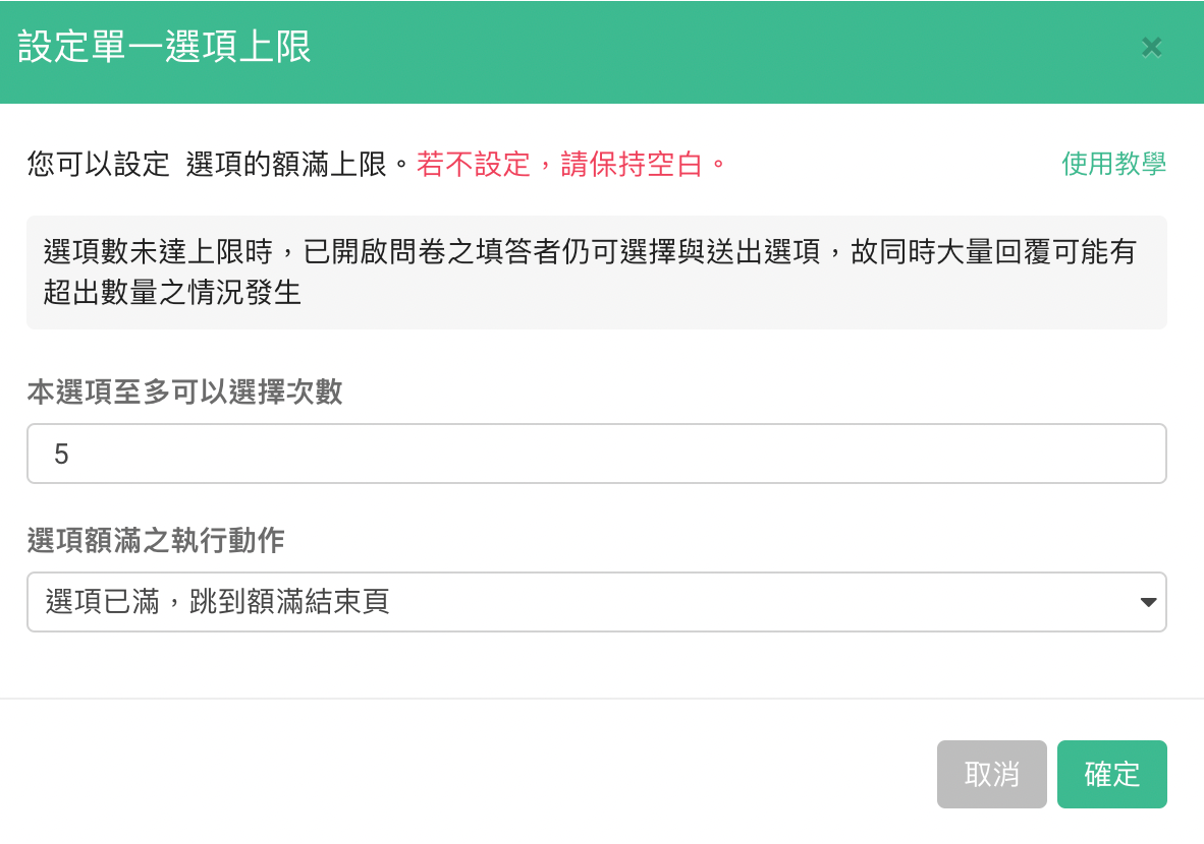
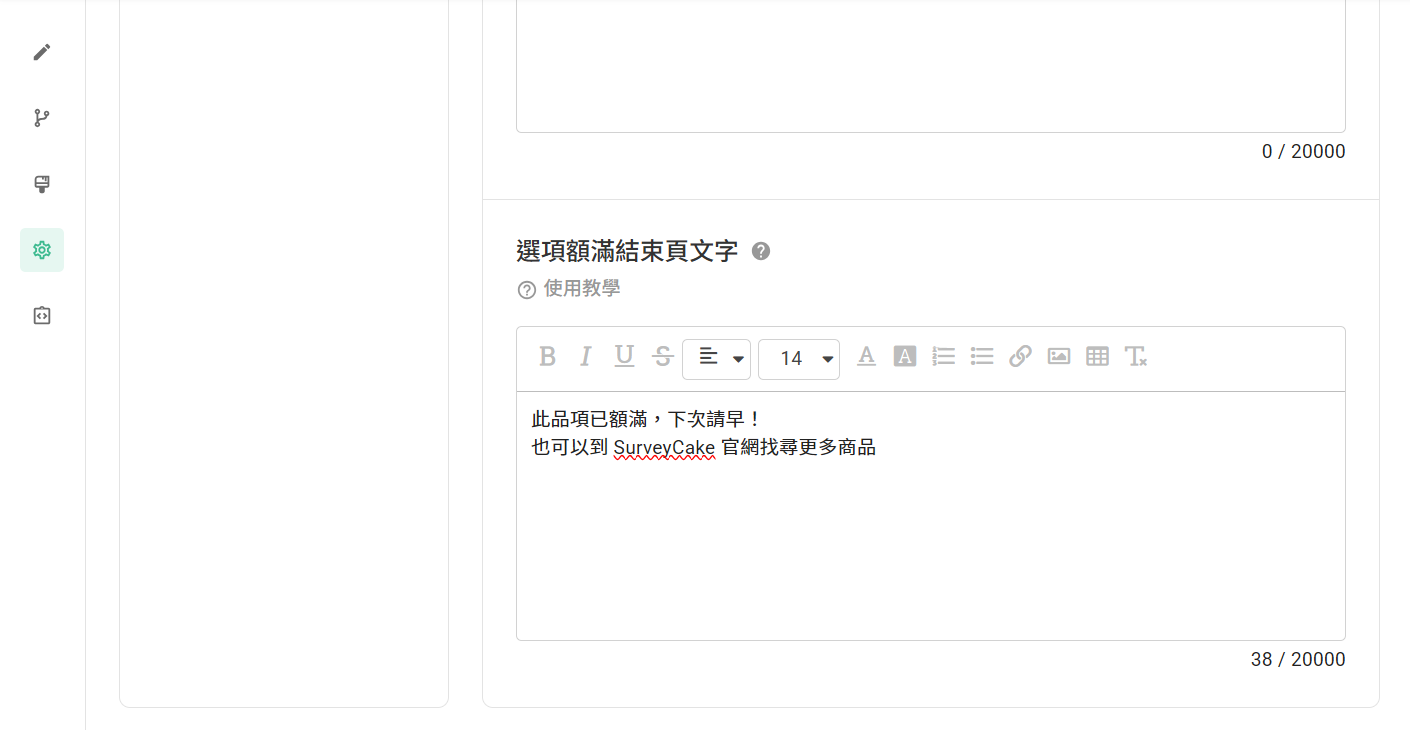
Additionally, you can customize the message text for the Option Quota Reached Page in "Welcome & Thank You Pages" under "Option Quota Reached Messaget" in the survey settings.
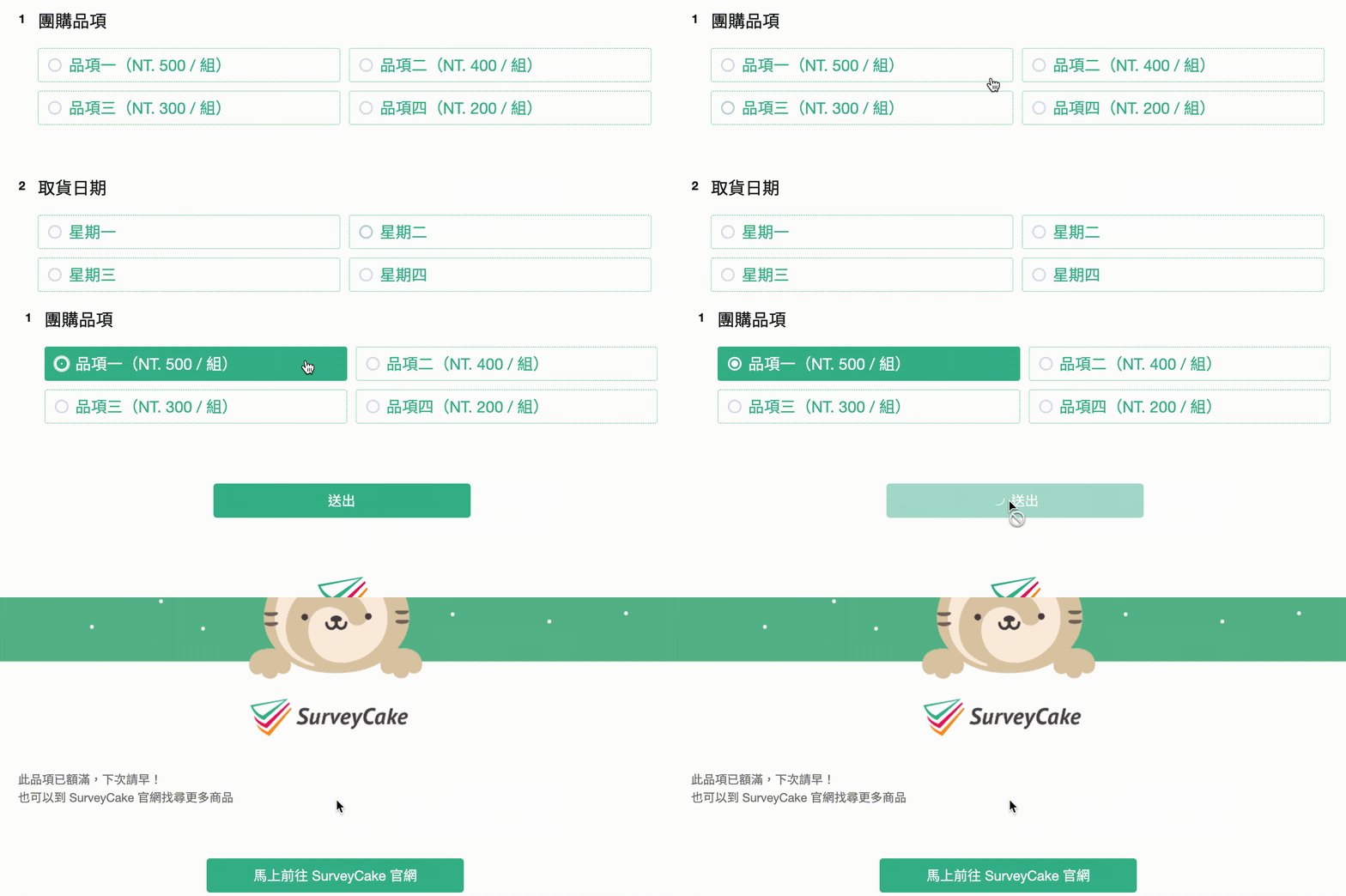
This way, when a respondent tries to select Item 1 which is already full, they will skip all subsequent questions, be guided to submit the survey immediately, and be redirected to the Option Quota Reached Page.
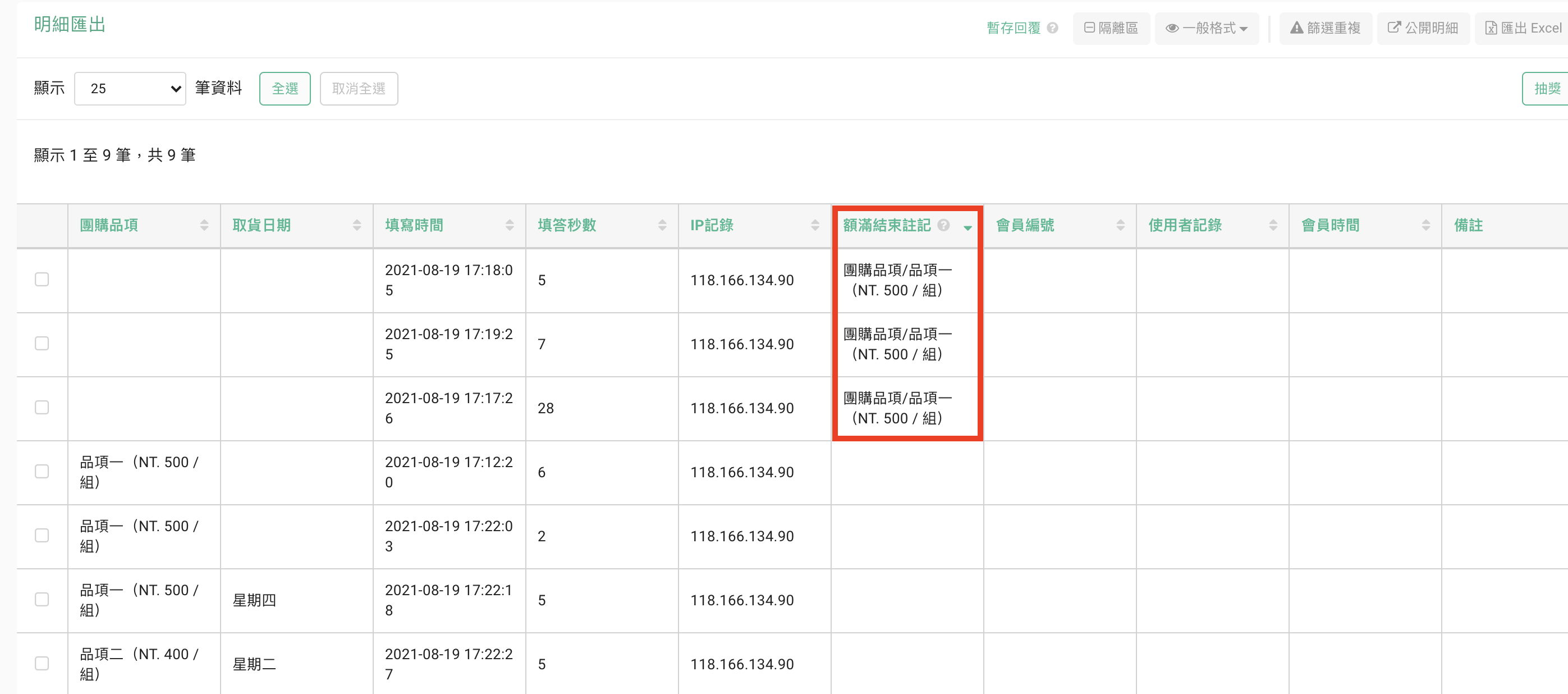
Responses that are redirected to the option Option Quota Reached Page will remain blank for all questions in the backend. However, there will be an additional column called "Record of option quota exceeded" that records which question and which full-capacity option the response selected, allowing you to understand how many additional times each full-capacity option was selected and gauge the popularity of options.
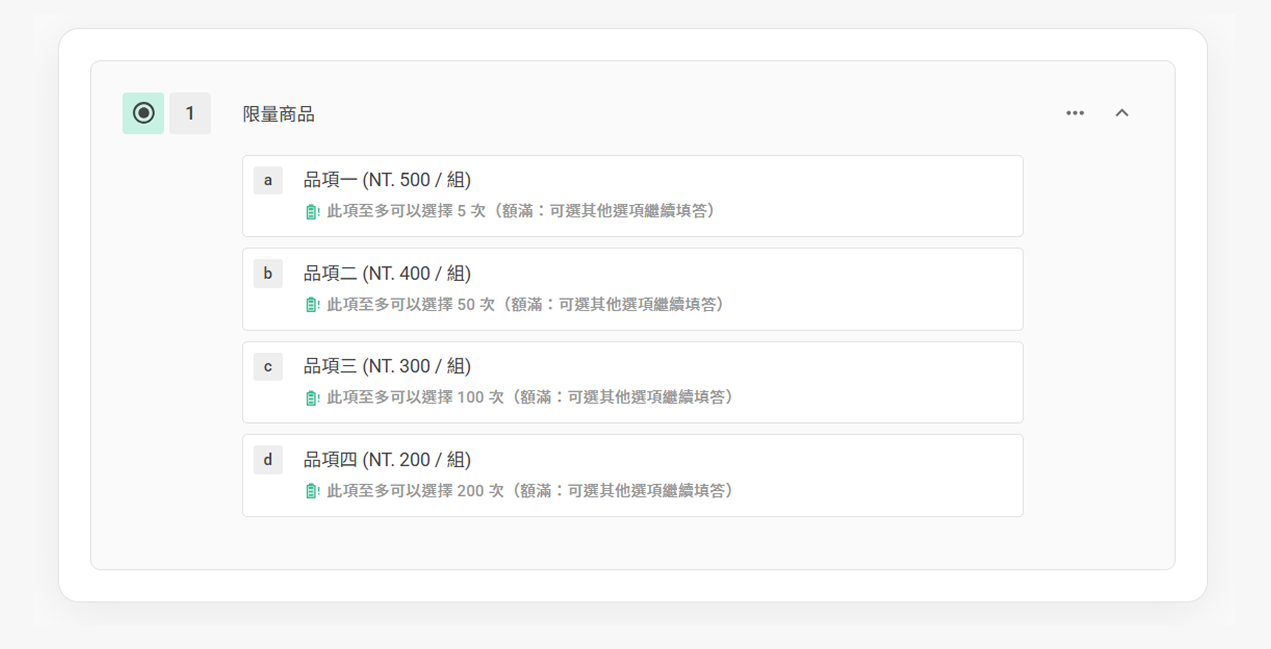
Finally, after you have configured the capacity limits and actions for all options, the backend will display all your settings for the corresponding options.
FAQs
What is the difference between Option Quota and Response Limit?
Option Quota: The maximum number of times an option can be selected in Multiple Choice/Checkboxes questions within the survey.
Example: A survey includes a multiple choice question asking respondents to choose their preferred event session from options A, B, and C. If session A is limited to only 10 participants, you can set the option quota for option A to 10. When the 11th person tries to select session A, the system will automatically block the selection, preventing them from choosing it!
Response Limit: The maximum number of responses that can be collected for the entire survey.
Example: If you use a survey as an event registration form and the event only accepts 100 participants, you can set the response limit to 100. When the 101st person tries to access the survey, they will only see the "full capacity" closure message and will not be able to register.
Below is a table summarizing the differences between these two features:

Can the remaining number of available options be displayed in real-time?
Currently, the remaining number of options is not displayed in either the survey or the backend.
If you want to check the current remaining number for an option, we recommend visiting the Chart Report to quickly view how many times each option has been selected, then subtract this from the original option quota you set to calculate the remaining availability!
Can the option quota be modified after the survey has been sent?
Yes, regardless of whether the survey has been sent or is open for responses, you can adjust the option quota at any time!
Additionally, modifying the option quota will not affect responses that have already been collected. For example:
You originally set the quota for option A to 10 and have already received 8 responses selecting option A. When you reduce the quota from 10 to 5, option A will immediately show as full in the survey, but the 8 existing responses that selected option A will not be affected in any way!
If an option reaches full capacity and I delete some collected responses, will the option slots be released again?
Yes; if you delete collected responses, the number of responses you delete will equal the number of option slots released!
Example: Option A has a quota of 5, and all 5 slots are currently filled. If you go to Data Report and delete 2 responses that selected option A, this will release 2 slots, meaning option A can be selected 2 more times!
Summary
Option Quota allows survey creators to easily set capacity limits for options, making your surveys more convenient and significantly improving collection efficiency!