With this feature, respondents are required to confirm their answers before submission. This can lower the chance of answer errors and reduce the cost of modifying answers later.
How to Enable the Review Before Submit feature?
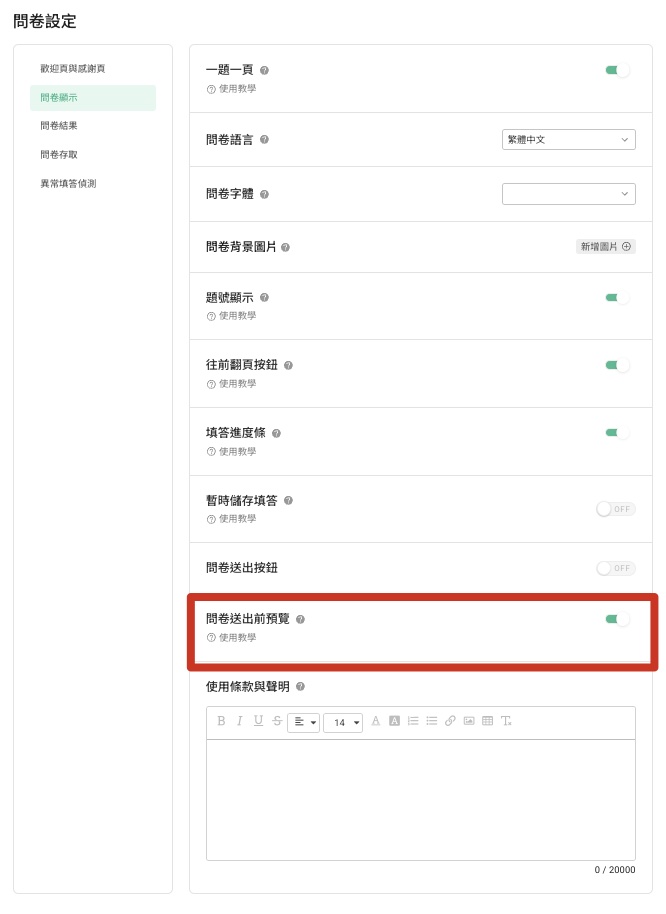
Go to the Build page.
In the left sidebar, click on Survey Settings.
Navigate to the Survey Display tab.
Enable the 'Review Before Submit' feature.
This will allow respondents to see a summary of their answers and make any final changes before submission.
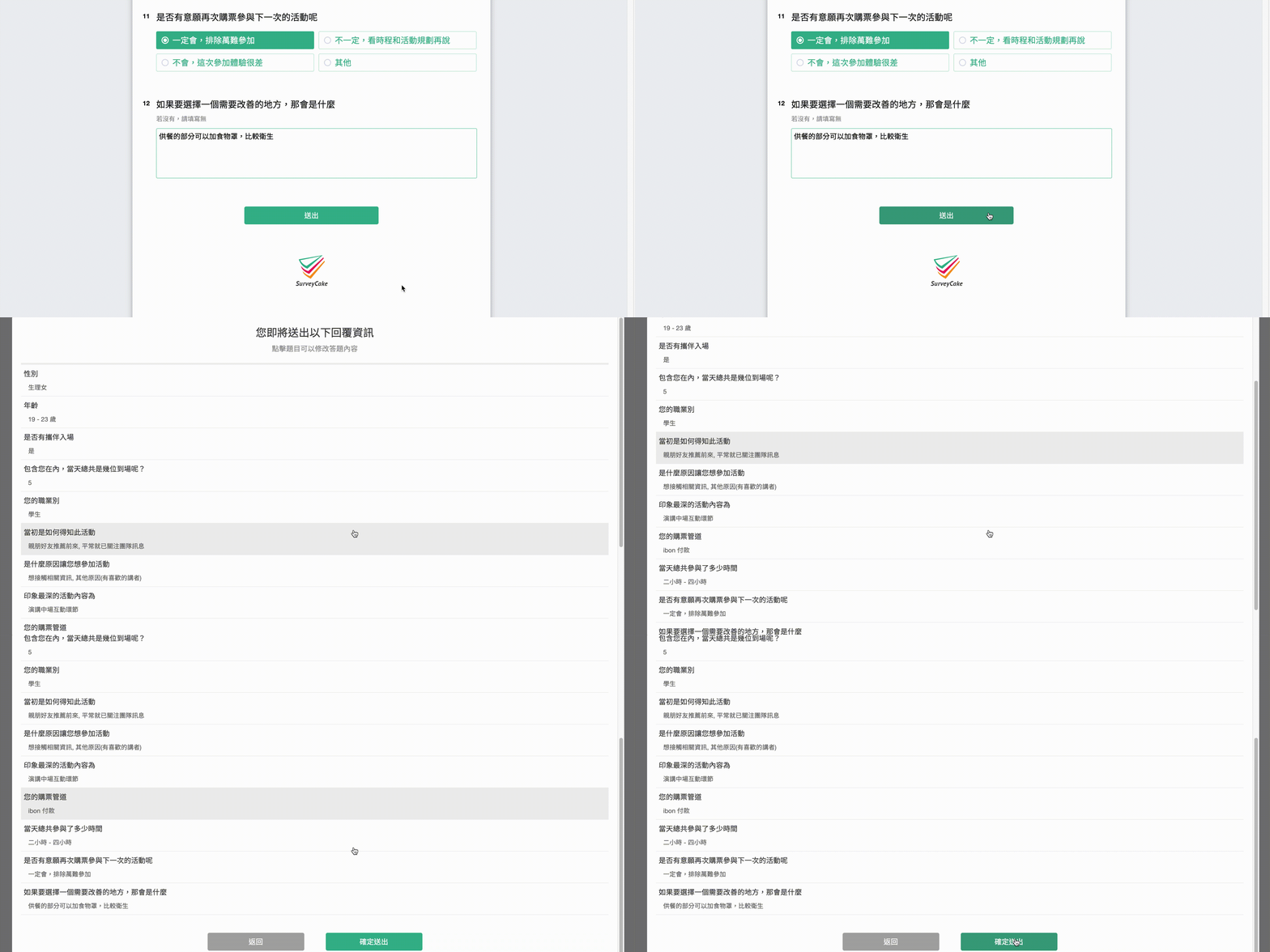
Once the respondents click Submit, a summary of all questions and their corresponding answers will be displayed, allowing them to review their responses before submission.
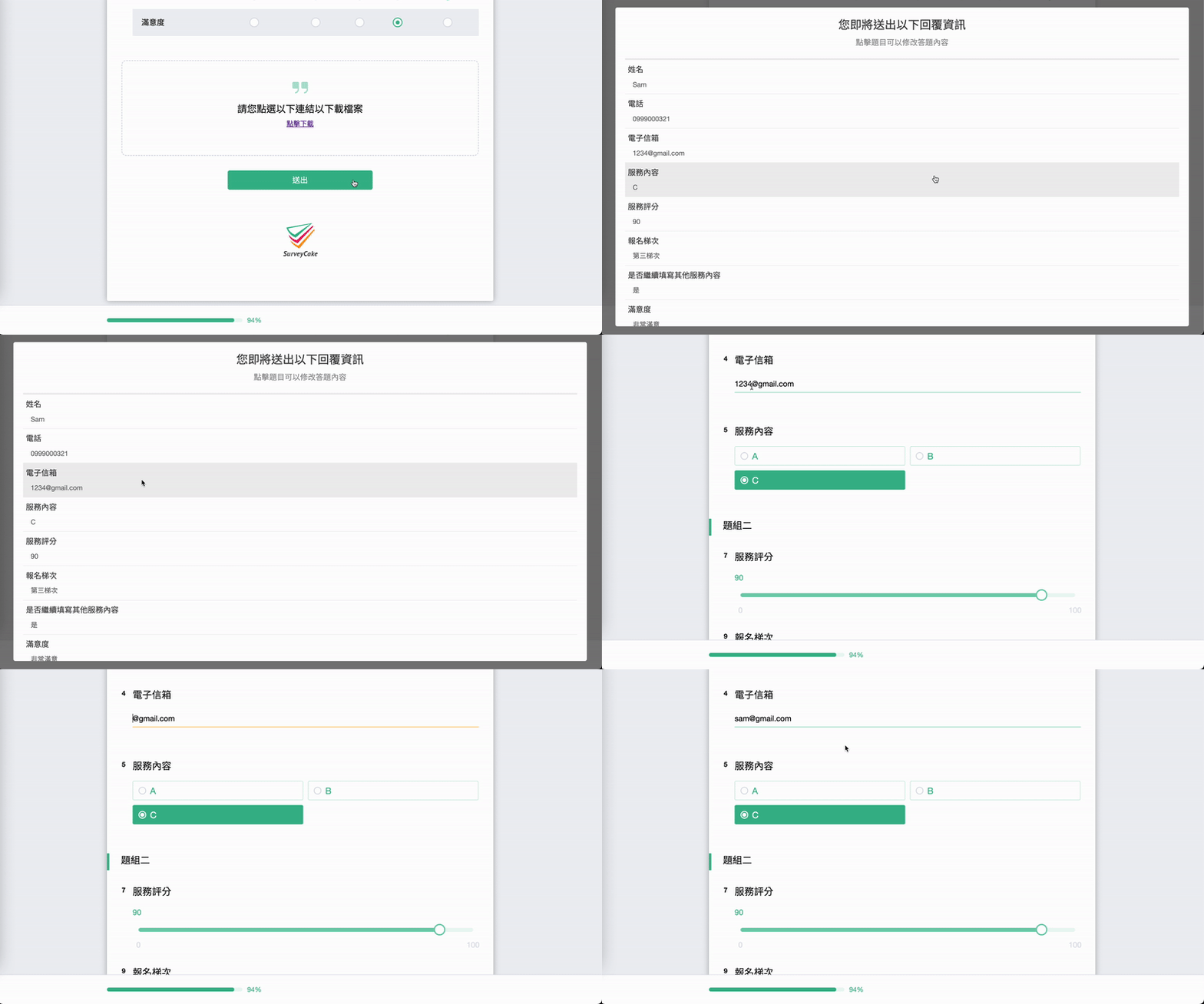
If any modification is required in the review page, simply click the question to modify its answer.
FAQs
If a survey has Skip Logic or Conditional Branching, will the "Review before Submit" display the skipped or not branched questions?
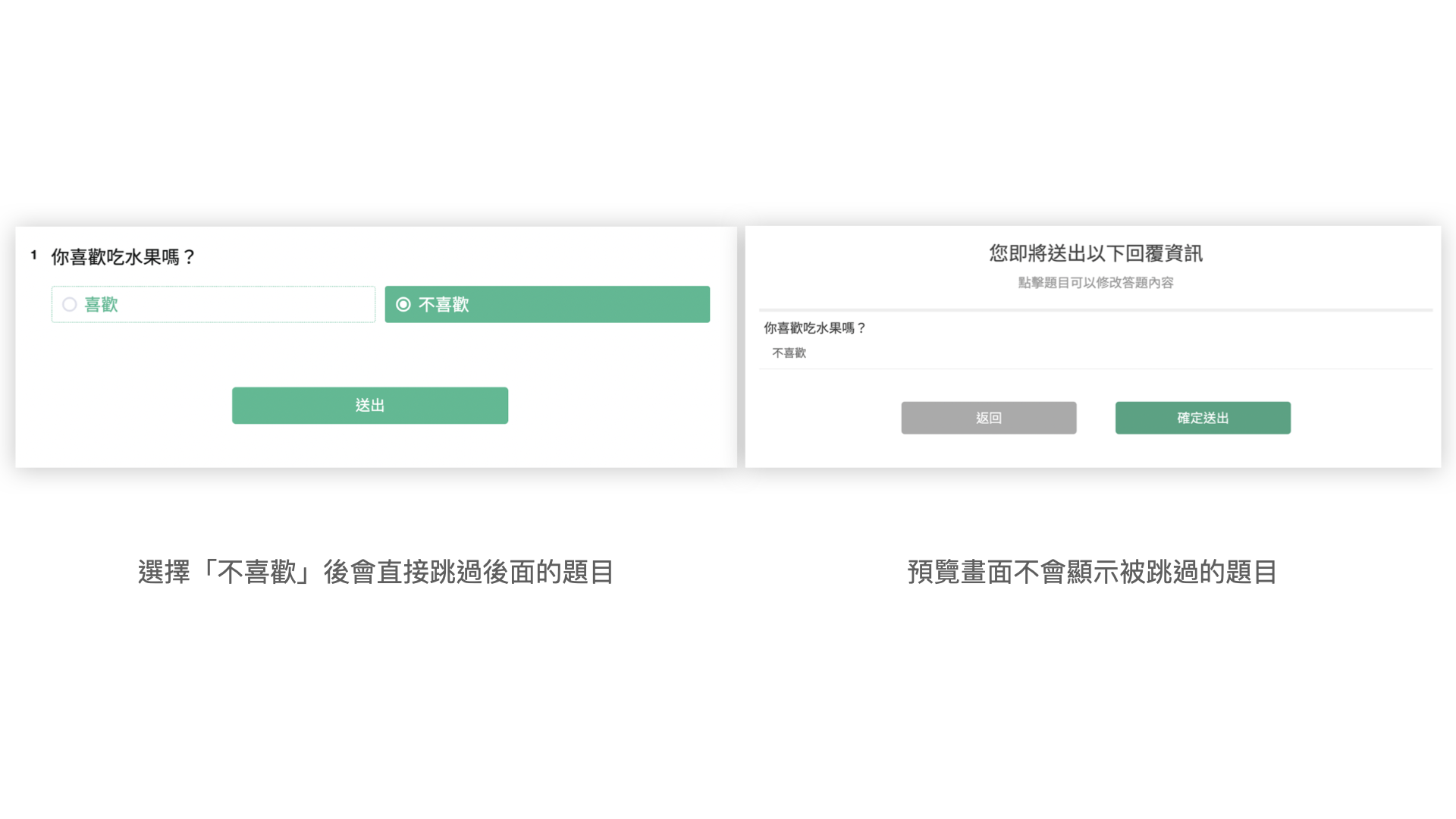
No, it won't. The "Review before Submit" will only display questions triggered by Skip Logic or Conditional Branching. In other words, questions that have NOT been branched out or have been skipped will NOT appear on the "Review before Submit" page.
Conditional Branching: The "Review before Submit" page will only show questions that have been branched out. For instance, after selecting 'Like' on Question 1, Question 2 branches out, you can preview Question 2 on the screen before submitting the survey.
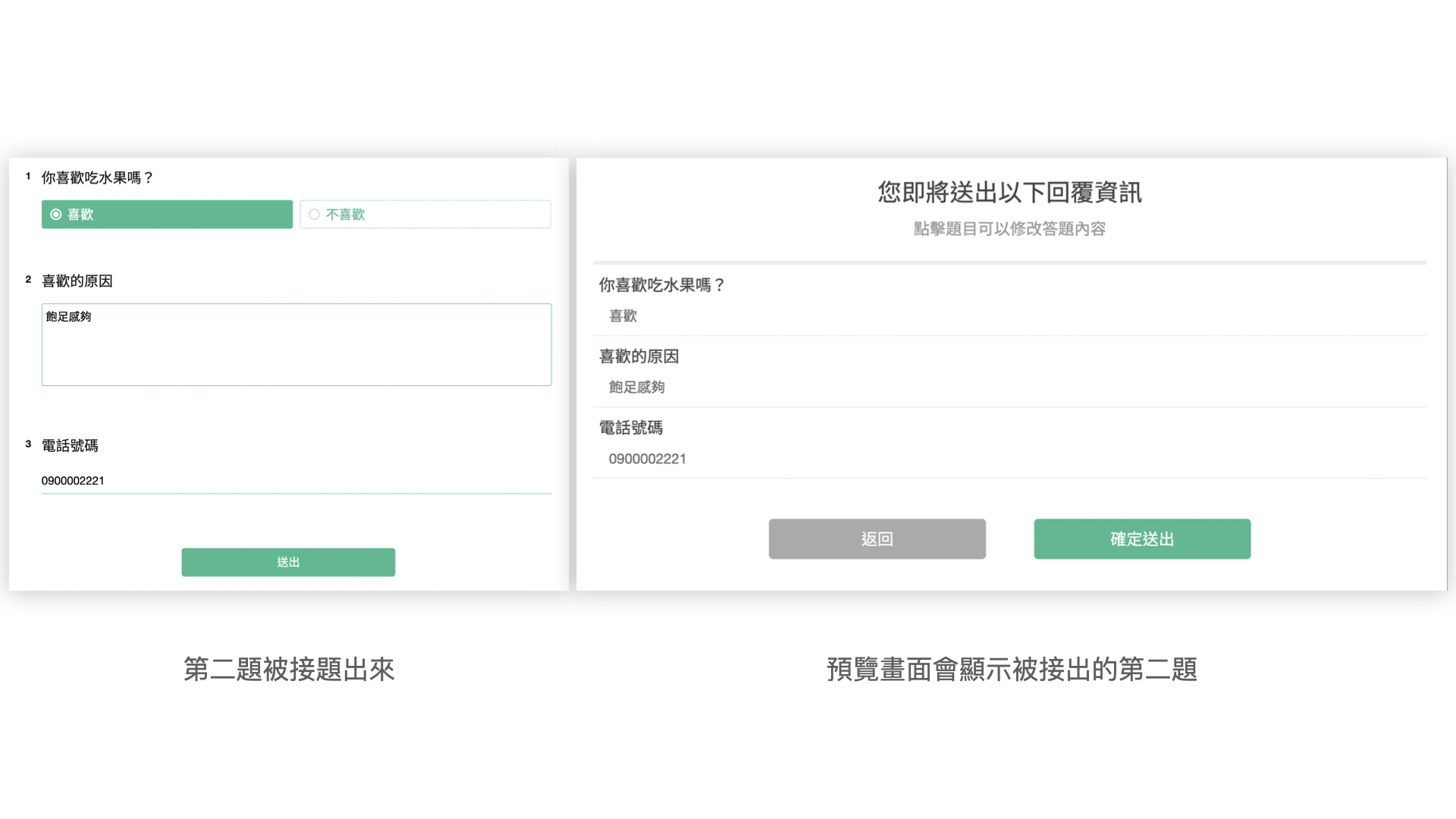
Skip Logic: The "Review before Submit" page will NOT display skipped questions. For example, if 'Dislike' is selected, all subsequent questions will be skipped. Therefore, during the preview, the skipped questions will NOT be shown.
Summary
Review before Submit is perfect for survey applications such as sign-up or group buying order forms. It is an indispensable function to help respondents verifying their answers and maintaining correct survey data.