For surveys with a fixed response limit, simply set the Response Limit before editing the questions. To set the Response Limit, click the "Settings" button in the sidebar of the "Build" page, and open the "Response Limit" field on the "Survey Access" page.
For example, set Response Limit to 30 when 30 replies are needed.
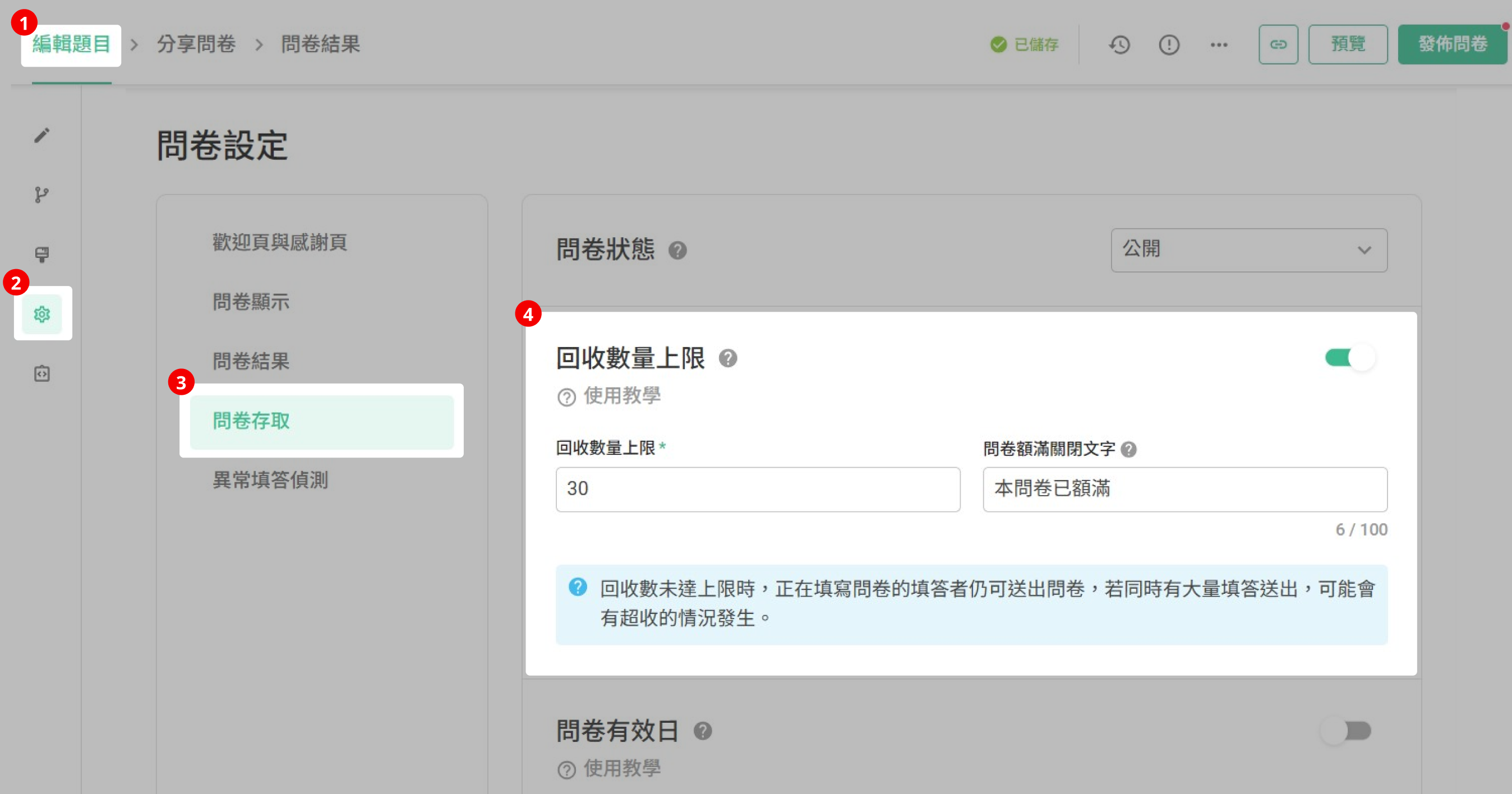
At the same time, you can also set the text that will be displayed to respondents when the survey is closed due to reaching its capacity [Default Text: "Sorry, we're full! We do not accept responses anymore."]. For more details, please refer to Edit Survey Closed Message
The 31st respondent will receive a survey closed message will not be able to view or fill out the survey

FAQs
What is the difference between Response Limit and Selection Limit?
Response limit: The maximum number of responses that can be collected for the survey For example, if you're using the survey as a registration form for an event with a limit of 100 participants, you can set the Response Limit to 100. When the 101st person attempts to register by clicking on the survey, they will only see the survey closed message and won't be able to register.
Selection Limit: The maximum number of options for multiple-choice or checkbox questions within the survey.
For example, if your survey includes a multiple-choice question where respondents need to select their preferred session from options A, B, and C, and option A has a limit of only 10 registrants, you can set the Selection Limit for option A to 10. When the 11th person tries to choose option A, the system will automatically block them from making that selection. The table below displays the difference between the two features:

Summary
Response Limit sets the number of replies in surveys!