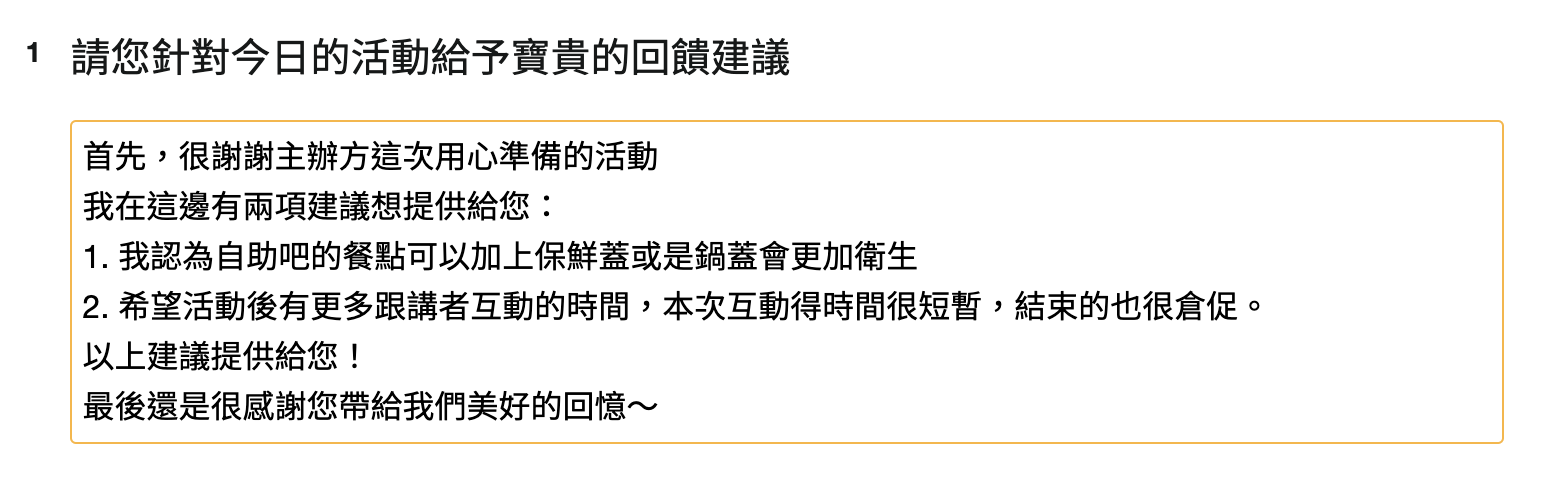
Paragraph Text is commonly used in surveys. Respondents are able to express their opinions with this type of question. This question type is particularly suitable for those respondents who are overflowing with ideas as well as for the survey designers who would like to collect insightful and creative responses.
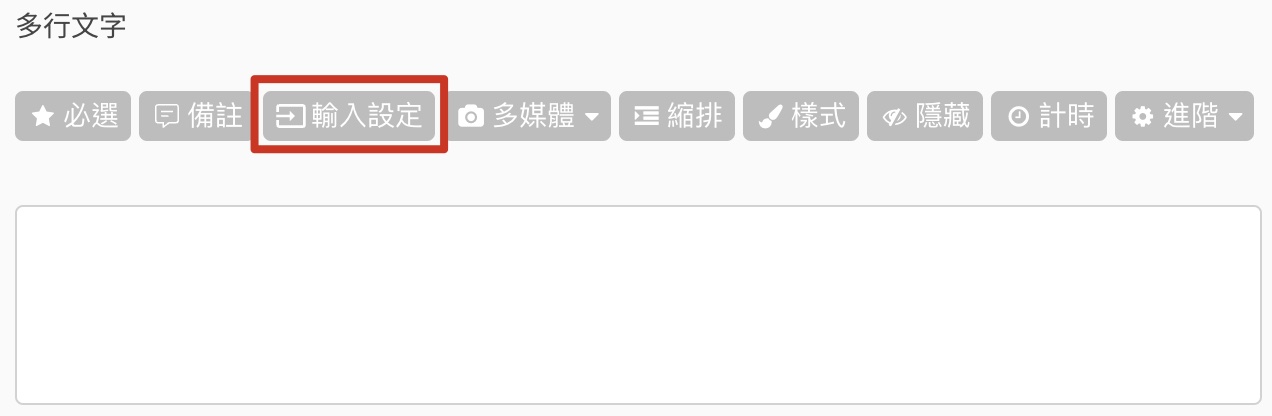
In addition to the common features shared by all question types, such as Required, Note, Add Media, Indent, Style, Hide, and Timer, Paragraph Text also offers Input Settings including Text Validation and Custom Placeholder Text to guide respondents in providing answers that meet the specified format: Text, Email, Phone Number, URL and API.
Among the available Text Validation formats for Paragraph questions, the most recommended and commonly used one is 'Text.' This format is primarily used for collecting feedback and suggestions. It allows respondents to input multi-line answers with line breaks and also provides the option to limit the character count. Additionally, you can use a custom 'API' to ensure responses validity. As for the other three Text Validation formats (Email, Phone Number, URL), they are better suited for single-line text questions. For more detailed information, please refer to Single Line Text Next, we will explain the text validationverification settings for 'Text' and 'API':
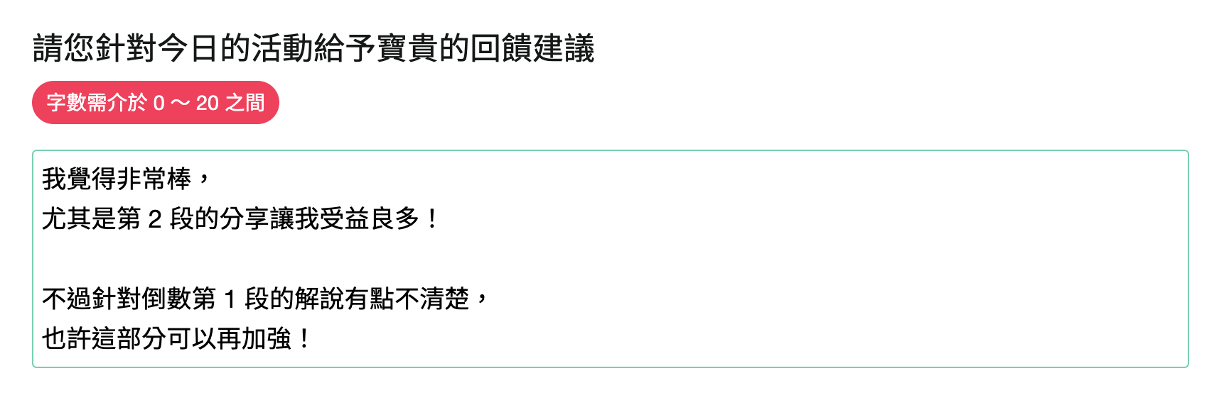
When you want to collect textual or alphanumeric responses, you can enable ‘Text' validationverification and set the character count within a specific range. This way, before respondents provide their answers, the question will display a guiding message such as 'Input text here,' and it will also block all responses that do not meet the specified conditions!
For example, if you want to collect respondent opinions and prefer the response to be no longer than 20 characters, you can set the character count restriction to be between 0 and 20.
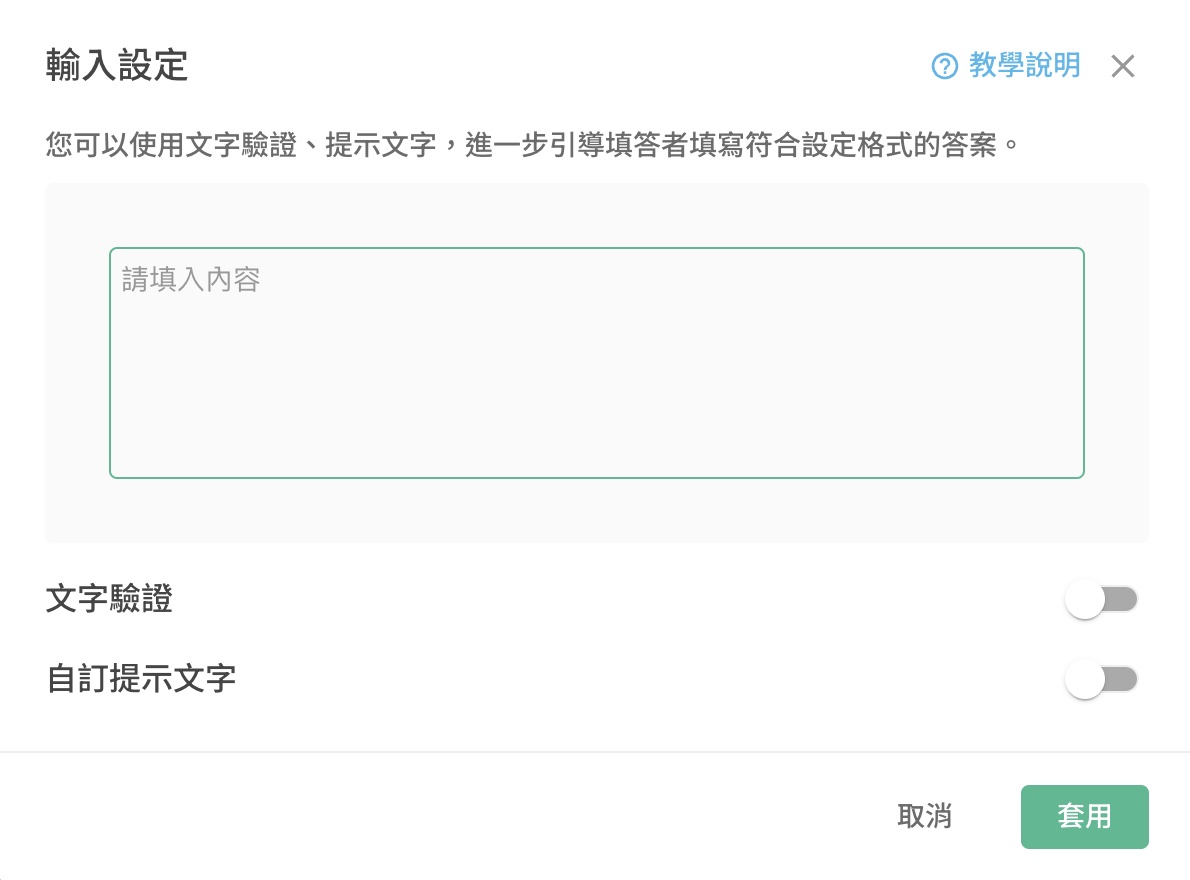
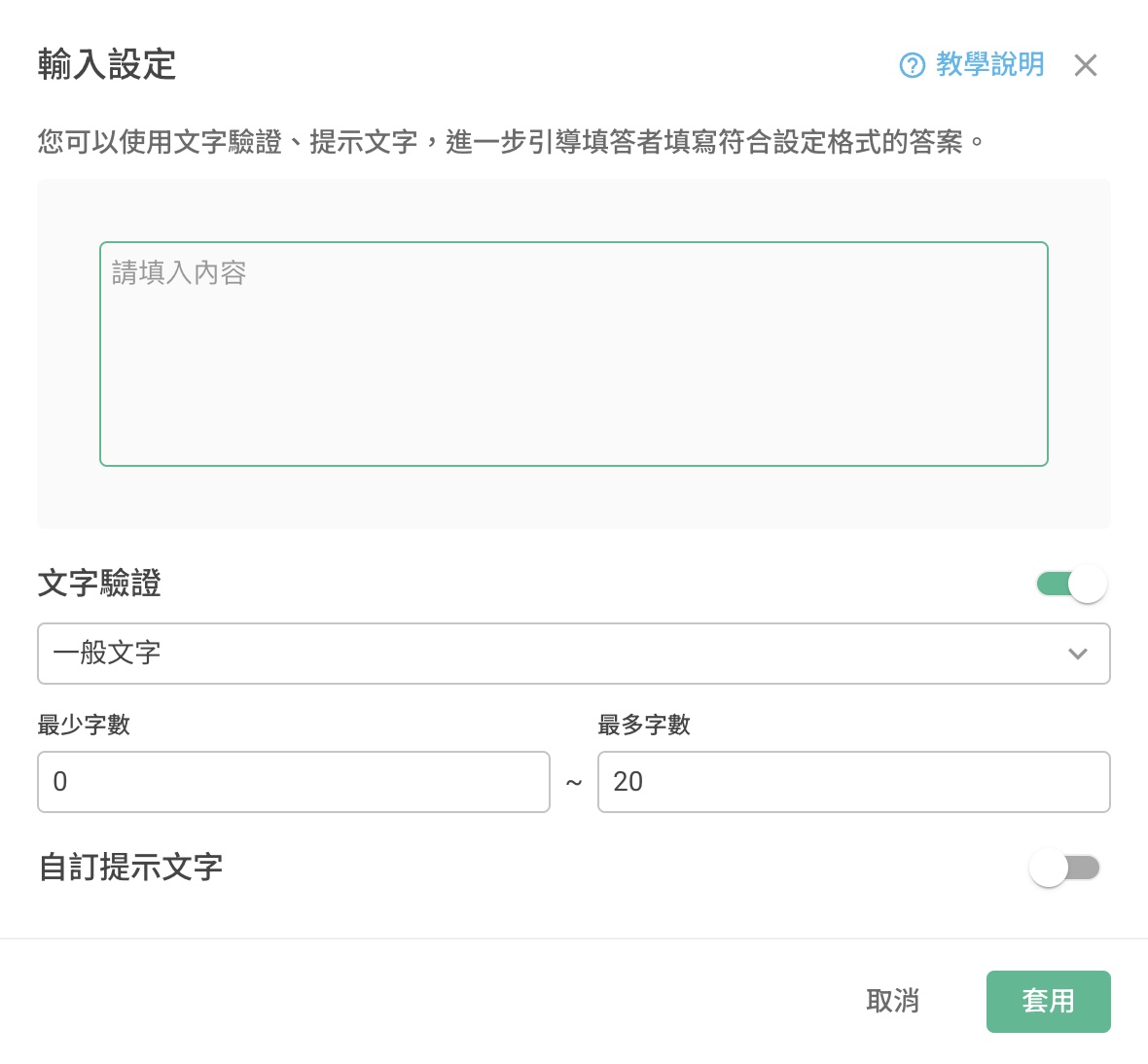
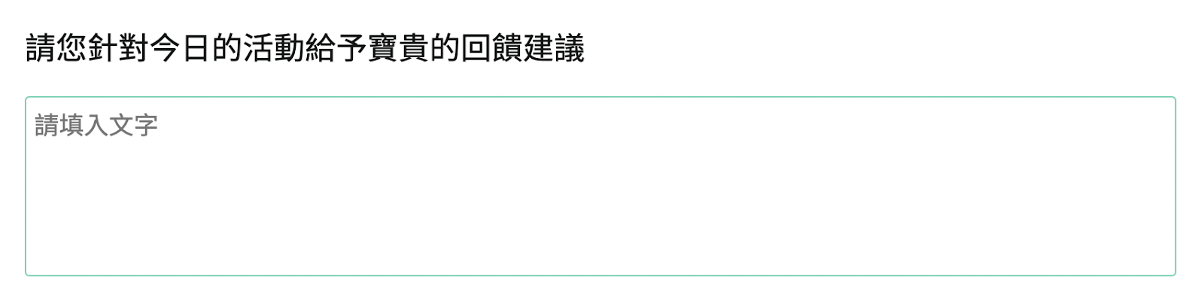
Set the “Text” validation limited to 0 to 20 characters
The default guiding text “Input text here” will be displayed when respondents haven’t filled out the answer
The prompt that respondents will see when their answer is exceeding the character limit
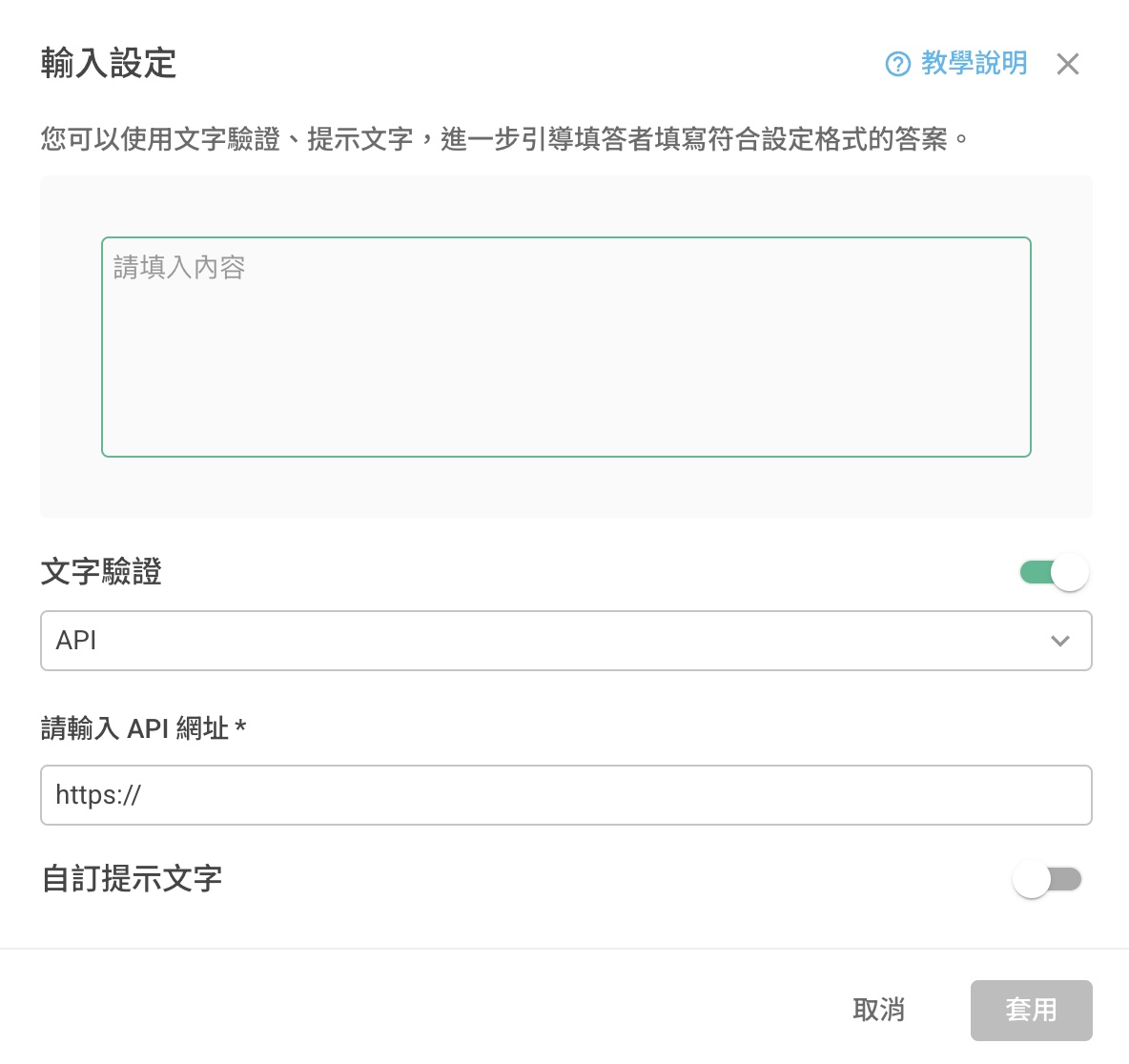
You also have the option to integrate your custom API into the survey, and the real-time response from the API will be displayed on the page. Additionally, you can utilize the API results to determine whether the question validation has passed. For more detailed information, please refer to the API.
FAQs
Can Skip Logic be applied to Paragraph Text?
No, currently Skip Logic and Conditional Branching are only supported for Multiple Choice and Checkboxes question types. They are not available for other question types yet.
Why does the response line of multi-line text not break when viewing the response in the detailed report?
This is to prevent the displayed text in Paragraph Text from causing excessive length in answer previews, survey results, and detailed exports due to multiple line breaks by respondents. Therefore, line breaks are not applied in the Preview, Chart Report, and Data Report of the survey.
If you would like to view the original line breaks in the responses of Paragraph questions for easier reading, you can click on the "Export as" button at the top right corner of Data Report to export the responses to an Excel file, where you can see the original line breaks.
How to insert line breaks in default answers for Paragraph text questions?
You can simply insert the specific parameter "%0a" in the survey URL after the text where you want a line break!
Summary
The Paragraph Text question type allows respondents to freely express their opinions, which can lead to gathering insightful and valuable responses. You never know what valuable insights you might collect!