Availability and Limitations:
Team Plan: Up to 1 Nested Dropdown Question per survey
Enterprise Plan: Up to 2 Nested Dropdown Questions per survey
The Nested Dropdown feature makes it easy for respondents to navigate long lists by using multi-level filtering. Instead of scrolling through an overwhelming list, they're guided step by step—starting broad and narrowing down based on their selections.
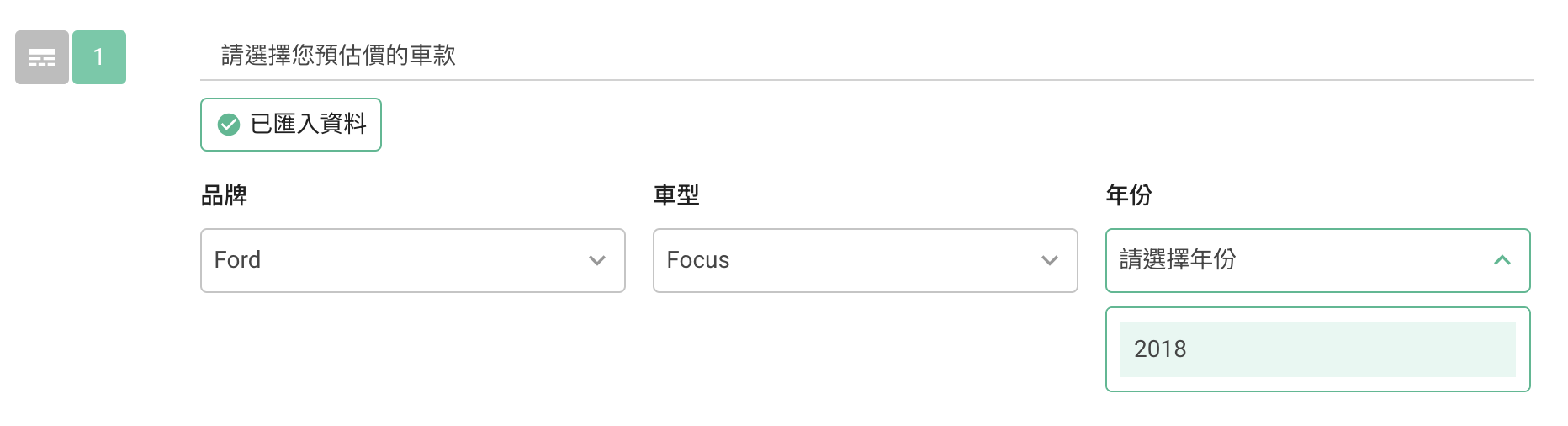
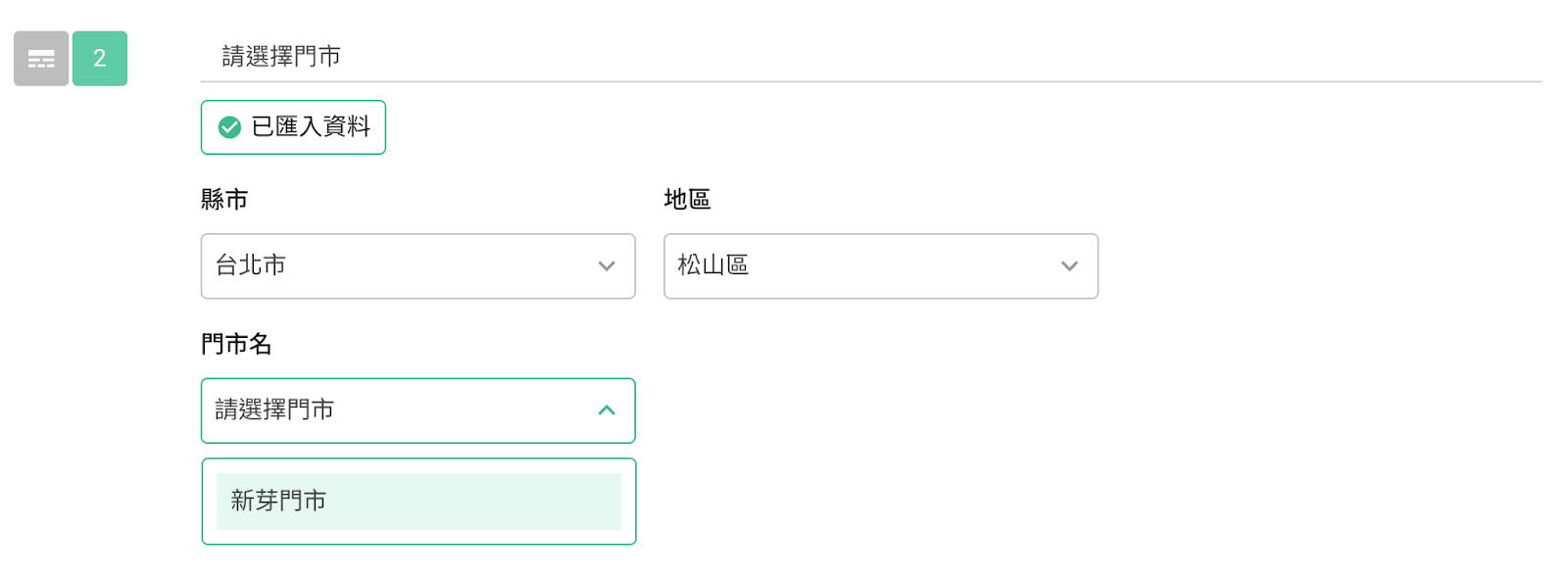
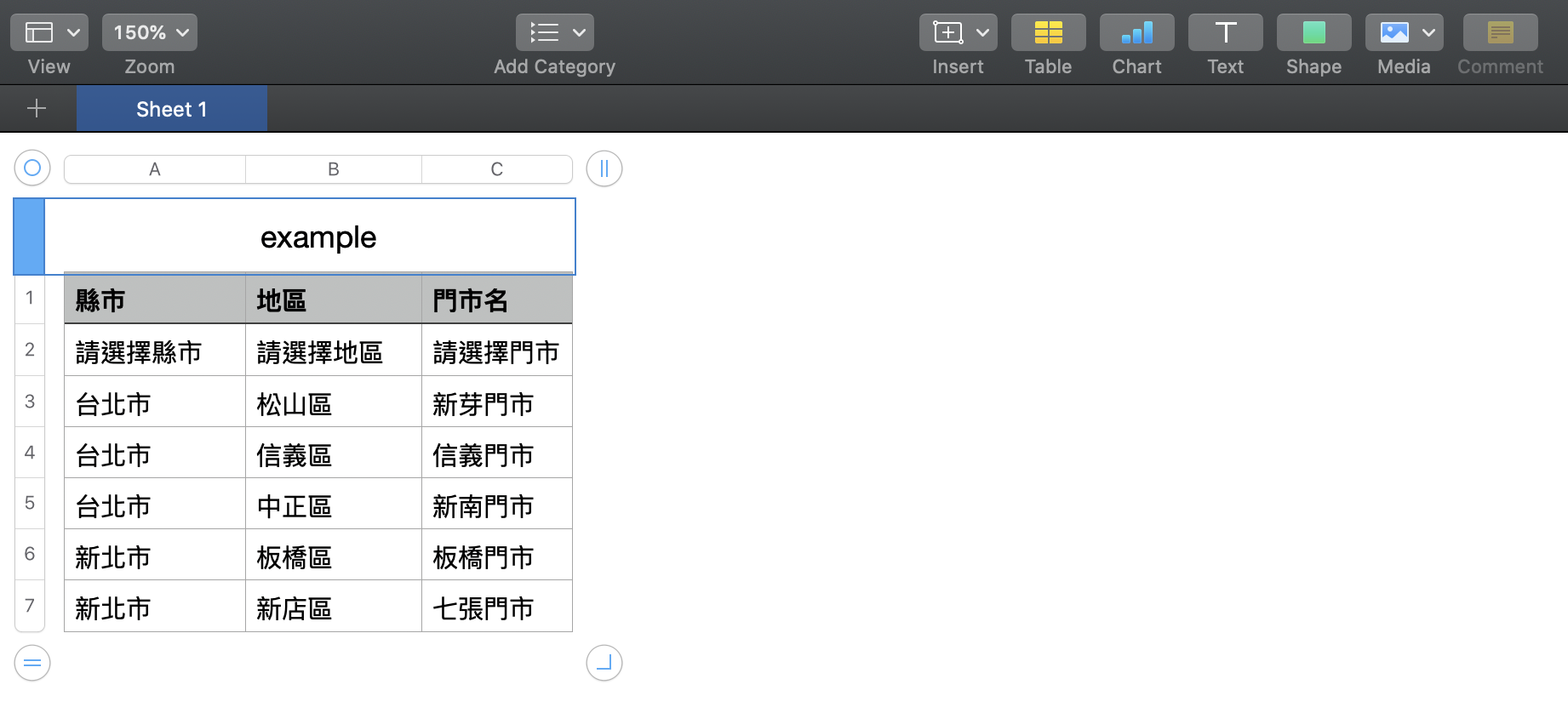
To help users select a specific store, start by having them choose a city, followed by a district. Once both are selected, the dropdown will display the relevant stores in that area.
Which store did you visit: City (New York City) → District (Manhattan) → Store (A)
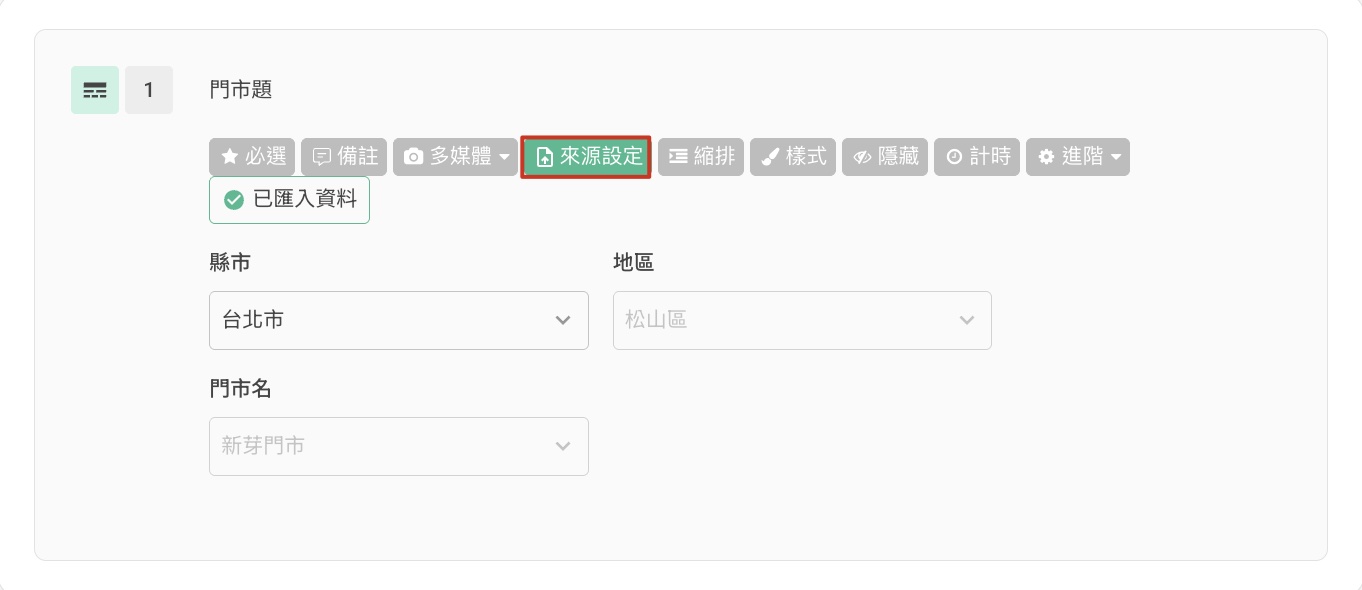
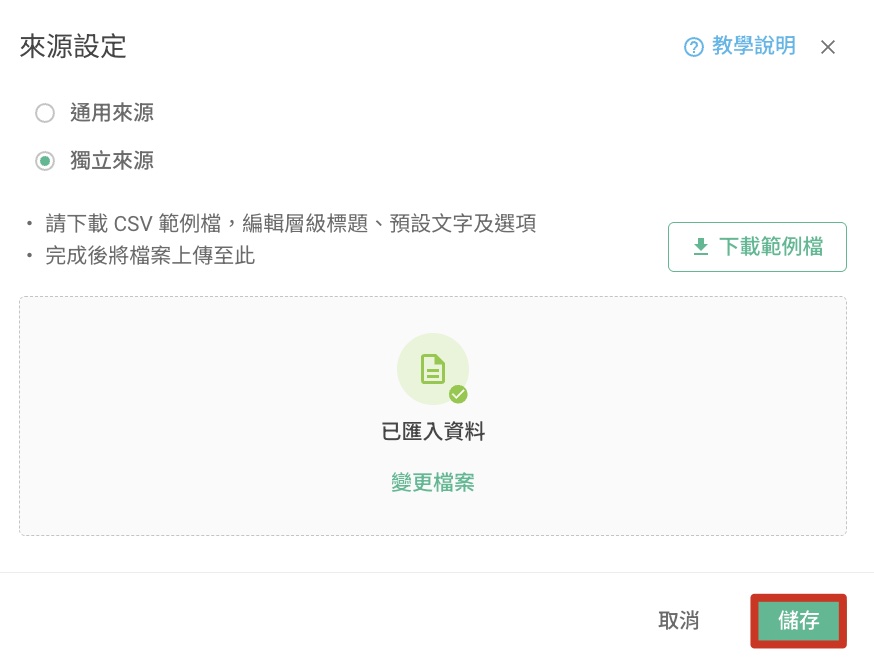
Now, let's guide you on how to set up a nested dropdown question. First, add the "Nested Dropdown" question type in the "Question Type" section and click on "Source Settings."
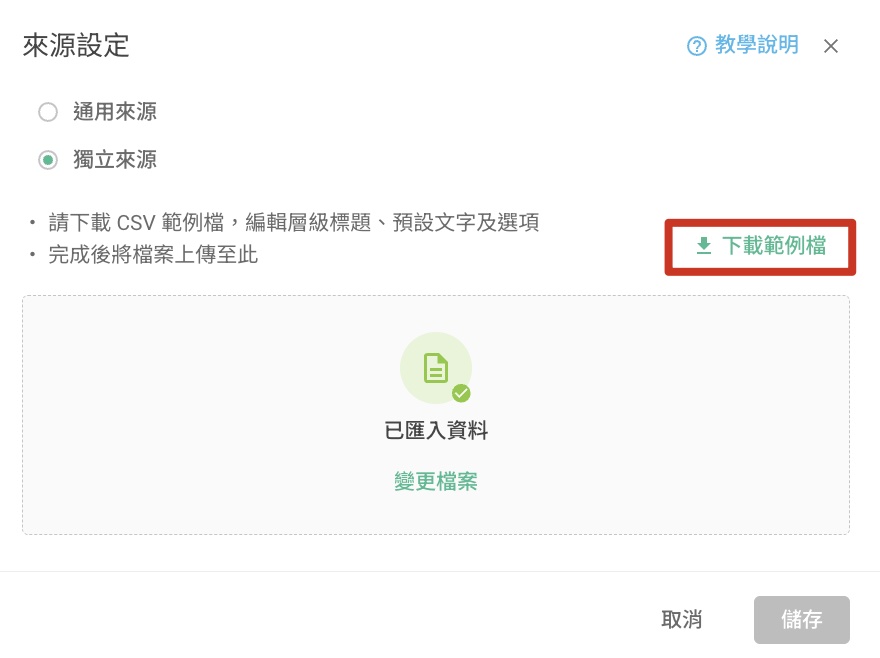
Next, download the CSV template, edit the level titles, default text, and options.
After editing, upload the CSV file, click save, and everything is set!
Reminder: If the "Next" or "Submit" button isn't responding, please check if your option names include a comma (,) (e.g., "Taipei City, Songshan District"). To prevent this issue, please use a hyphen (-) or a space instead of a comma.
To make things even easier, default values can be pre-set—auto-filling answers and saving users from manual input.
First, in the question settings, click "Advanced" → "Identifier & Default Values"
Then, confirm the default value parameters and insert them into the survey URL, separating the options for each dropdown level with a comma.
This allows the nested dropdown to auto-populate with predefined selections when a respondent accesses the survey—saving time and ensuring a smoother experience.
If any of the default values entered does not match the original settings, the entire question will not be included.
FAQs
Why does the text in the CSV template appear as garbled text?
Due to variations in system and Excel support for CSV files across different versions, Chinese characters may appear as garbled when opening the CSV file in Excel. If you encounter this issue, please refer to this article.
Why does the system keep saying file upload failed?
File upload failure may have three possible reasons. Please check if the file meets the upload specifications.
Incorrect file format, please upload a CSV file.
Exceeds file size limit, please upload a file below 1 MB.
File fields or content do not match, please edit according to the template file.
You're welcome to upgrade to the SurveyCake Enterprise Plan to increase the usage limit. If you're interested in this feature, please Contact Us for more information.
Summary
Using Nested Dropdown helps gather more detailed responses, while making it easier and more convenient for respondents to answer.