This question type is ideal for collecting handwritten content for "internal retention and record-keeping." The system automatically retains the handwritten PNG image, the respondent's IP address, and the submission time for future reference. It is not recommended for signature scenarios requiring formal legal validity.
Feature Introduction
The Handwriting Question provides an intuitive canvas interface on the survey front-end, allowing respondents to sketch or sign directly on the canvas using a mouse or touch inputs.
Applicable Scenarios
Suitable for informal documents and internal retention:
Survey responses and attendance check-ins (e.g., course check-ins, event registrations, visitor logs).
Rental/return and feedback records (e.g., venue/equipment rental sign-offs, post-course handwritten confirmations).
How to Add and Use
1. Back-end Creator: Adding a Handwriting Question
Go to the survey editing area.
In the question categories on the right, navigate to the "Others" category.
Click or drag the "Handwriting Question" into the survey to finish adding it.
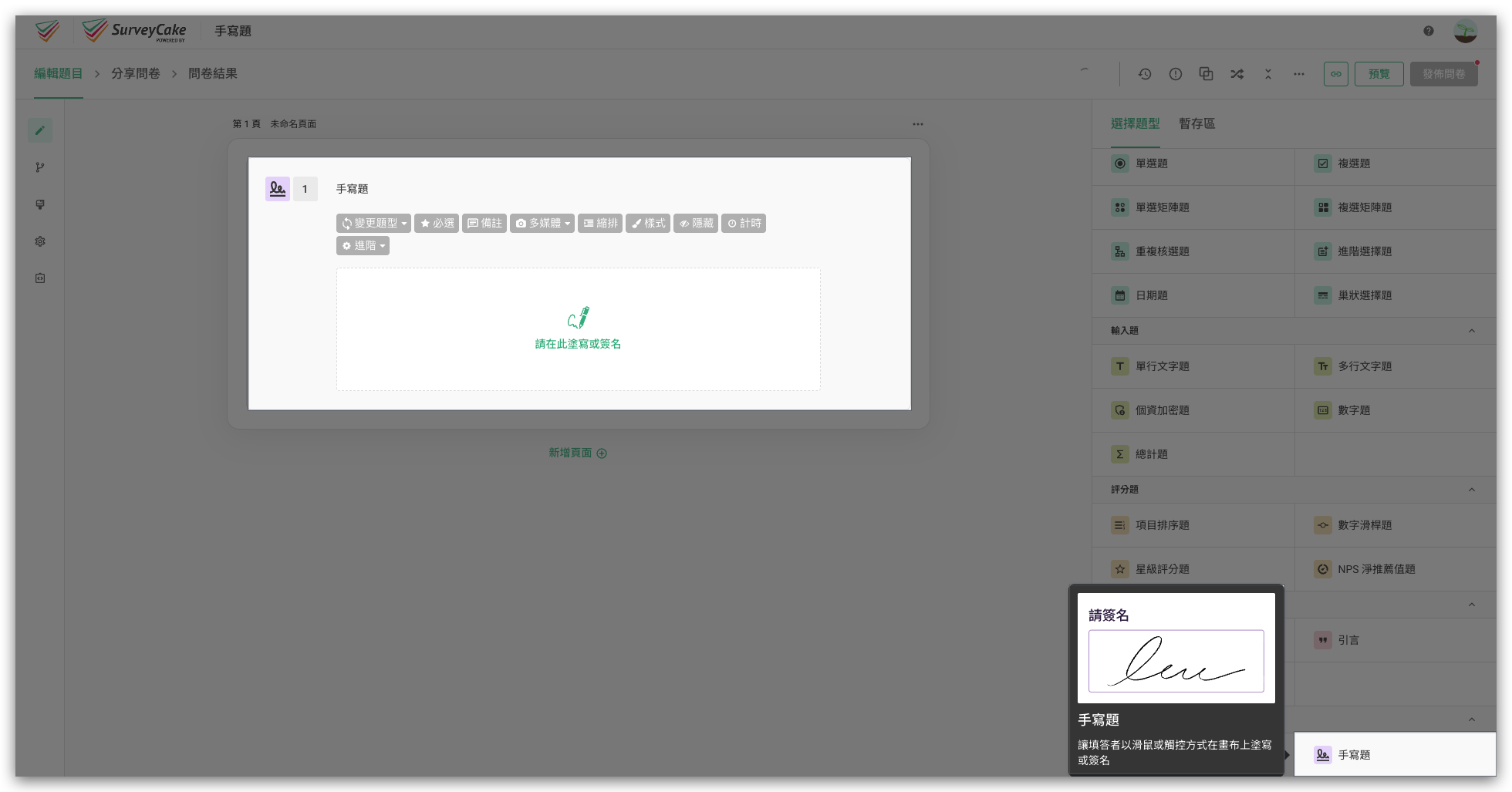
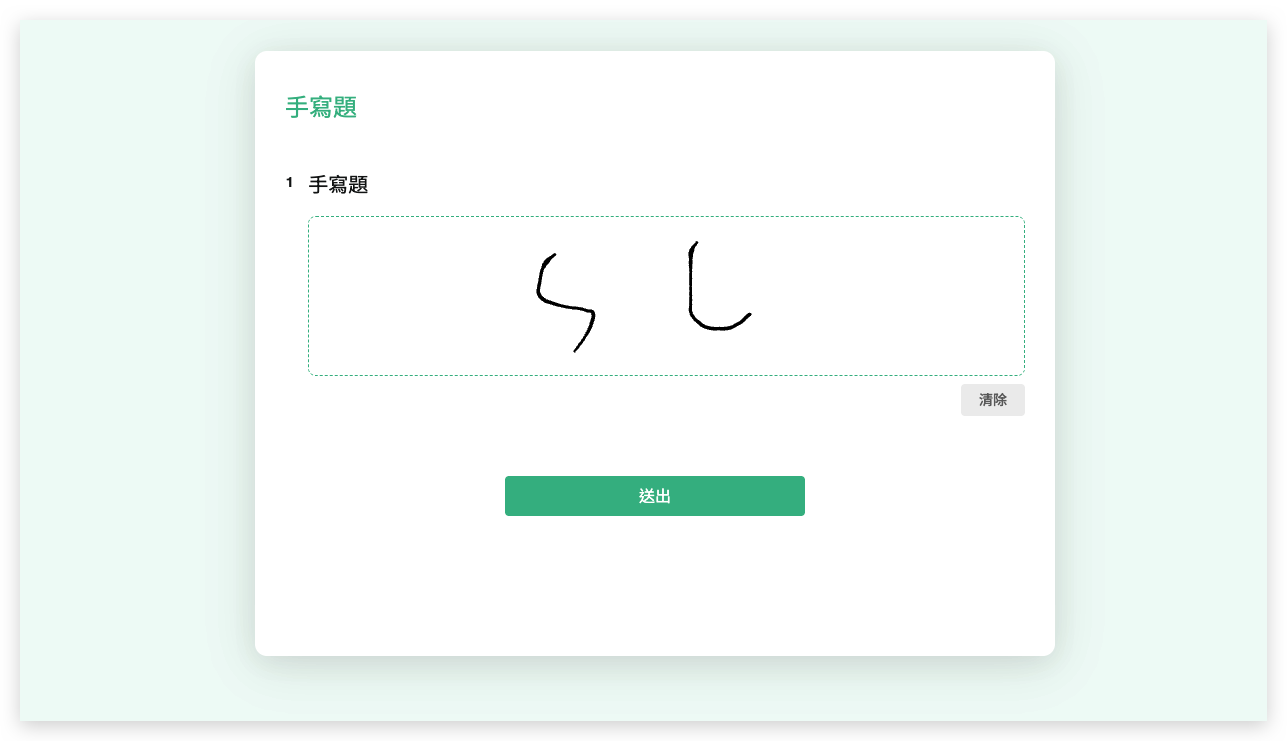
Respondents can sketch smoothly depending on the device they use:
Desktop: Click and drag with the mouse to sketch on the canvas.
Mobile: Touch and sketch directly on the screen using a finger or a stylus.
Clear & Rewrite: A Clear button is located at the bottom right of the canvas. Clicking it will clear the canvas content with one click, allowing the respondent to rewrite.
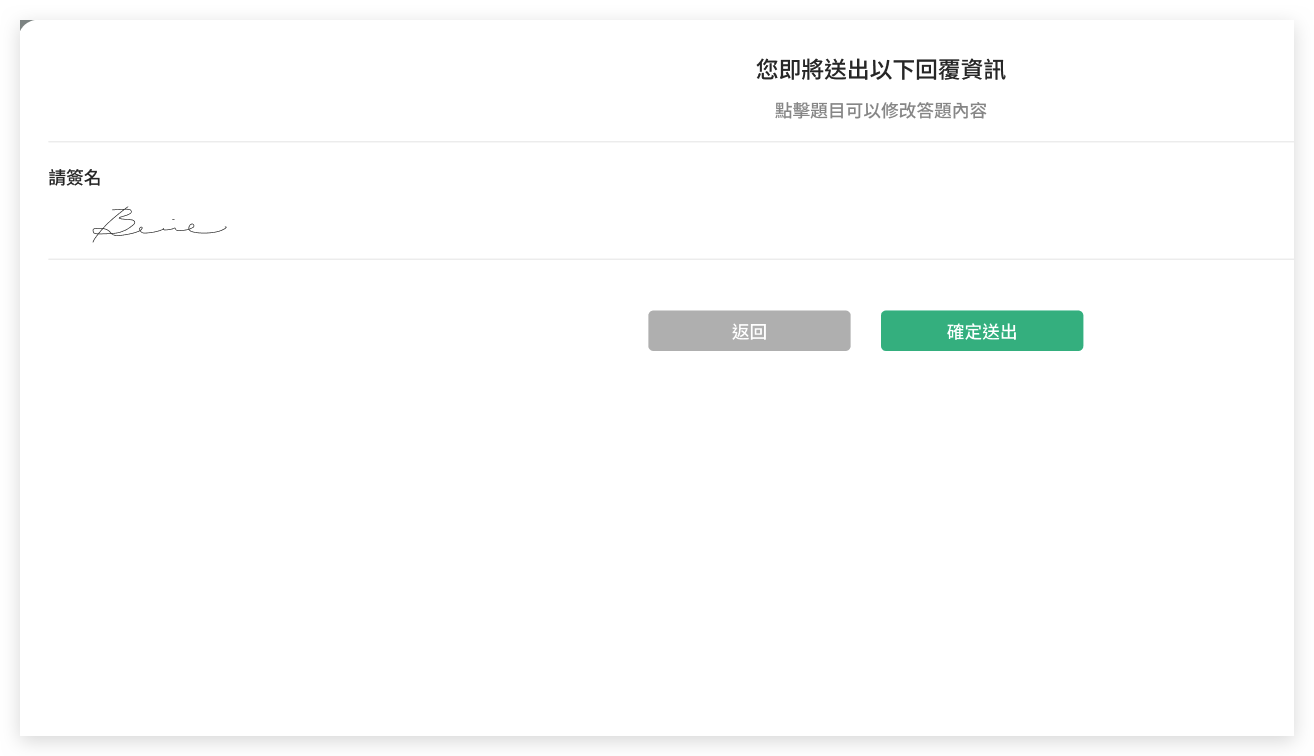
Respondent Feature: Preview Before Submission
If the survey has the "Preview Before Submission" feature enabled, when respondents finish the survey and click submit, the system's pop-up preview window will simultaneously display the content of the Handwriting Question for their final confirmation.
Back-end Details & Export
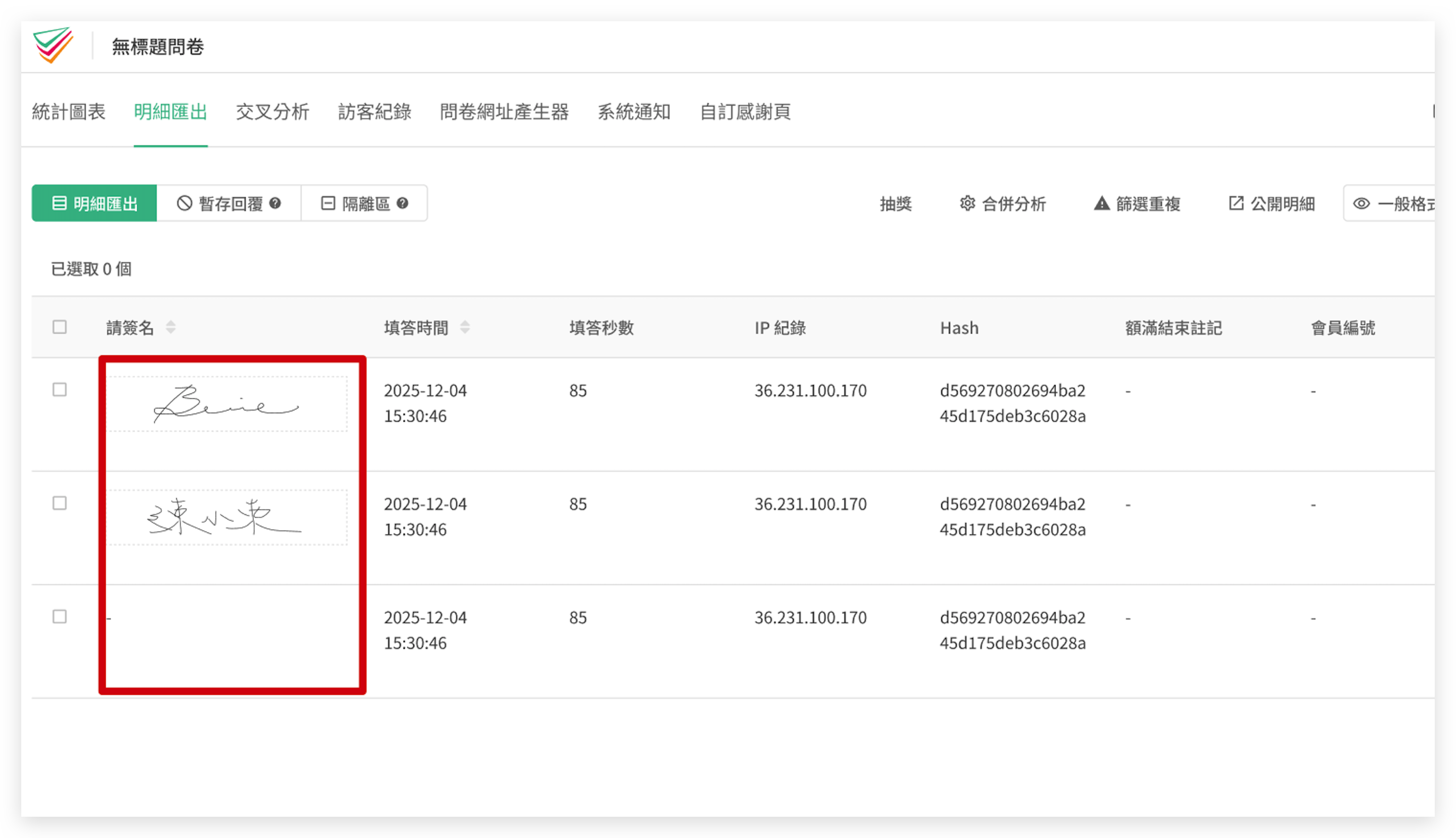
Once the survey begins collecting responses, creators can head to the "Export Data" page in the survey results back-end to view the data:
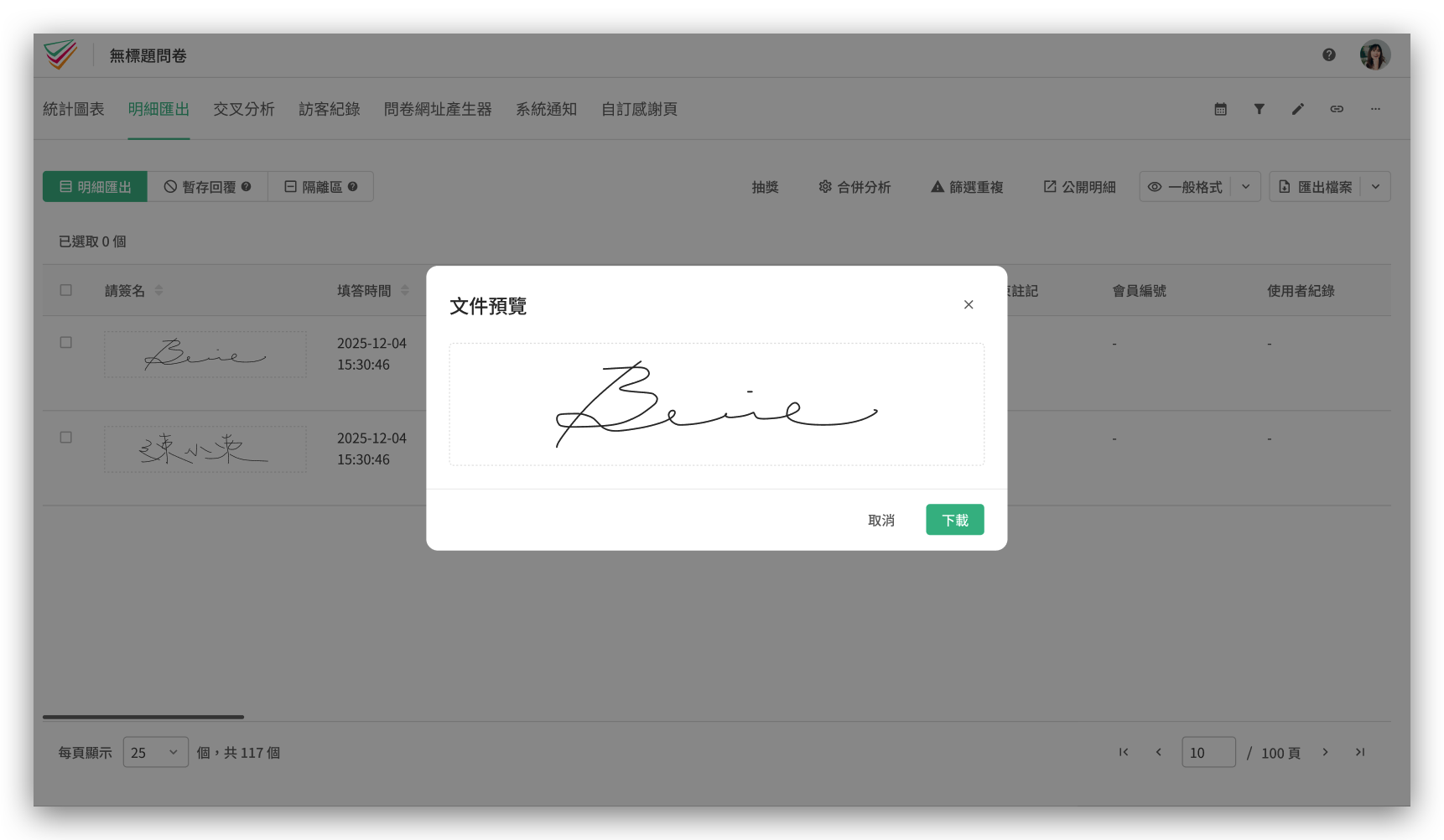
Thumbnail View: In the response details table, creators can view the content of each handwritten entry directly via thumbnails.
Preview & Download: Clicking a thumbnail enlarges the original image for preview and supports downloading high-resolution PNG files to local storage.
Important Notes
Before using the Handwriting Question feature, please be sure to note the following system mechanics and limitations:
Cannot be used as a logic condition: Since the Handwriting Question outputs in an image format, it cannot be used as a condition trigger for "Skip Logic."
Does not support partial saving: If the Enterprise plan's "Save and Continue Later" feature is enabled, the canvas content of the Handwriting Question will not be temporarily saved by the system. If a respondent leaves the survey midway, they must rewrite it upon re-entry.
Image synchronous deletion mechanism: To ensure personal data security and maintain database space, when a creator deletes a survey or clears response data, the corresponding handwritten images stored in the cloud will be permanently deleted at the same time. Please make sure to back up your data before deleting.
The "Handwriting Question" feature described above is exclusively available for SurveyCake Enterprise. If you would like to learn more, feel free to fill out our Enterprise Consultation Form to contact us.
Summary
The "Handwriting Question" makes it easier for respondents to write down their answers, expanding survey use cases and question completeness while making your surveys more comprehensive and professional!