With the exclusive "Follow-up Input" feature of SurveyCake Enterprise, you can set up this feature for single-choice, multiple-choice, and advanced selection based questions. When users select a specific option, the follow-up input field will automatically appear. Additionally, the follow-up input feature offers functions such as required fields, text validation, and custom placeholder text, allowing you to gather more precise and comprehensive responses and improving the overall quality of data collection.
How to enable the "Follow-up Input" feature in SurveyCake:
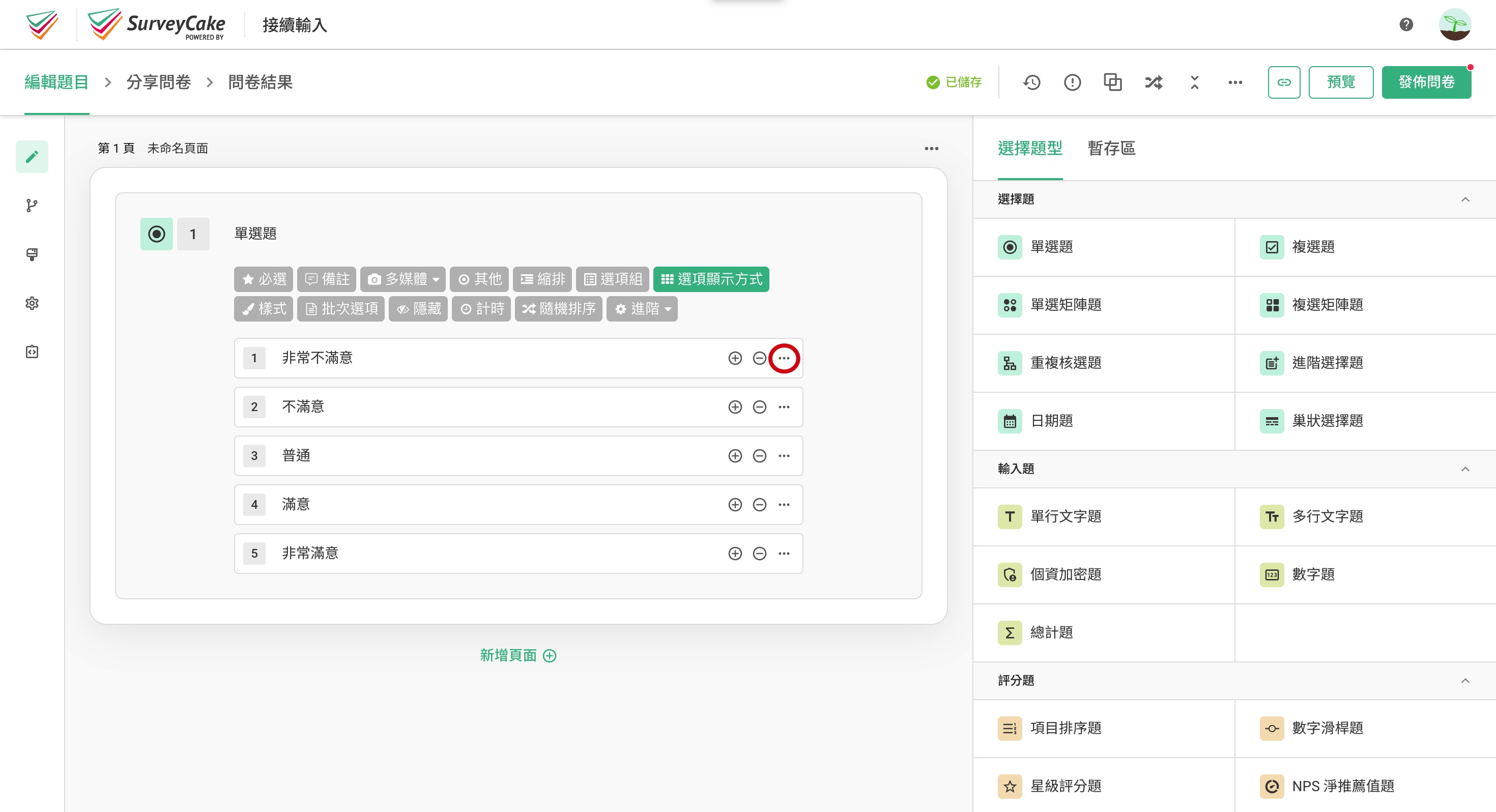
First, go to SurveyCake, find the question and option where you want to add a follow-up input and click the settings button.
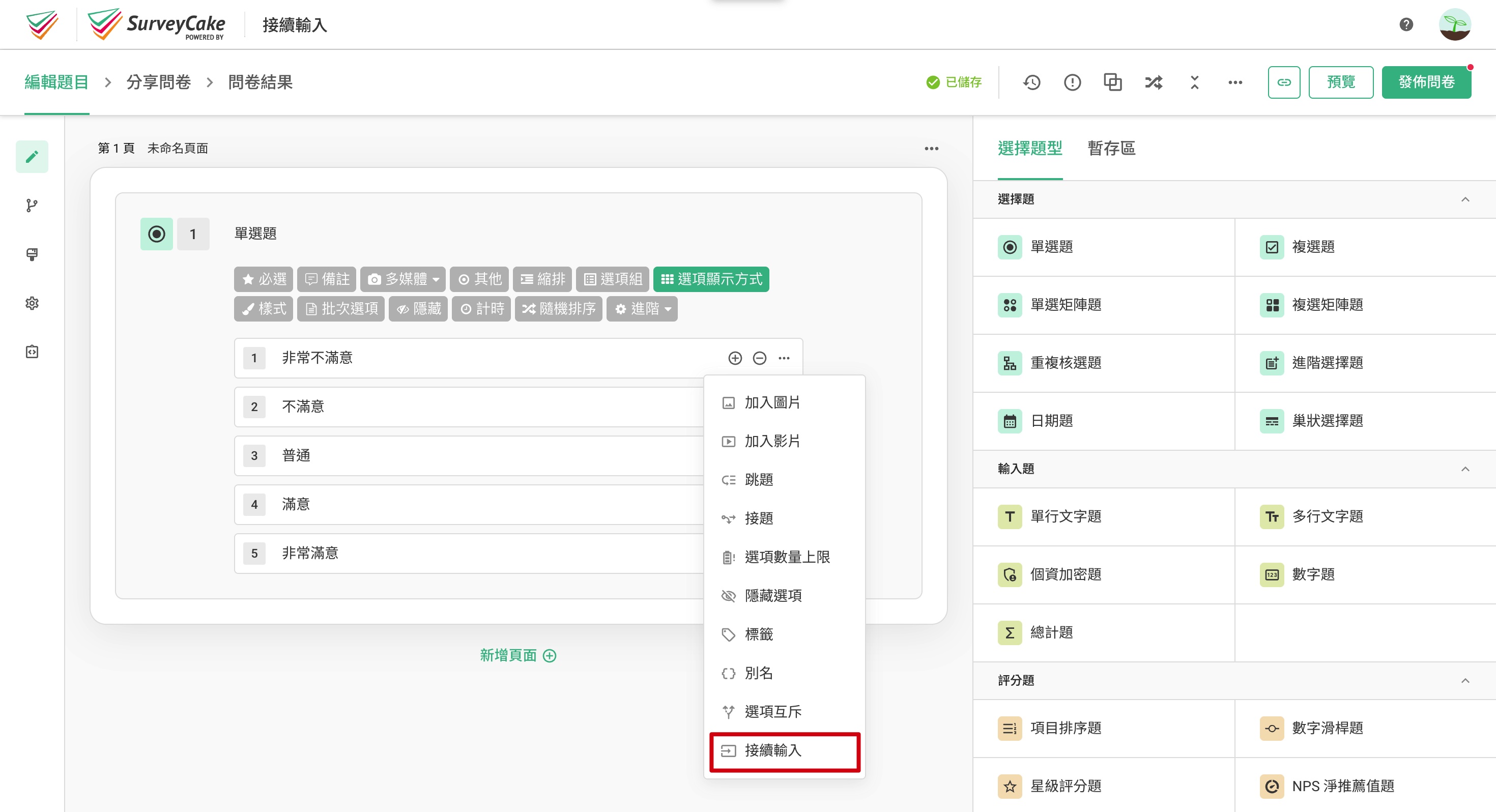
Click "Follow-up Input."
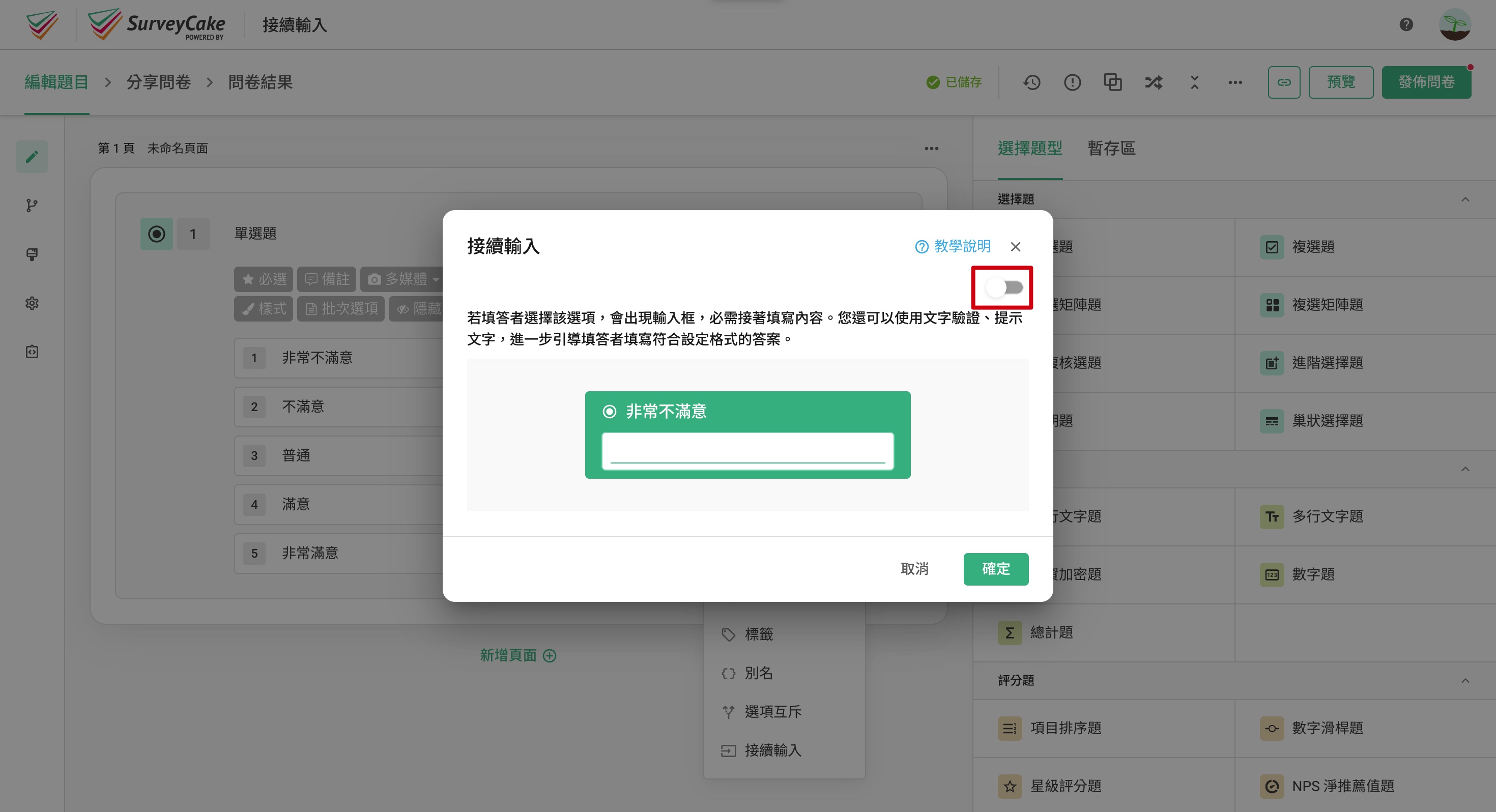
On the "Follow-up Input" page, click the toggle button in the top right corner to enable or disable the feature.
After enabling, you'll see options for "Required," "Text Verification," and "Custom Placeholder Text." If you don't need these additional features, click "Confirm" at the bottom right to enable the follow-up input for the selected option.
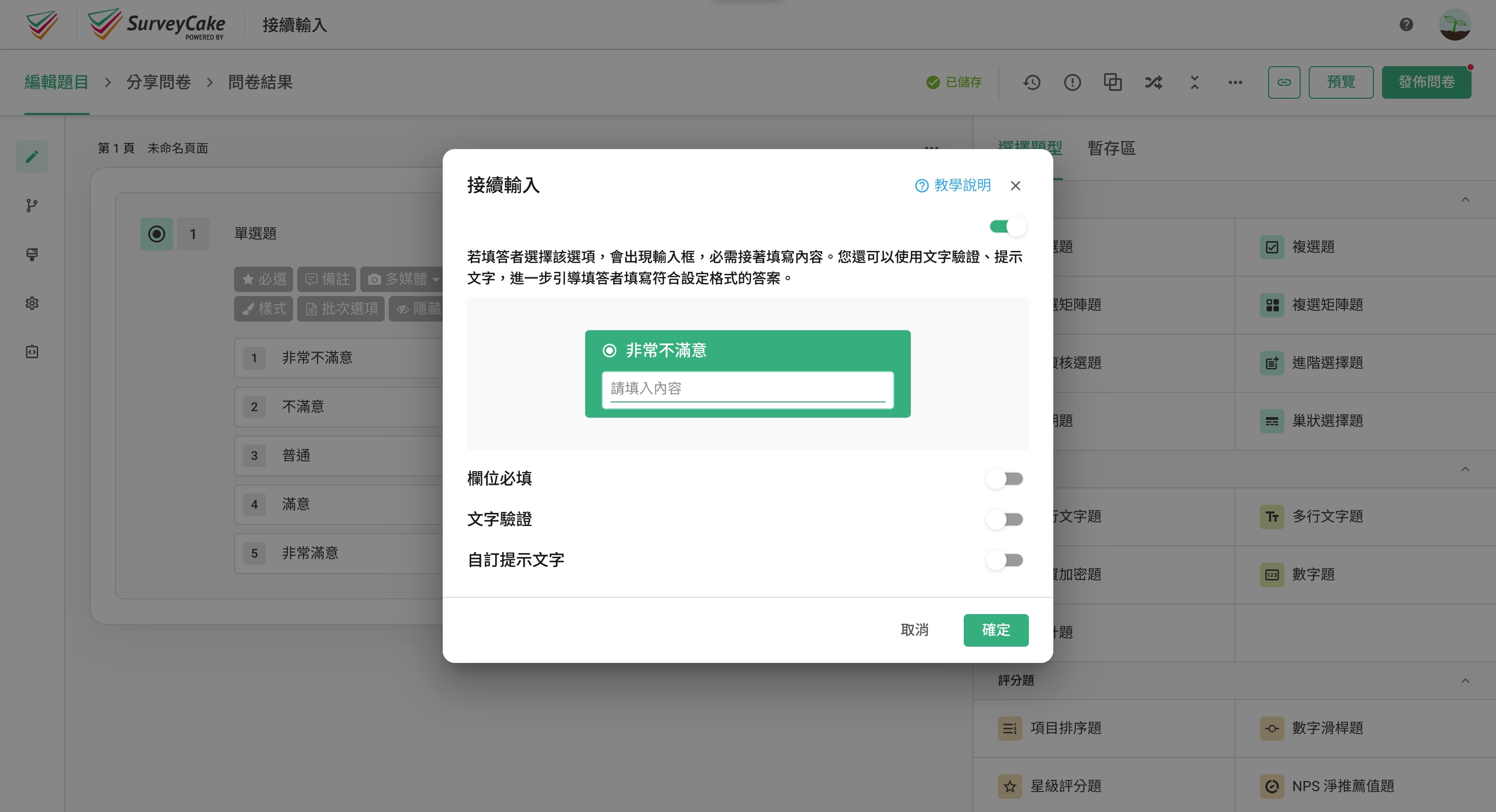
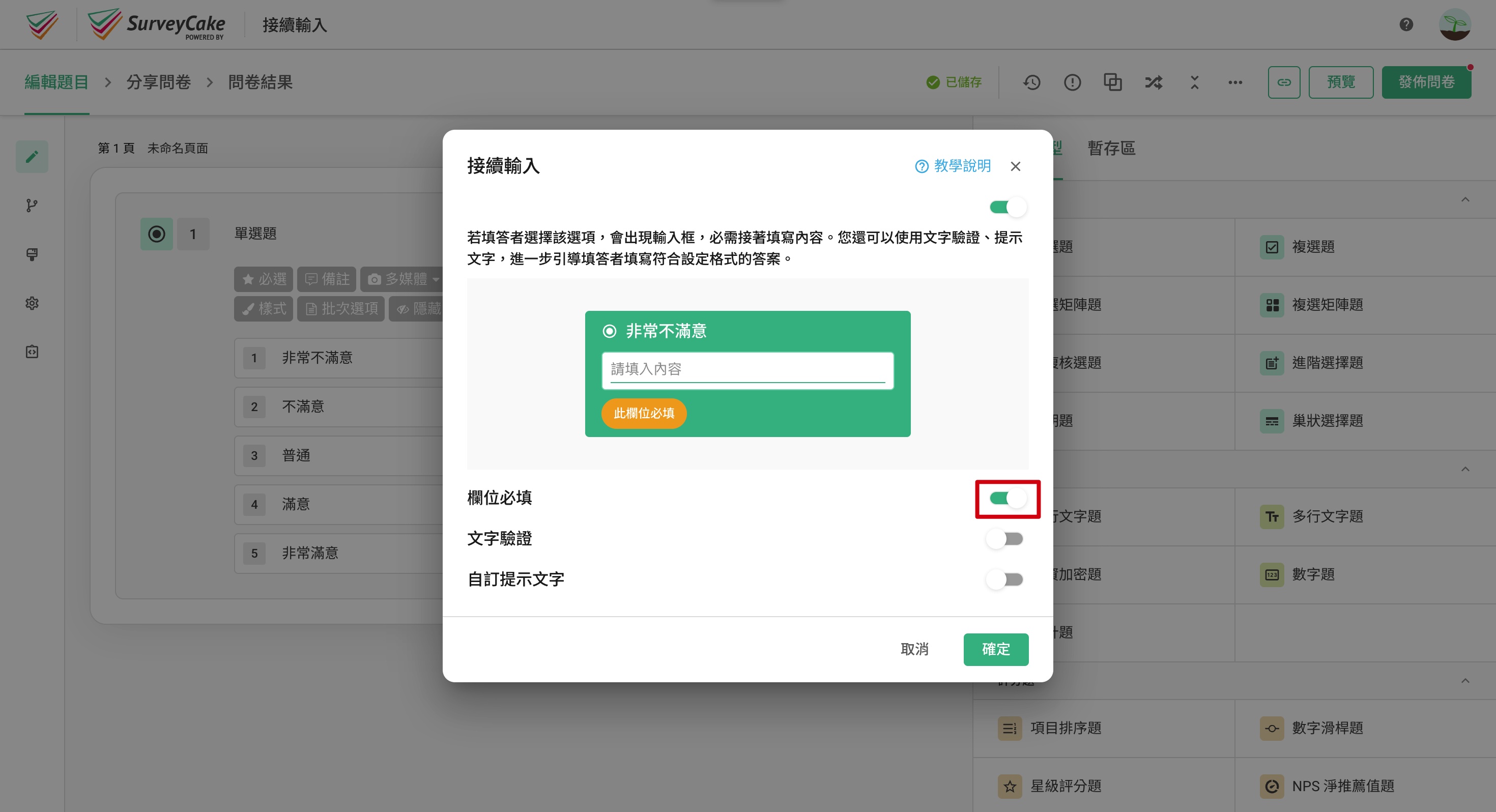
If you want to ensure that a follow-up input is required after selecting an option, enable the "Required" toggle.
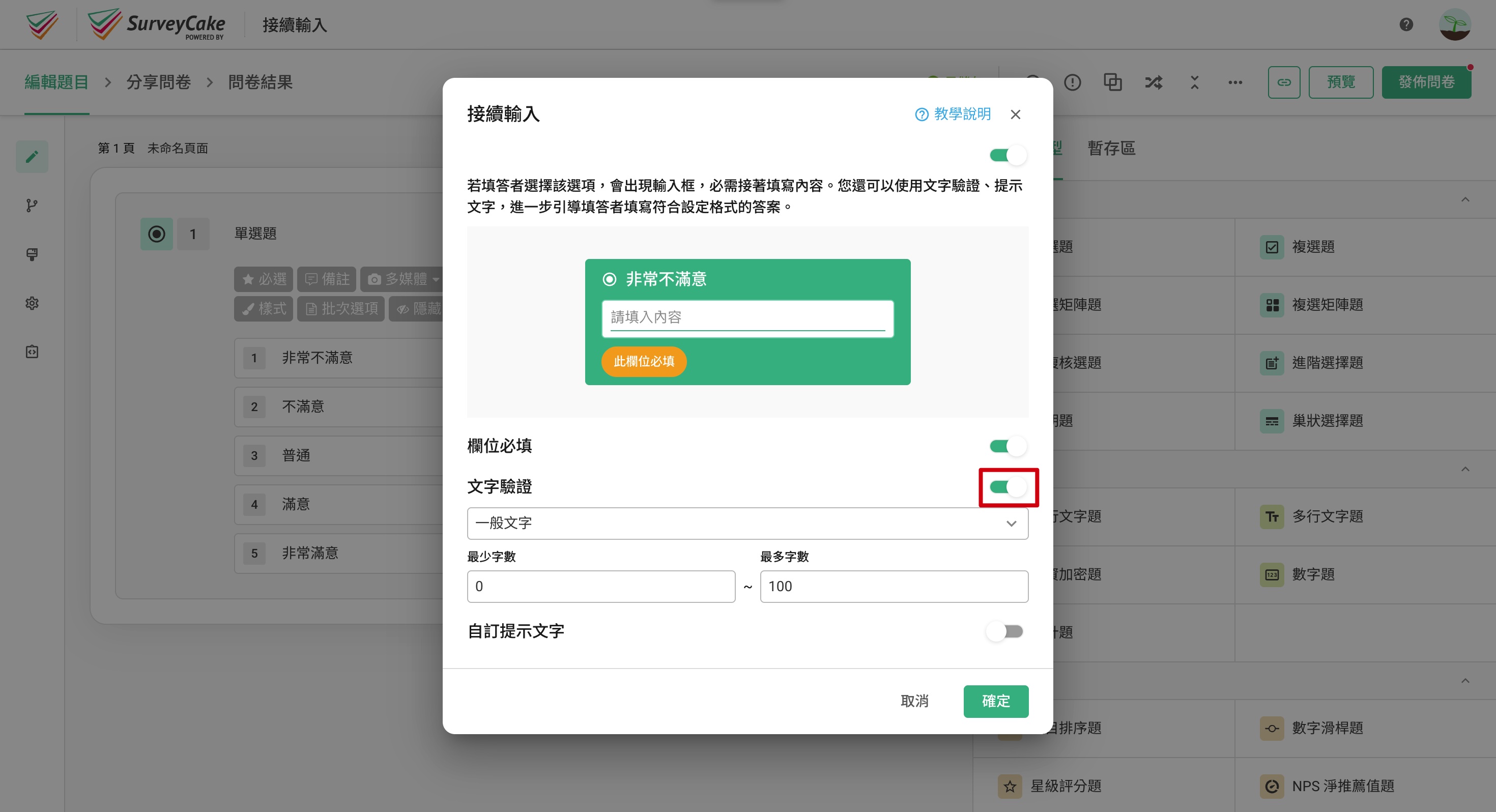
To validate the follow-up input, turn on the "Text Verification" toggle.
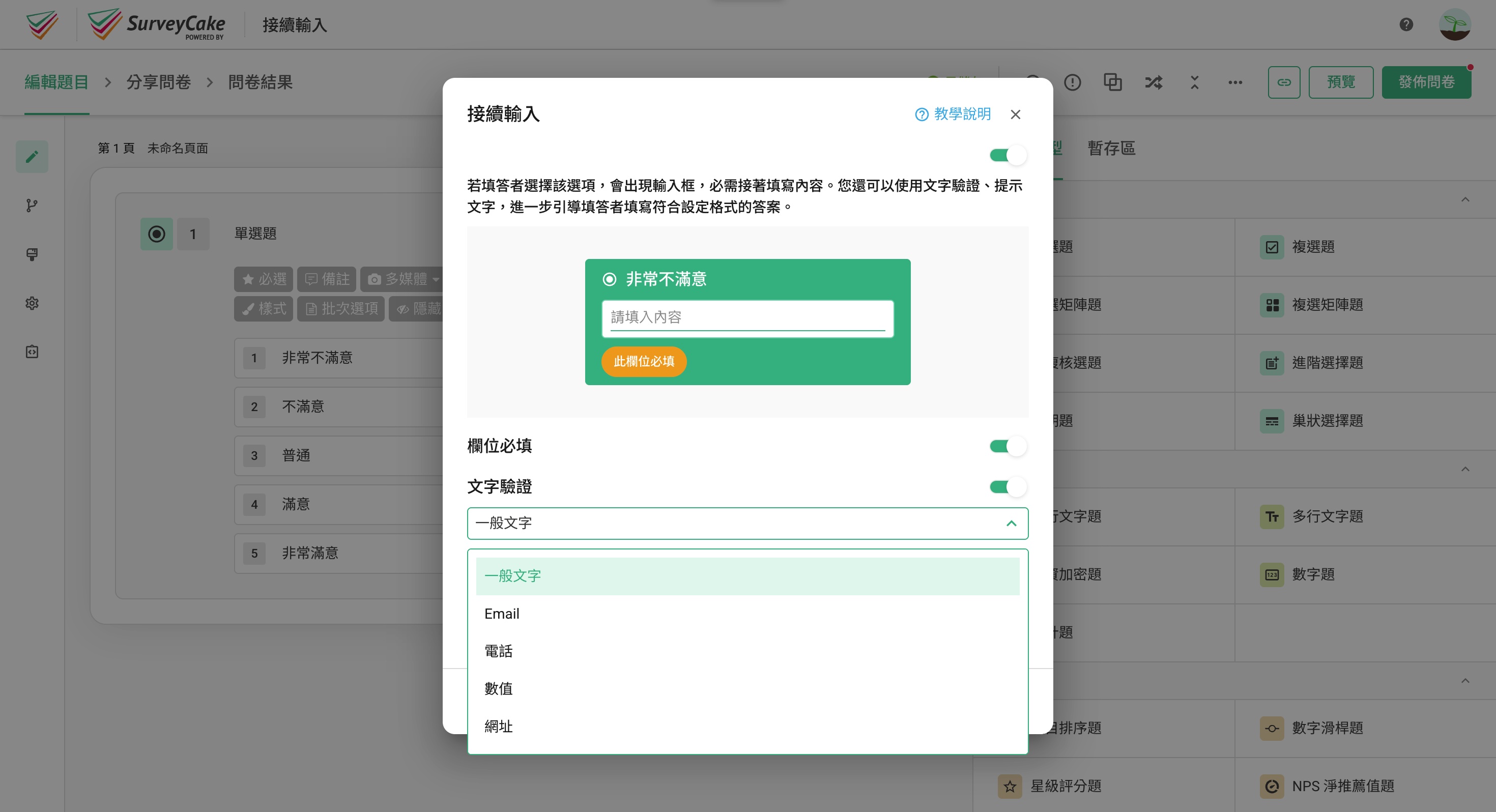
Currently, we offer validation options for "General Text," "Email," "Phone," "Number," and "URL." For more details on text validation, please refer to the Single Line Text instructions.
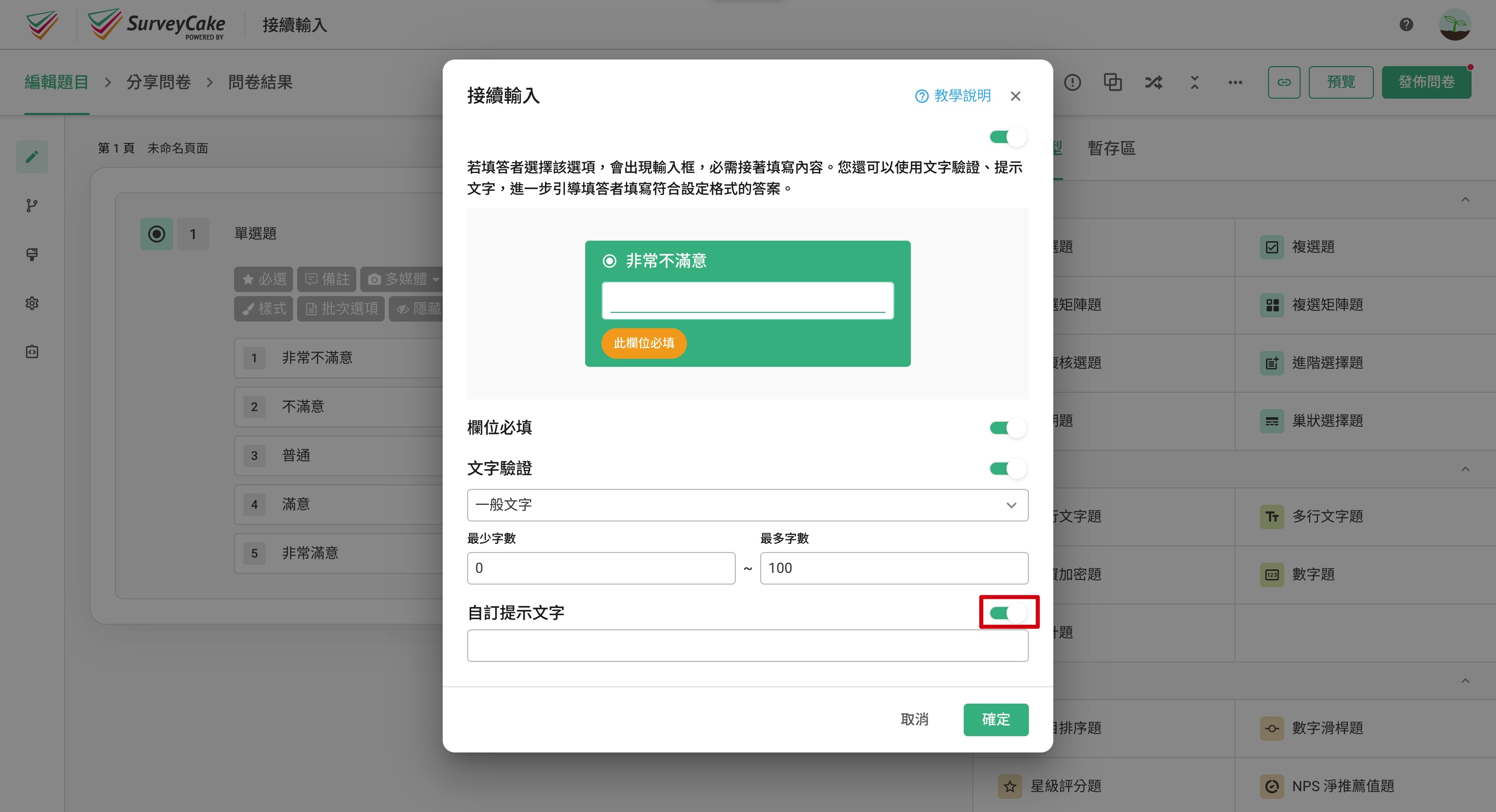
If you want to customize the placeholder text, enable the "Custom Placeholder Text" toggle.
Once the settings are complete, don't forget to click the "Confirm" button at the bottom right to activate the follow-up input feature successfully.
If you are interested in this feature, please Contact Us for more information.
Summary
Gain complete control over responses with the Follow-up Input feature!