First, create a survey and add a File Upload question. Click on Upload Setting to adjust File Upload settings.
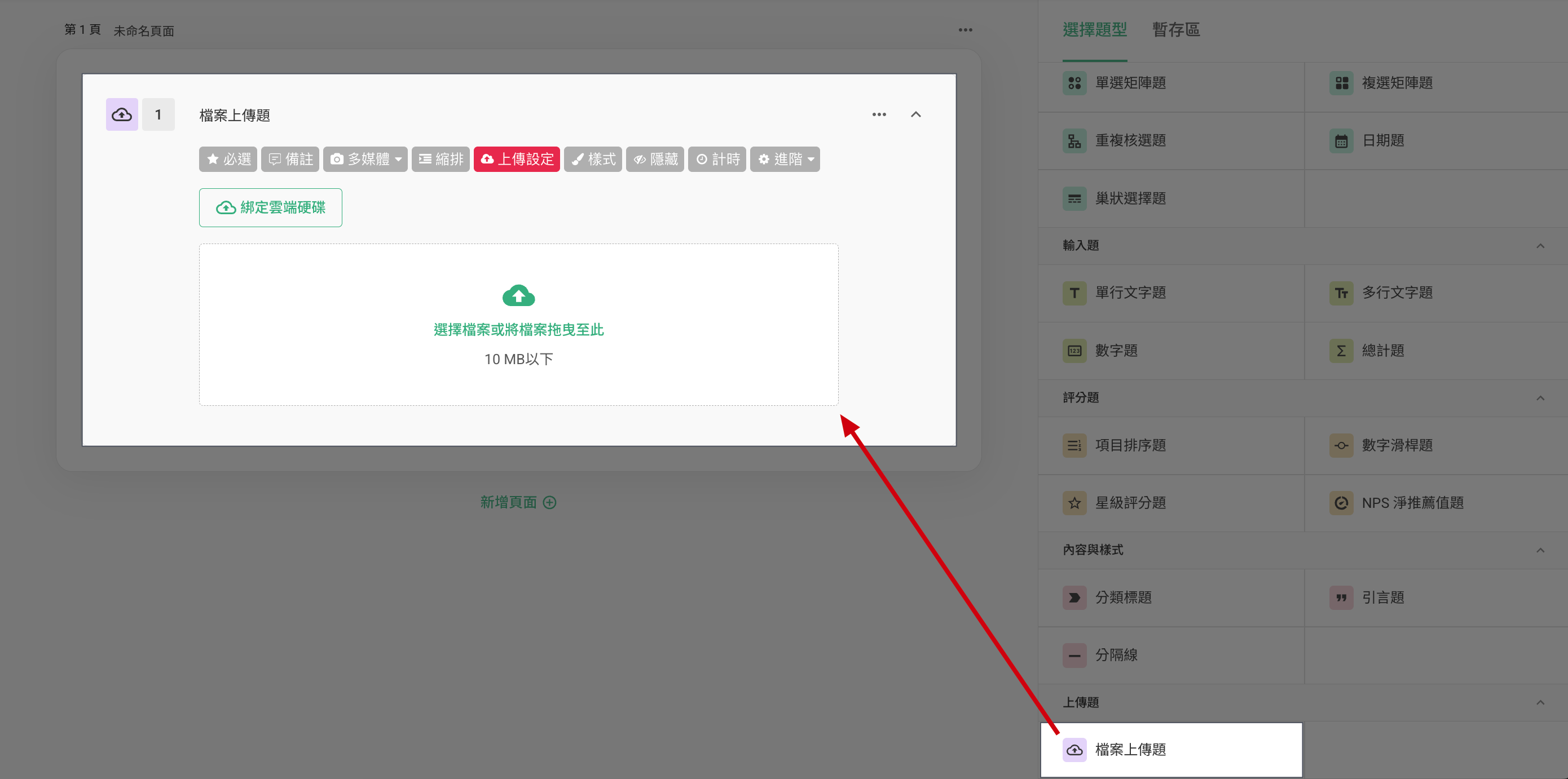
The File Upload question supports integration with Google Drive and OneDrive. Every file gathered in the survey will automatically be uploaded to your drive. Without linking the drive, respondents won't be able to upload files.
Only one cloud storage account can be linked to a single survey. Once linked, all data collected through File Upload questions in the survey will be stored in the linked cloud storage account.
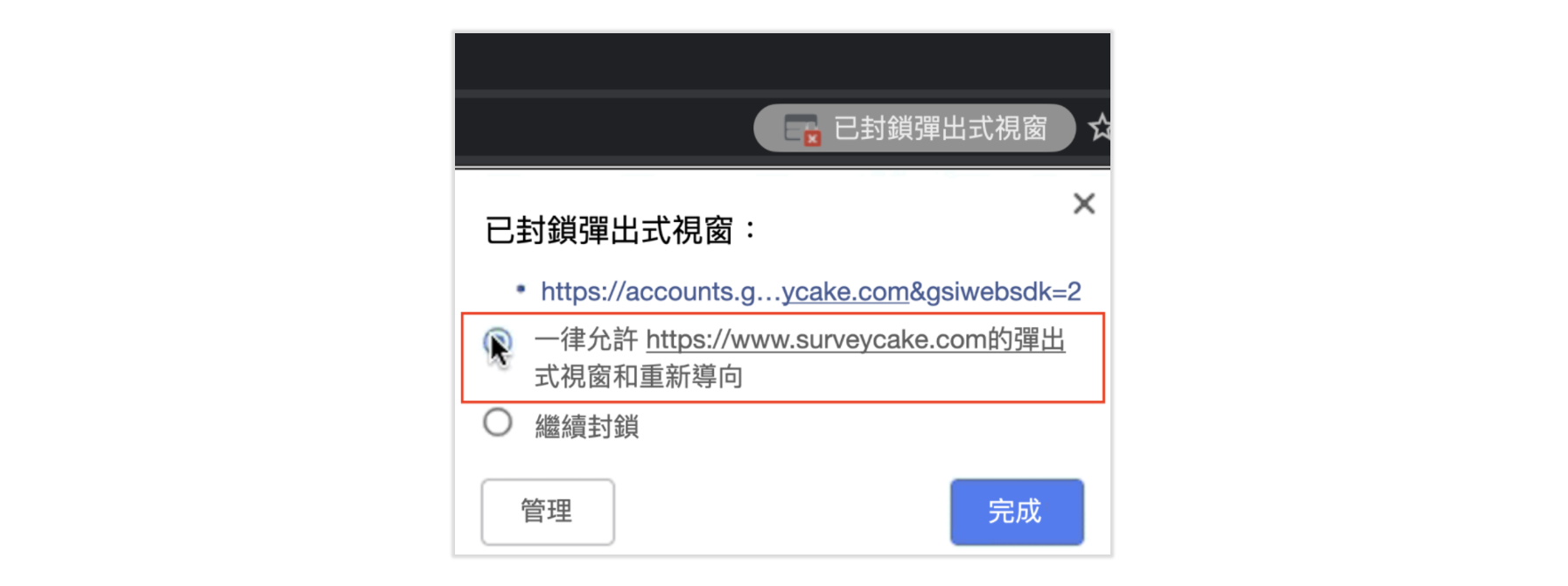
Note: When the pop-up is blocked from your browser, allow pop-ups from SurveyCake to link your Google Drive / OneDrive account.
allow pop-ups from SurveyCake to link your Google Drive / OneDrive account.
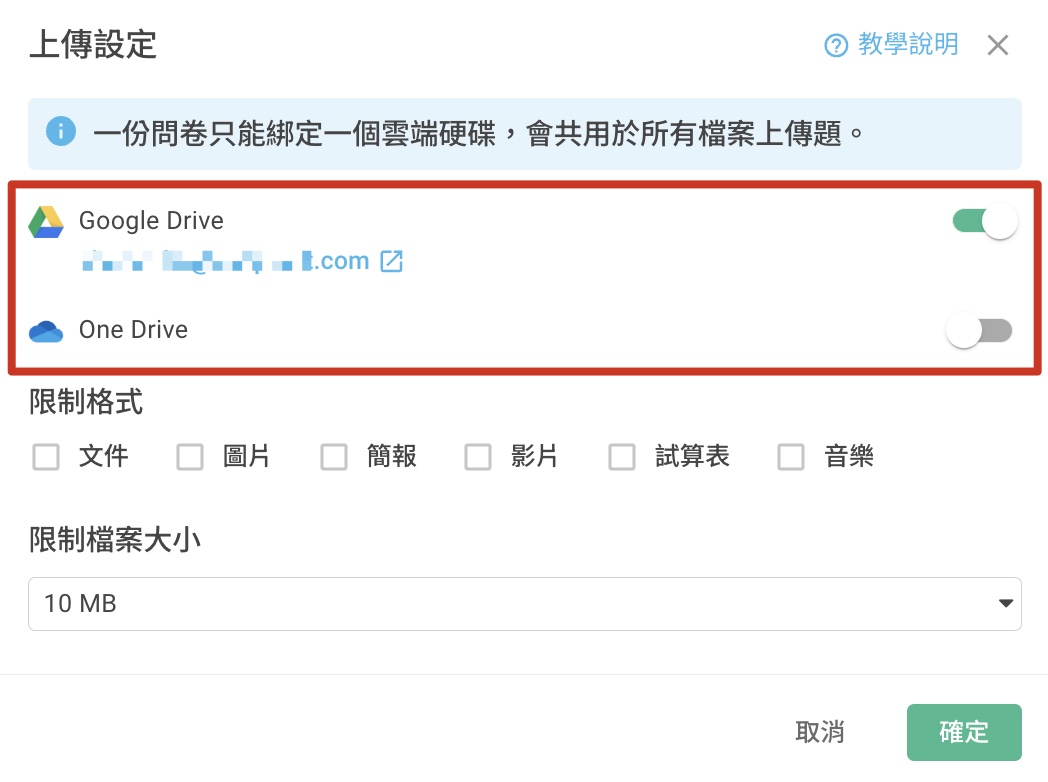
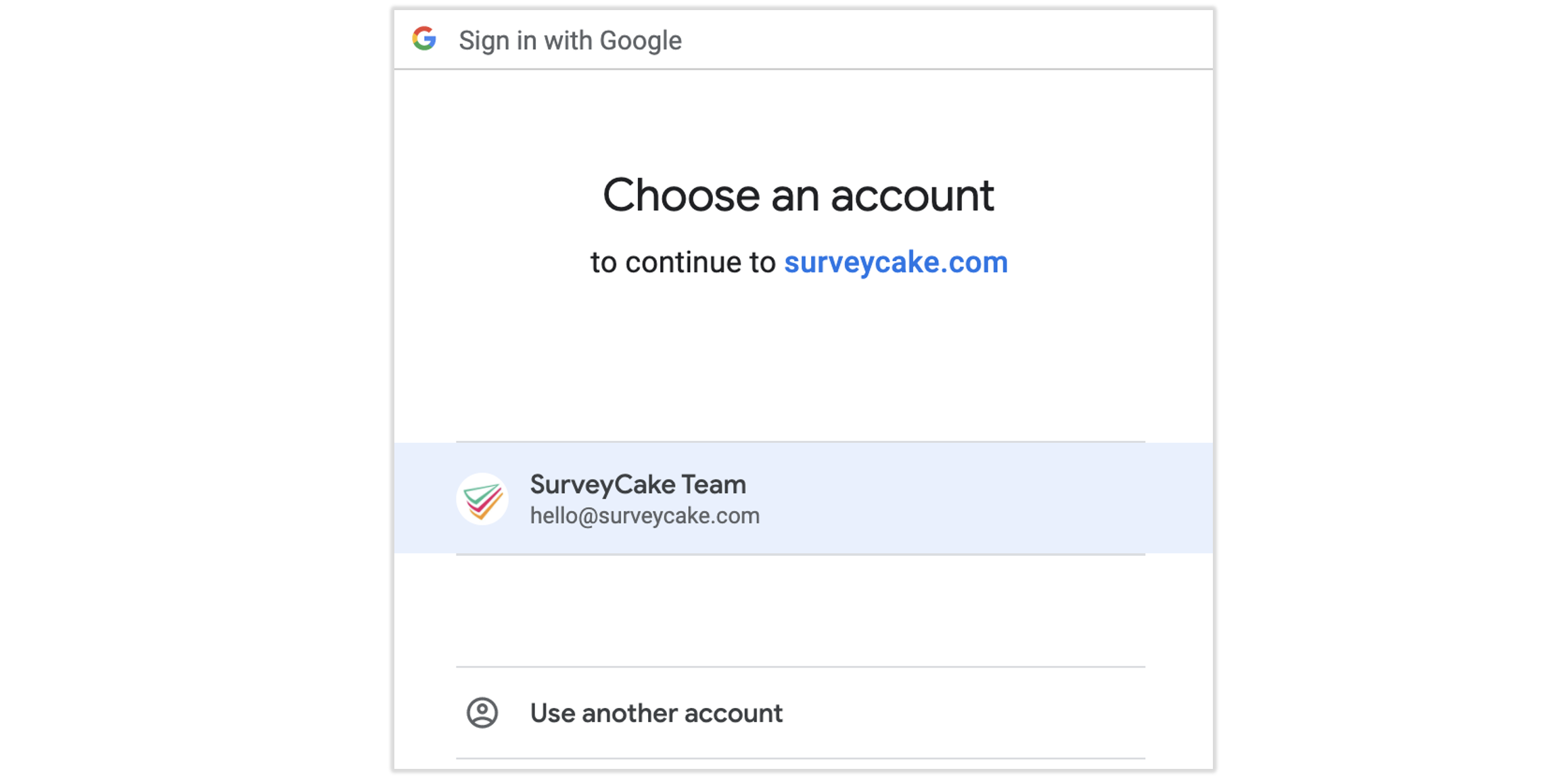
Choose the account you would like to link with.

Note: Different surveys can be linked with different Google Drive or OneDrive accounts.
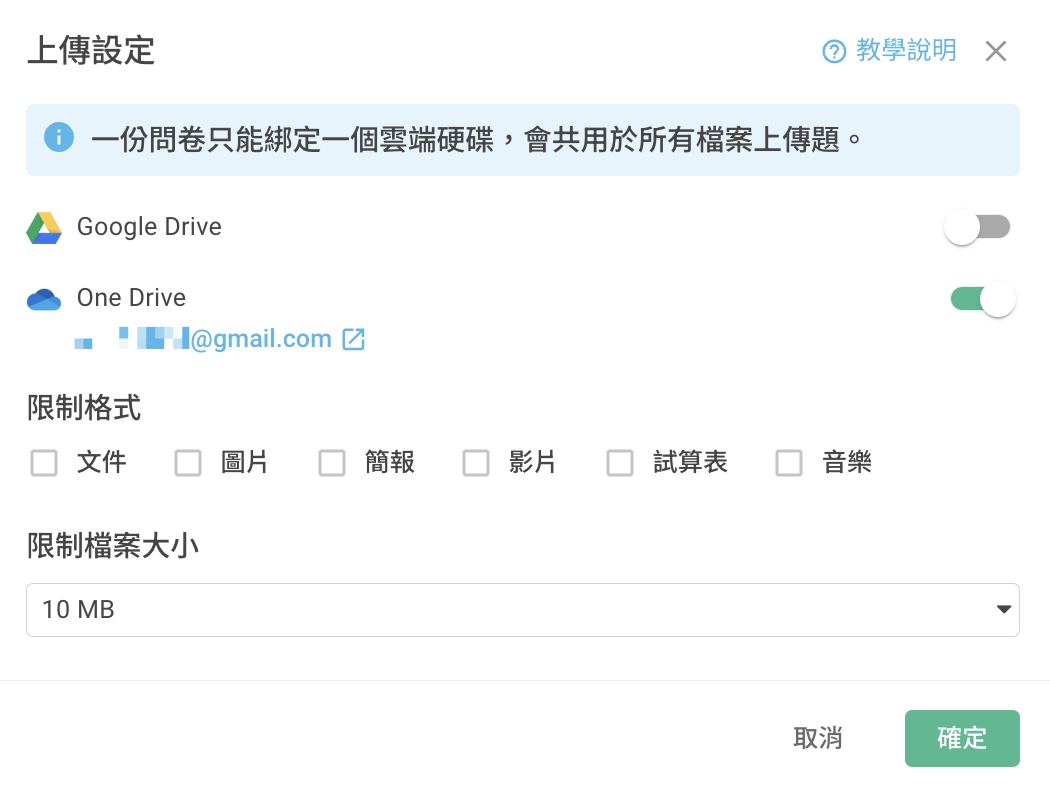
Then you can choose to set up allowable file types. If so, SurveyCake accepts documents, presentations, spreadsheets, images, videos, audio.
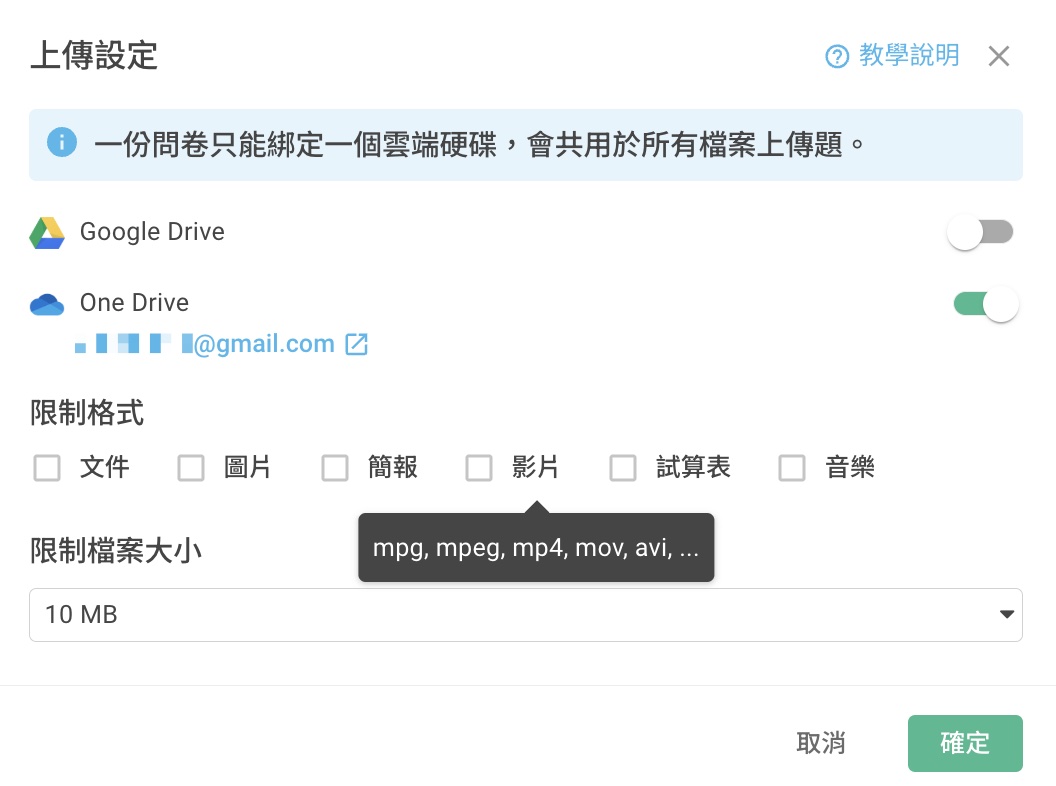
Move the cursor over file type, you can check out supportive file types.
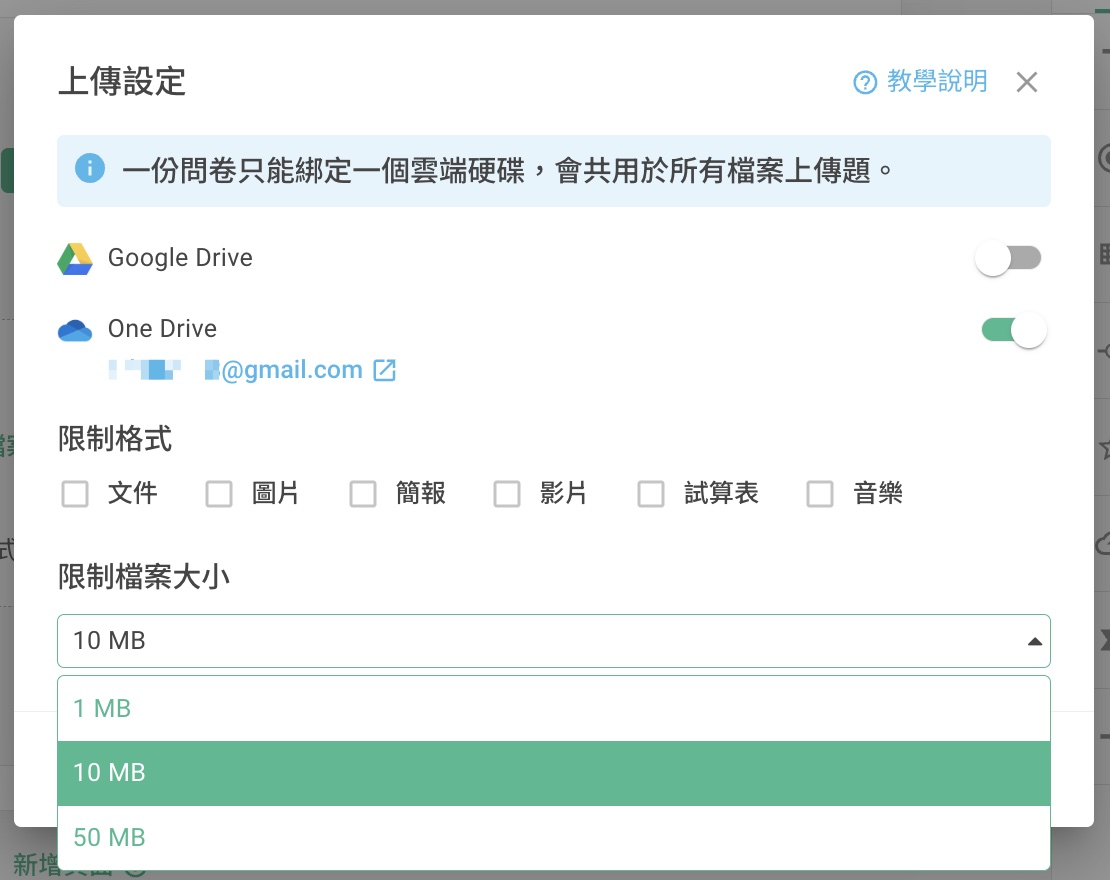
And, choose a size limit for the file.

The setup is finished!
Attention! You cannot check File Upload in preview mode. It must be done on the survey page after setup!

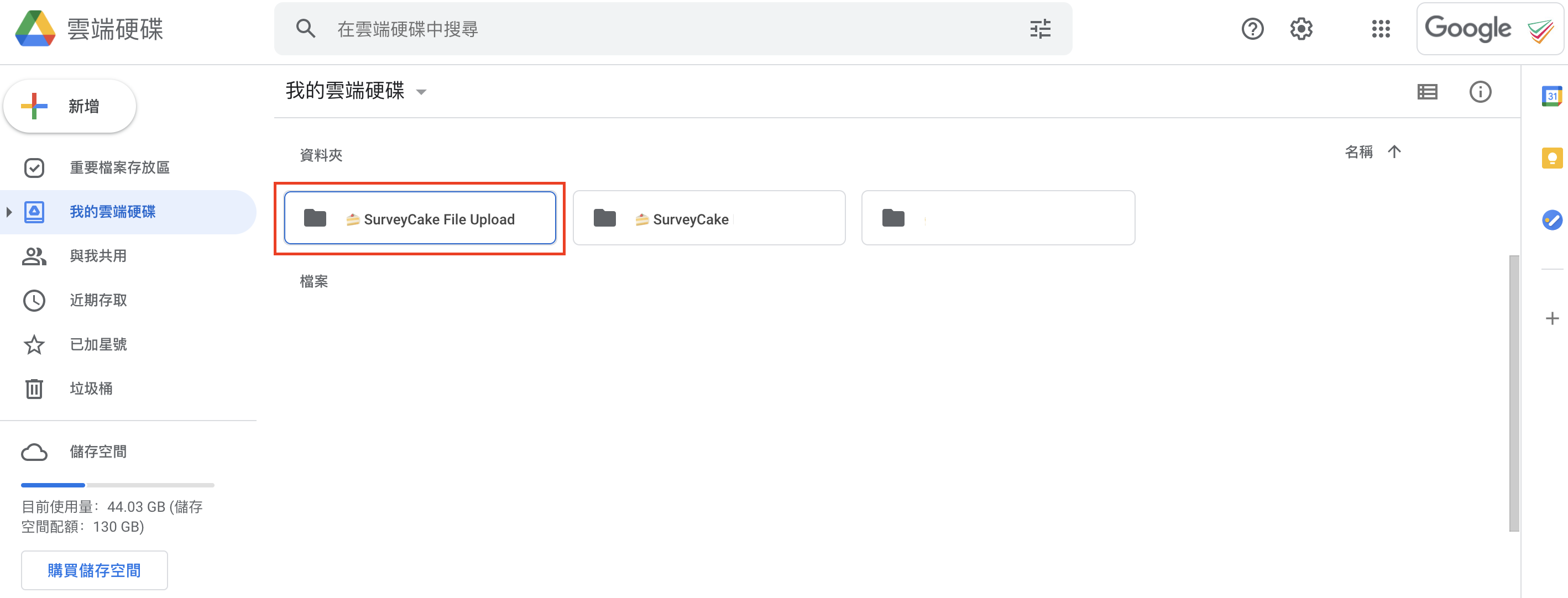
After linking Google Drive / OneDrive, SurveyCake will create a SurveyCake File Upload folder in the account. Click to see the designated folder for the survey. After survey creation, all uploaded files will be stored here.
If you enable the "Link to a cloud storage service" option on the Setup page without adding a File Upload question first, the toggle for "Link to a cloud storage service" will be automatically turned off after you publish the survey or leave the editing page.
Therefore, please make sure to add a File Upload question before enabling the "Link to a cloud storage service" option.
Summary
File Upload allows you to gather files easily through survey!