Survey designers may conduct information analysis from the survey backend system by using Date Filter to access samples from selected time periods.
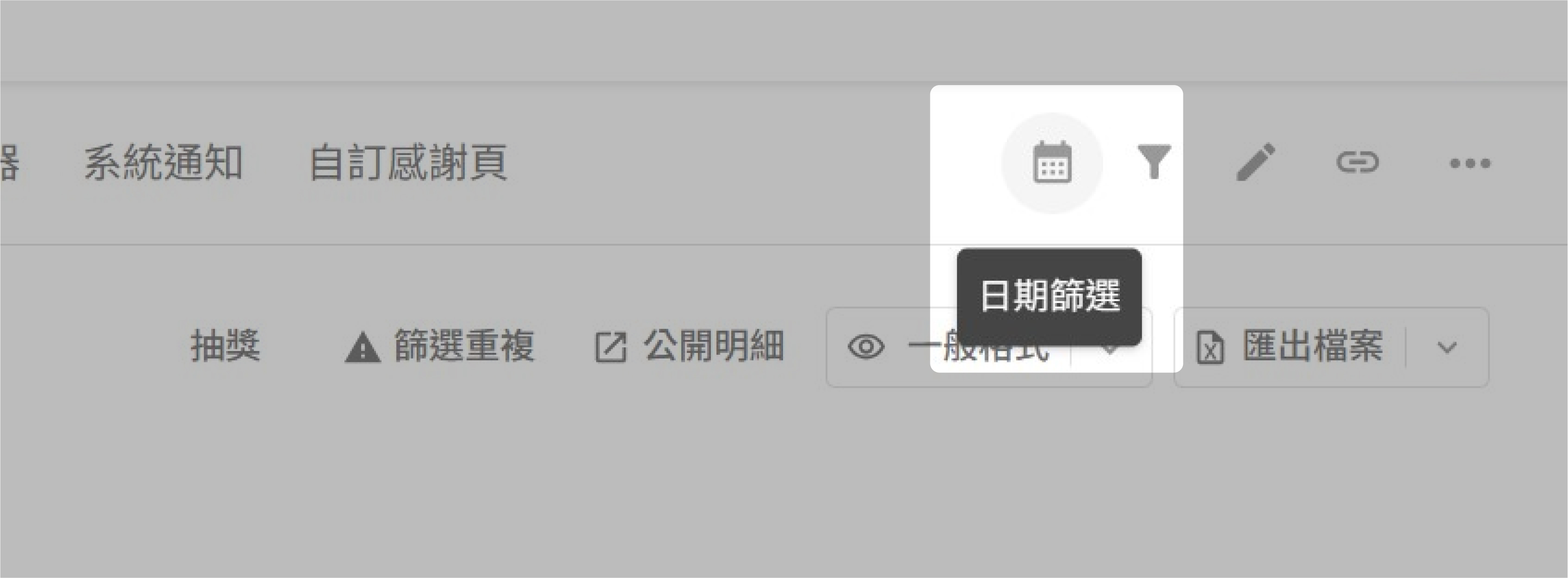
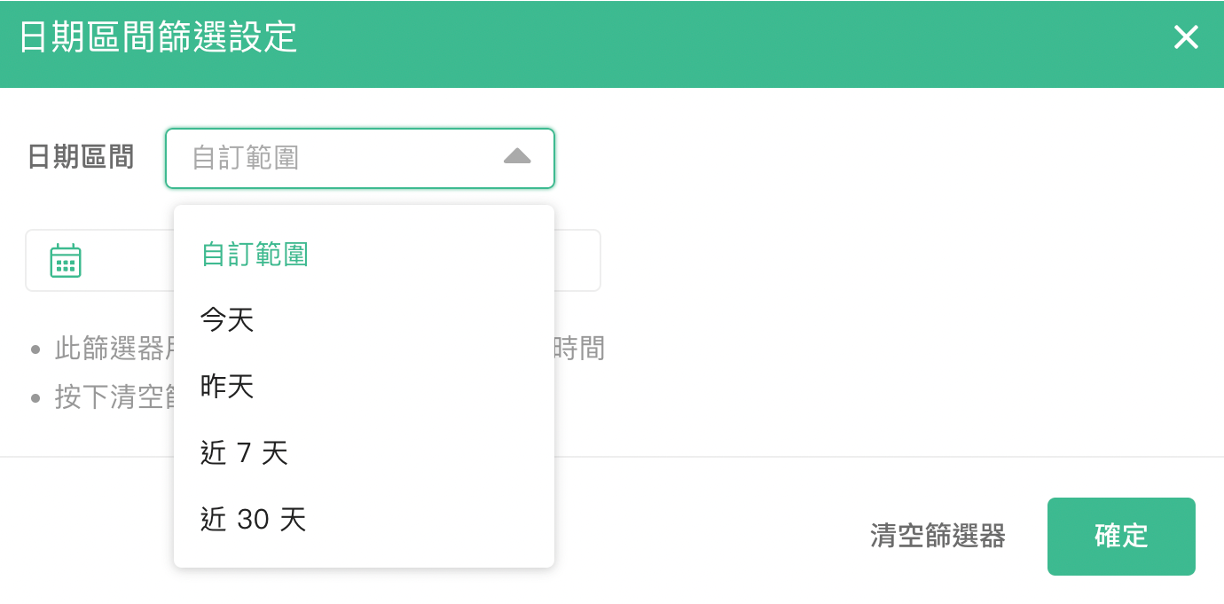
You can set the Date Selection to Today, Yesterday, Last 7 days, or Last 30 days for filter.
You can also filter by specifying the start and end dates. For example, you want to query the performance of sample statistics during the period from 8/15 to 8/31. Select the specified dates in the date range area.
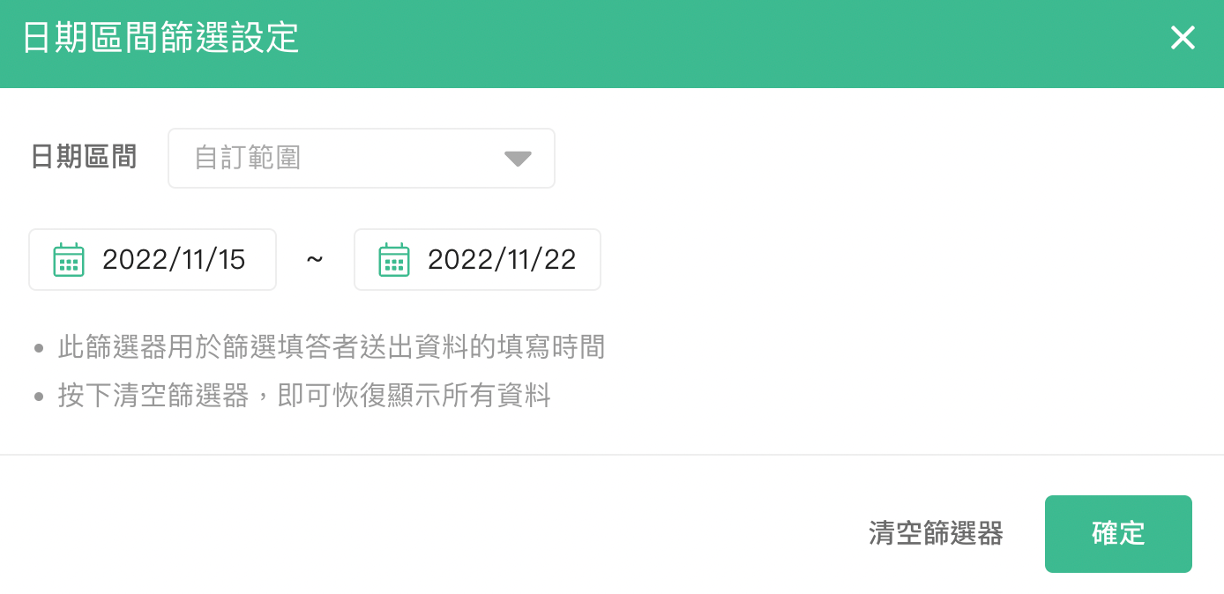
Click Confirm and you can conduct statistic analysis on the specified period windows!
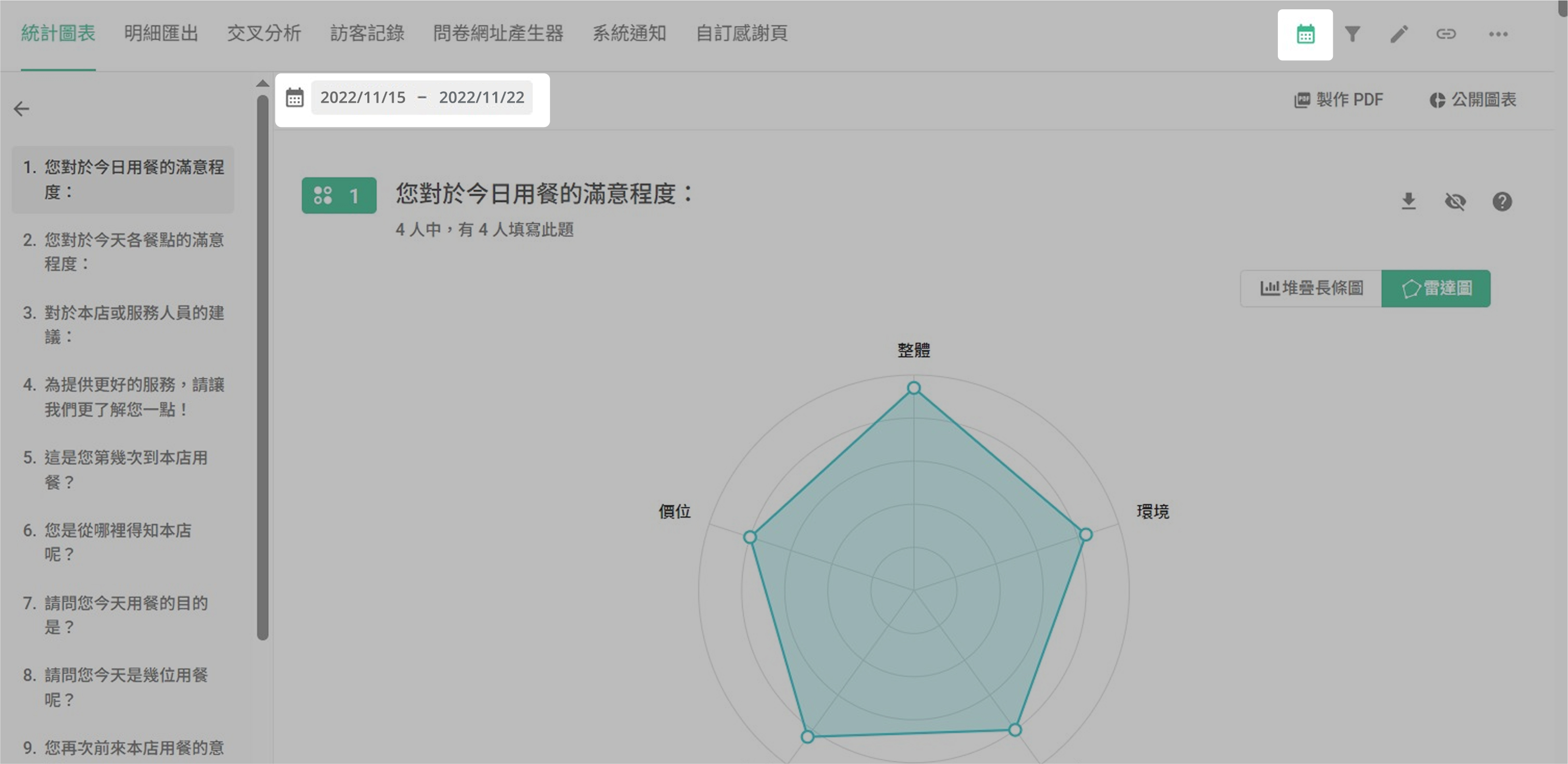
After applying the Date Filter, the Data Report tab will be also applied, the same data sample will also appear for the selected time period. Survey designers may choose the output format of these data.
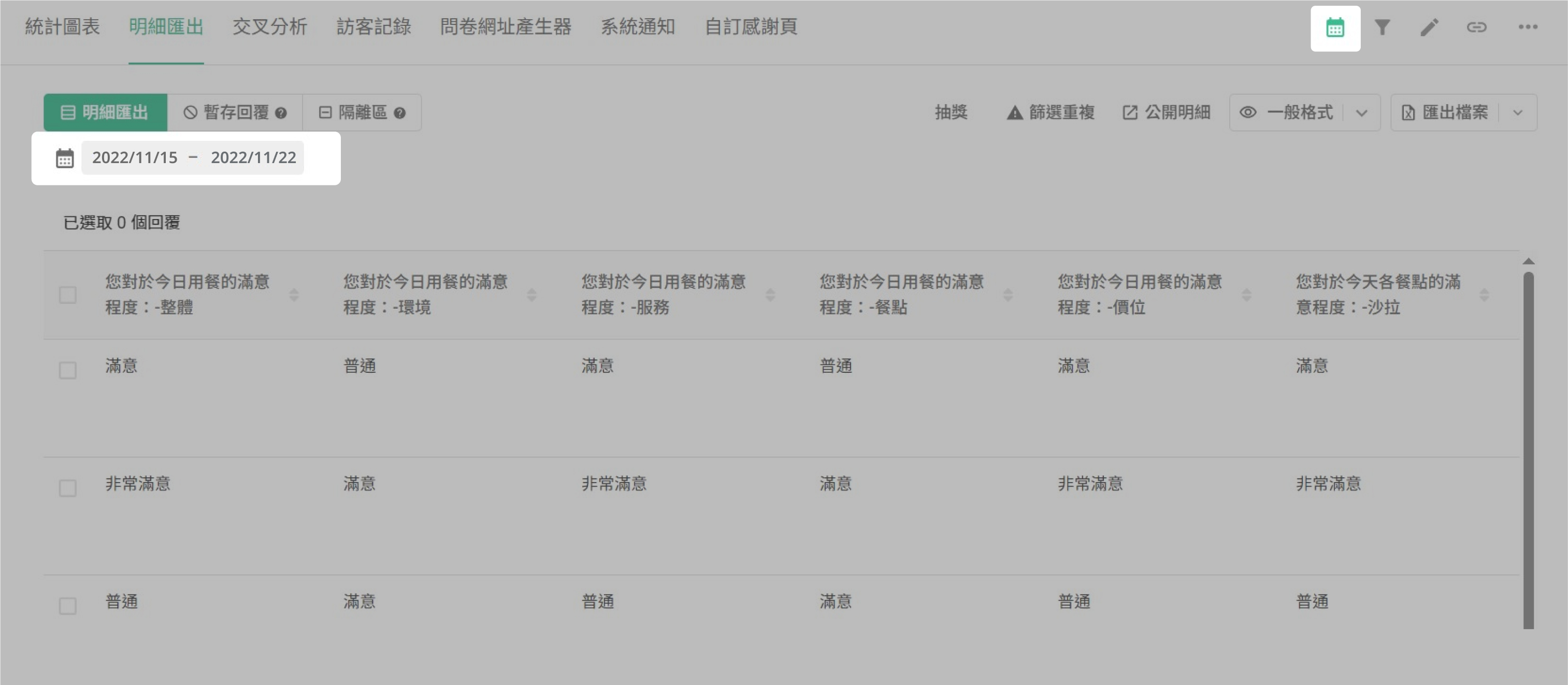
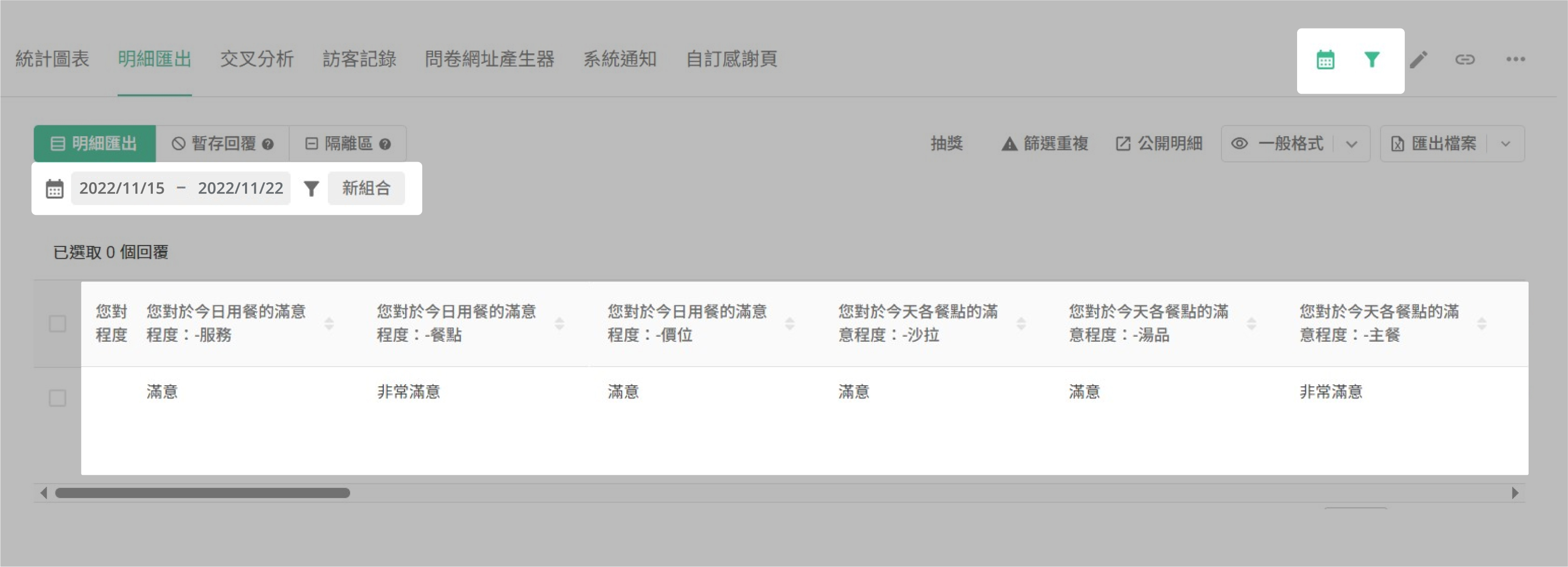
In addition, by combining the Filter function with the funnel icon, you can increase additional analysis criteria and cross-compare data! This will increase the accuracy of your data gathering and analysis!
For example, by adding the "Female" option as a filter criterion.
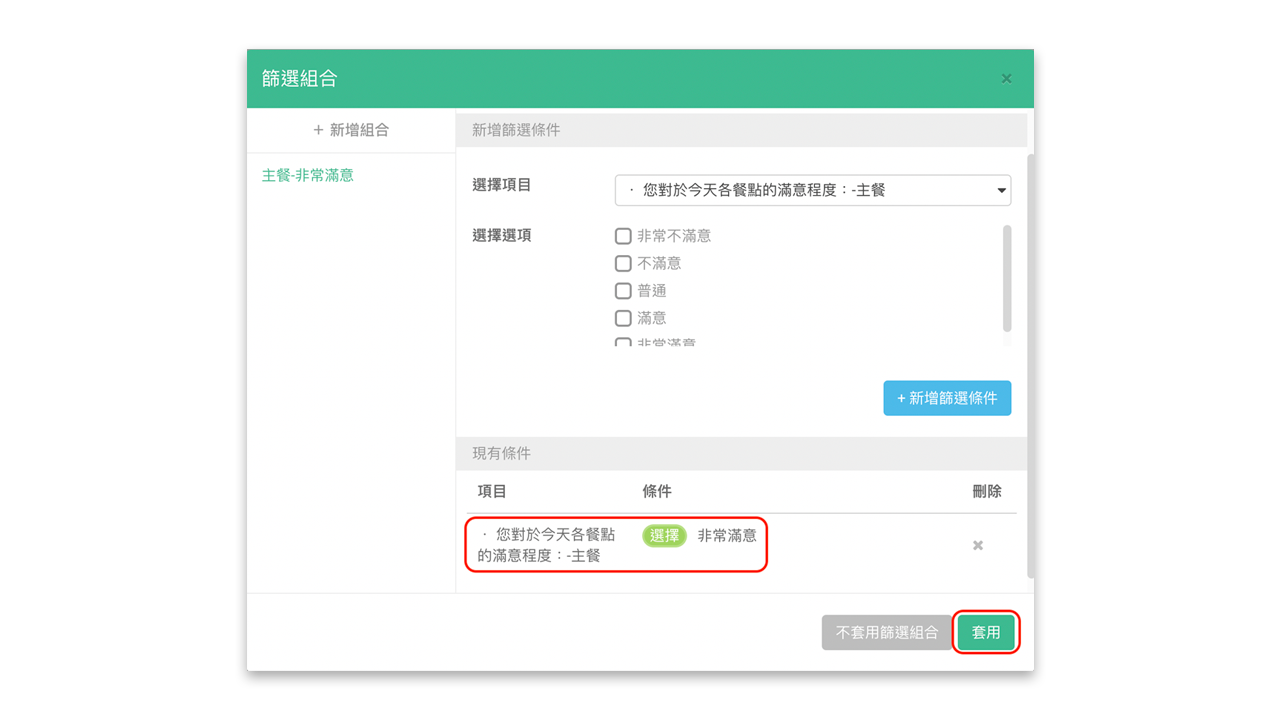
You will receive data samples from 8/15 - 8/31 with all-female in the sample.
FAQ
How do I clear a previously set date filter?
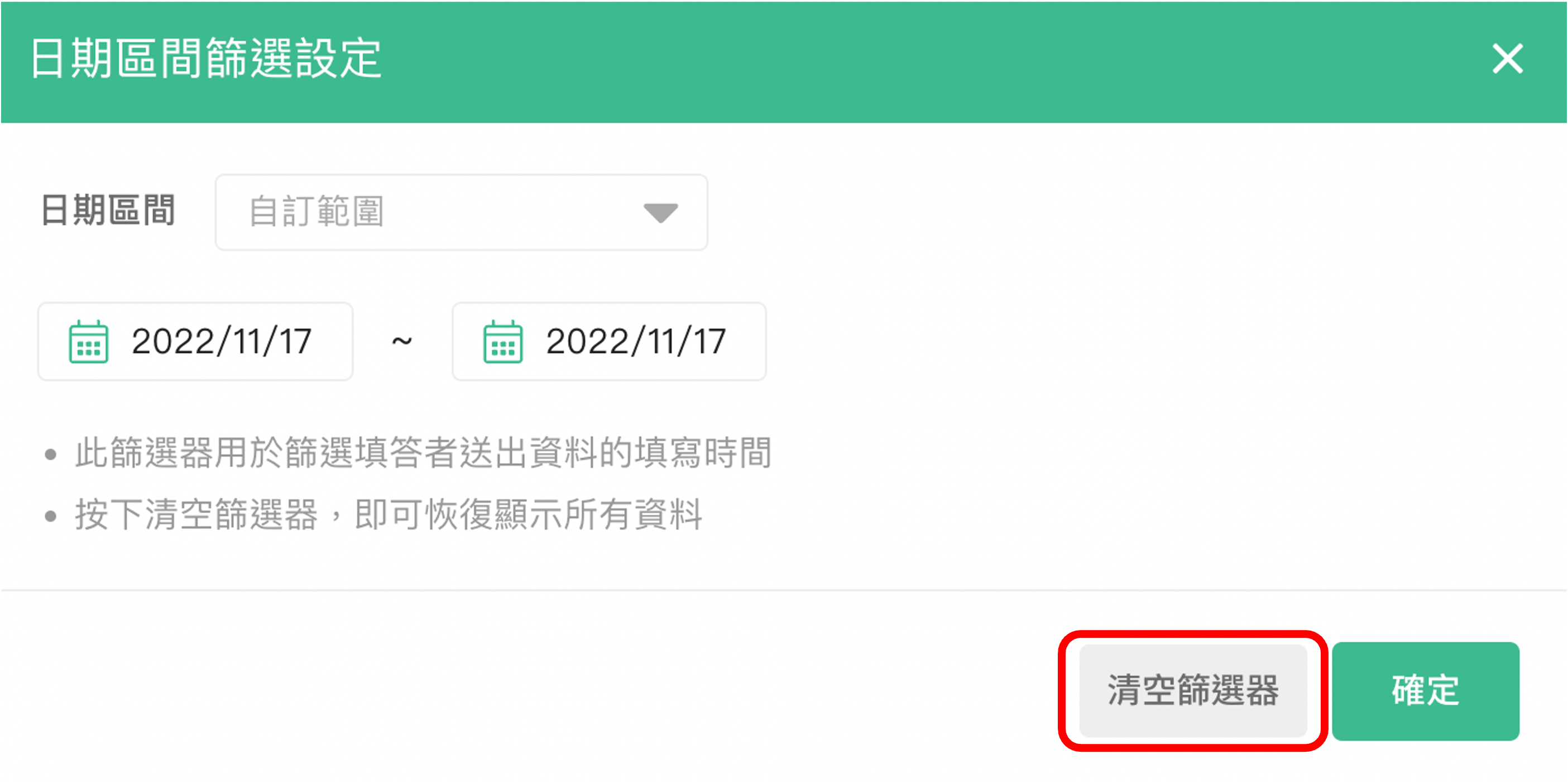
After entering the survey results page, if the date filter icon is highlighted in green, it means that a previously set date filter has not been cleared. To clear the filter, click the icon and then click "Clear Filter".
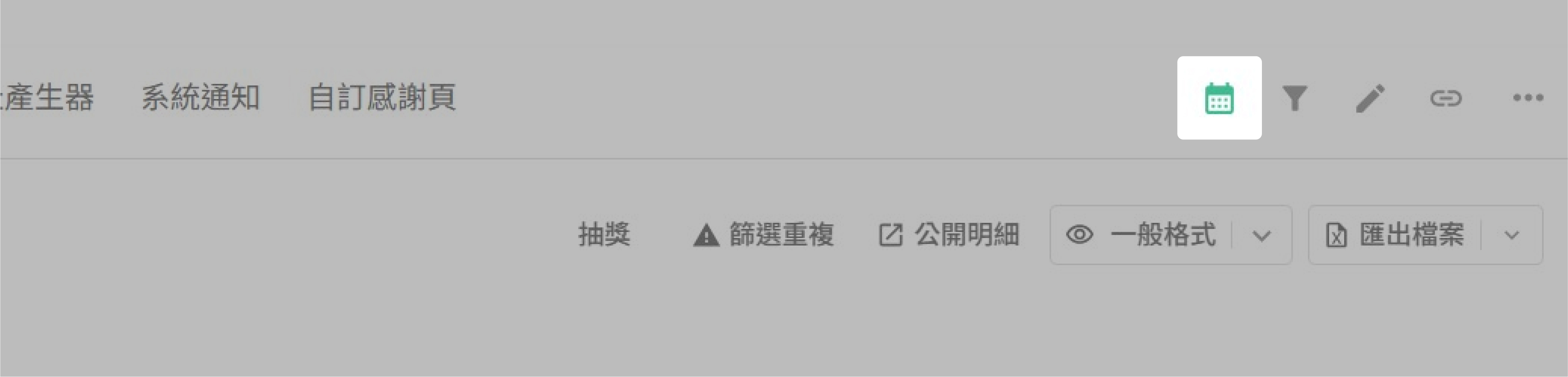
If the date filter icon is highlighted in green, it means that a previously set date filter has not been cleared.
Click "Clear Filter" to clear the previously set date filter.
Can I filter by the date a respondent entered in a date question?
No. Currently, the date filter is based on the time the respondent submitted the survey. If you want to filter by the date a respondent entered in the survey, we recommend using the Filter feature. As shown in the image below, you can add a new filter combination to filter out all data where "2025/8/20" was entered in the date question.
Summary
Designers may get a better understanding of sample performance during a specific time period by using the Date Filter. With Filter, samples may be further filtered by additional criteria and increase the accuracy of data collection and analysis!