You will be taken directly to the survey dashboard upon logging in to SurveyCake. All the surveys you've created, as well as the number of gathered responses for each survey will be shown on the dashboard.
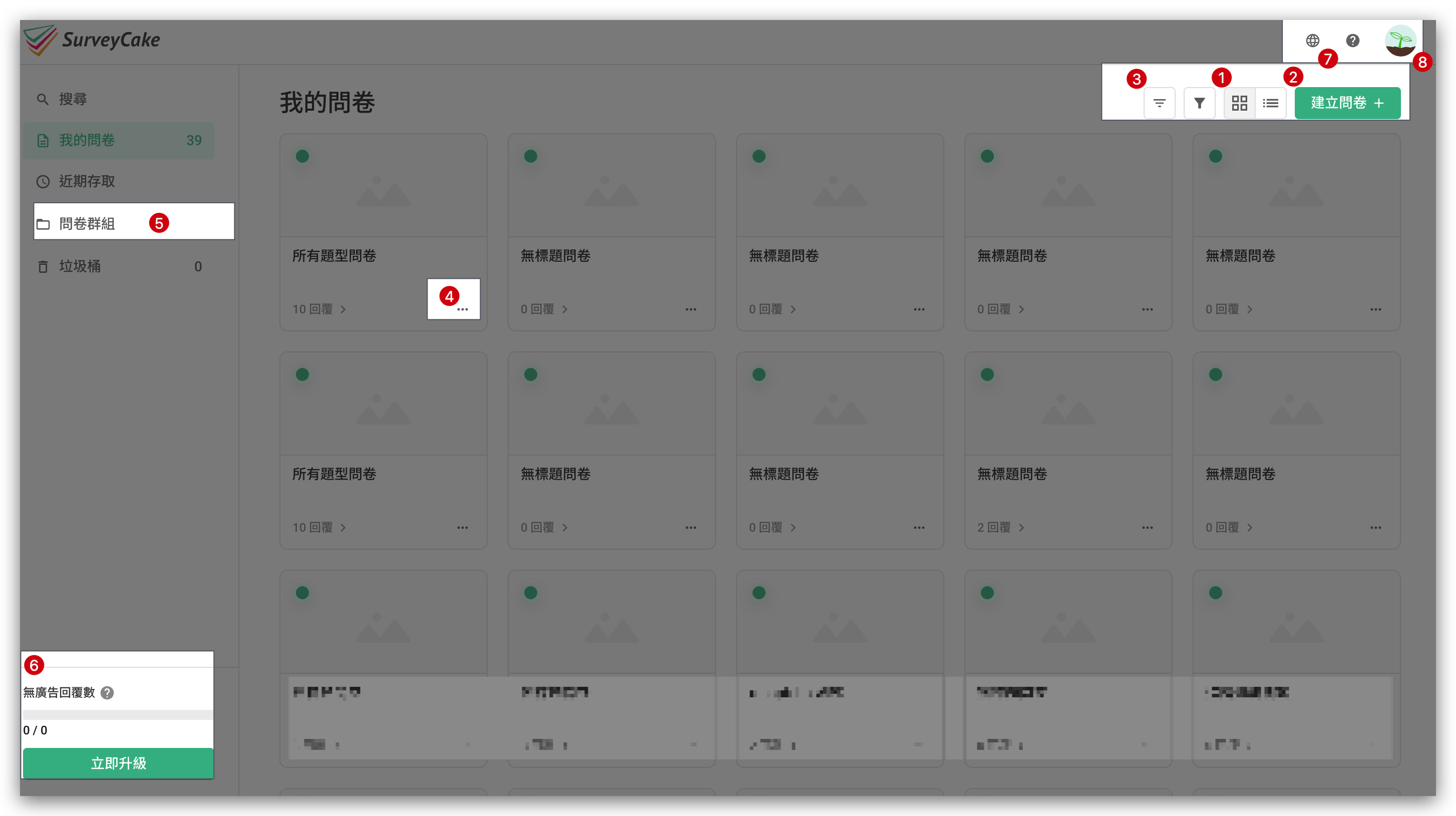
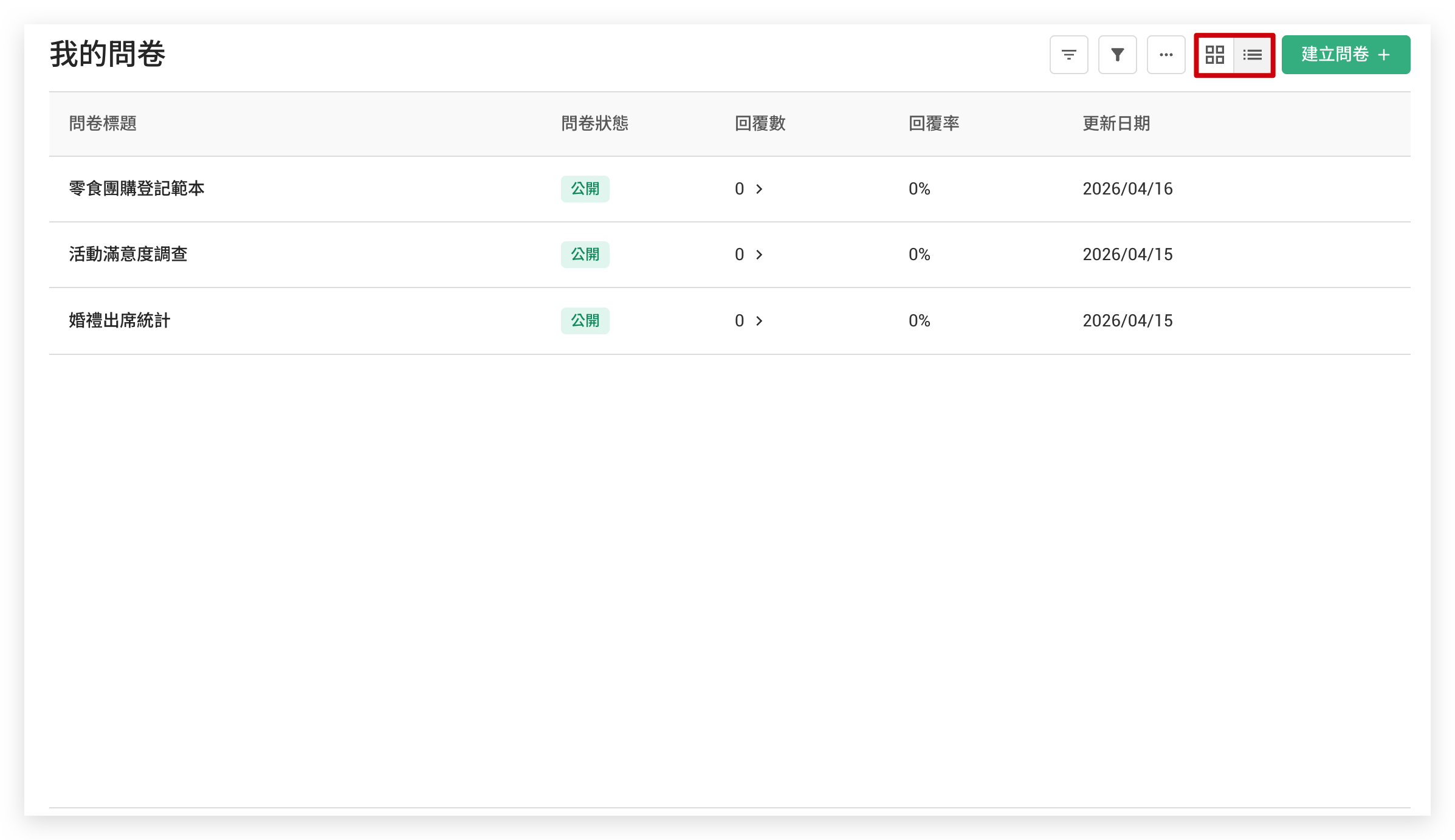
Click on the grid icon located on the top right page corner to toggle between Card View or List View.
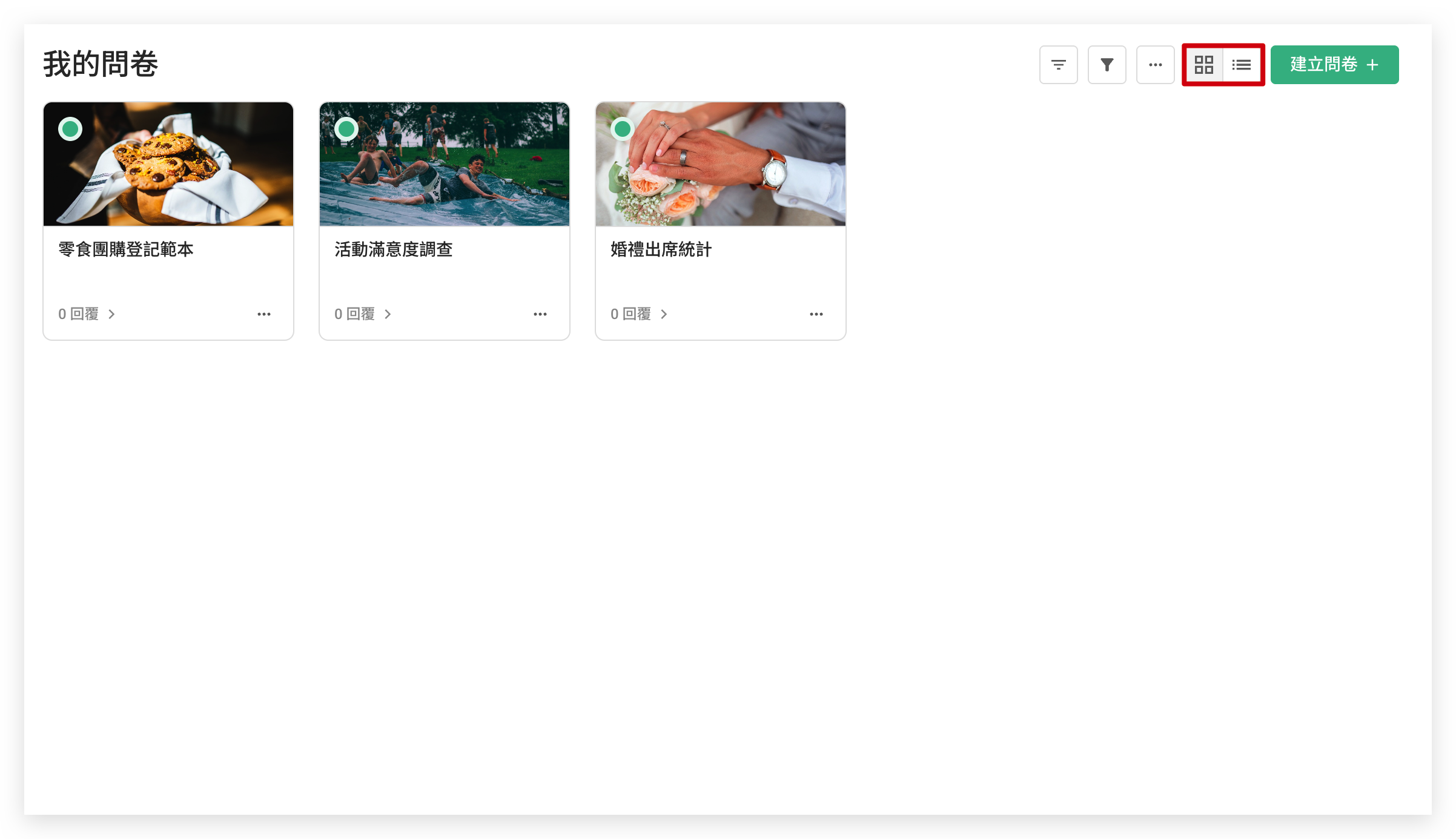
Card View
List View
Mouse over the "Create Survey" button on the top right to create a blank survey, an AI-generated survey, an AI survey import, or apply a template.
On the survey dashboard, you can sort or filter the displayed contents by Status, date created, and so on to increase search efficiency. You can also use the "Search survey title" on the left side to find a specific survey by its title.
Click the "..." button at the bottom right of each survey card to open the Quick Links menu.
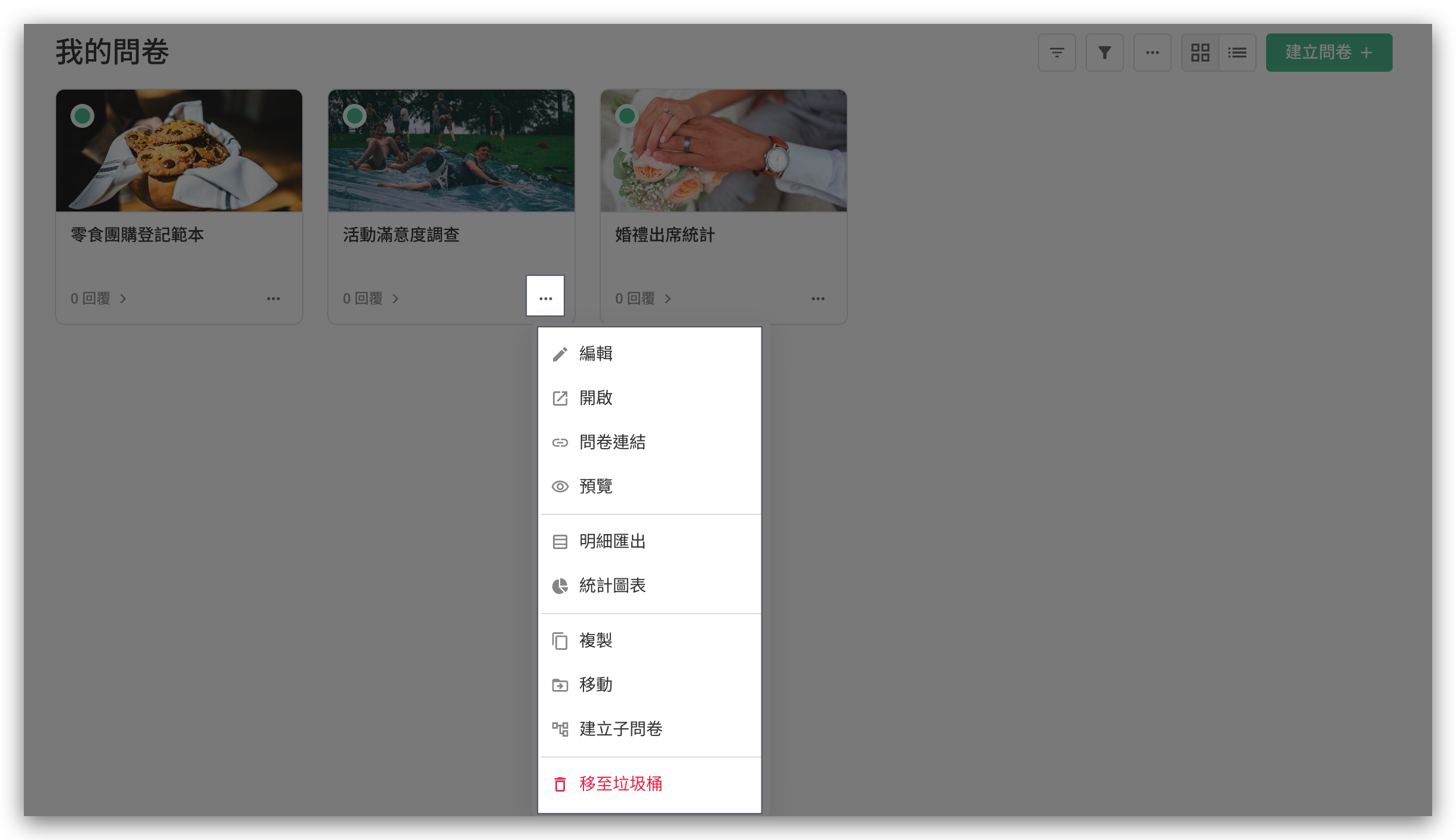
Quick Links menu
The Quick Links, from top to bottom, include:
Edit: Enter the survey editing backend
Open: Open the official survey response page
Share: Copy the survey link
Preview: Access survey preview page
Chart Report: Check the statistical results and charts in Chart Report page
Data Report: Check all the received answers in Data Report page
Duplicate: Copy current survey
Move: Move current survey into another Workspace
Share: Copy the survey link
Create subsurvey: Create a subsurvey under the current survey. The parent survey shares identical survey questions and contents with its subsurvey, and a Combined Analysis could be conducted when needed
Delete survey: Delete the current survey, including all survey questions and responses. ATTENTION: The deleted survey cannot be restored, please exercise extreme caution
Click the "+" icon located on the top left of the survey dashboard to create new Workspaces for classifying your surveys.
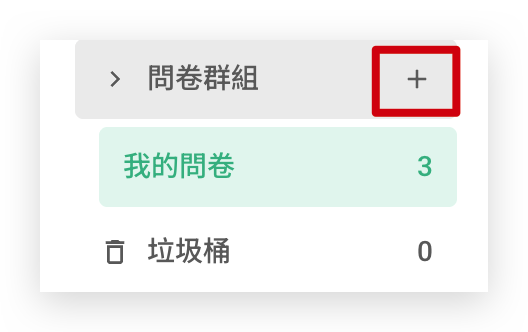
Once Workspaces are created, use the "Move" function found in Quick Links to move the selected survey into designated Workspaces.
The top right corner of the page displays your user icon. Click it to access the following functions:
Basic Settings: Enter the basic settings page where you can view account basic settings, change password, and transfer all surveys and groups
Subscription Plan: View your current subscription plan, ad-free response usage and quota, payment and billing information
My orders: View receipts or promotional details for your SurveyCake paid version subscription
Promotion management: Redeem your SurveyCake promotional codes
Logout