Good News!
Not only can you automatically calculate total scores using Calculation Mode, but you can also create a unique survey experience by displaying different thank-you pages based on specific conditions with the incredible Conditional Thank-you Page feature.
Discover more about Conditional Thank-you Page now!
Calculation Mode allows for the assignment of points to a question's options and answers, and the total score will be automatically calculated. The survey designer is able to set the logic for calculating the score and have the calculated score represent different things depending on the context. Once the respondents complete the survey, they will also be able to see their scores directly on the results page.
How to set up Calculation Mode? Let's start step by step!
Note:
At present, only Multiple Choice and Number questions support Calculation Mode
Calculation Mode only supports up to 100 logic rules
The logic set will be executed in order from top to bottom based on the sequence set below.
1. Calculation Mode
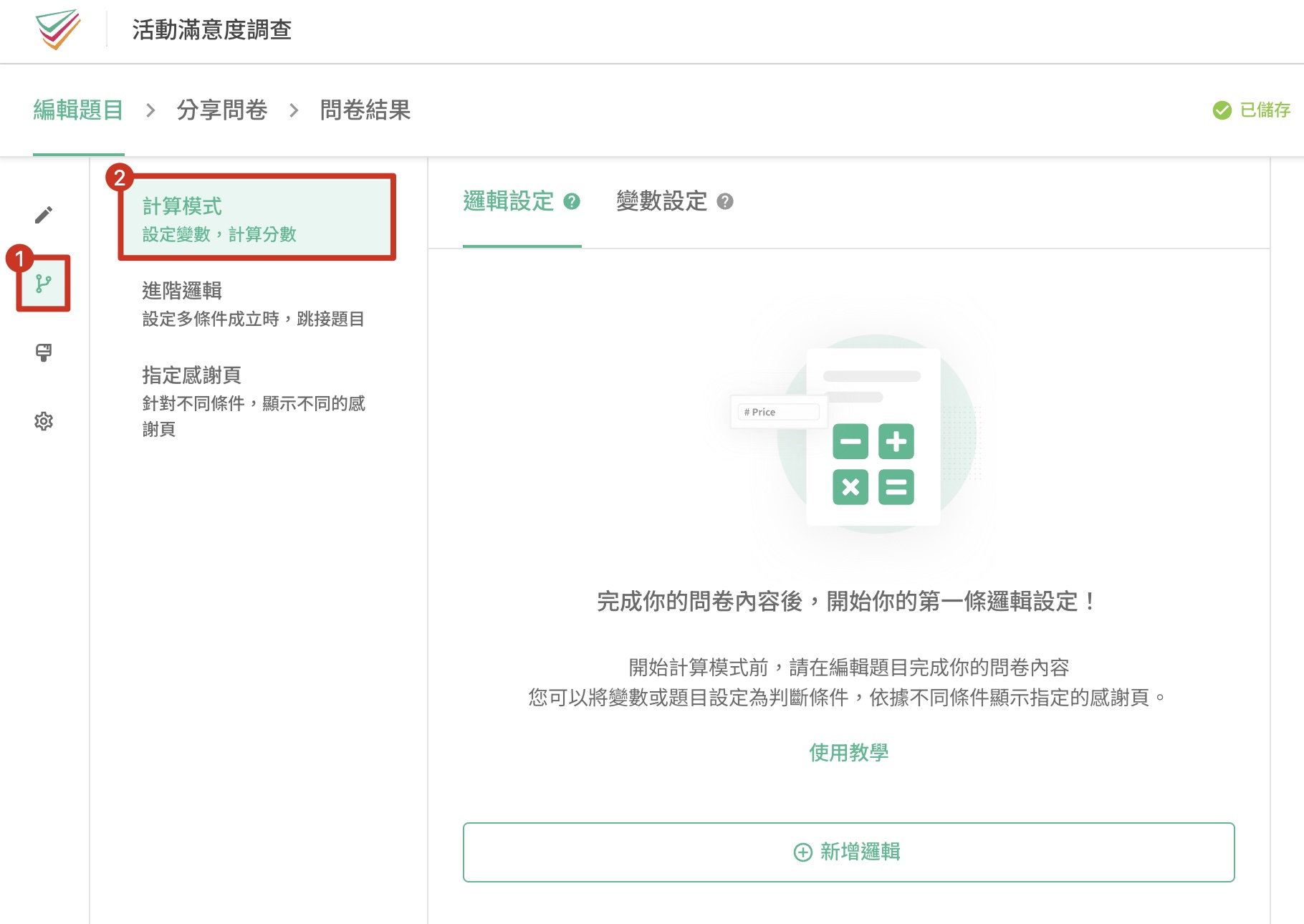
First, go to the Logics page in the Build,where you can find the Calculate settings. After creating the questions, you will be able to set up the calculation logic and variables for the question options!
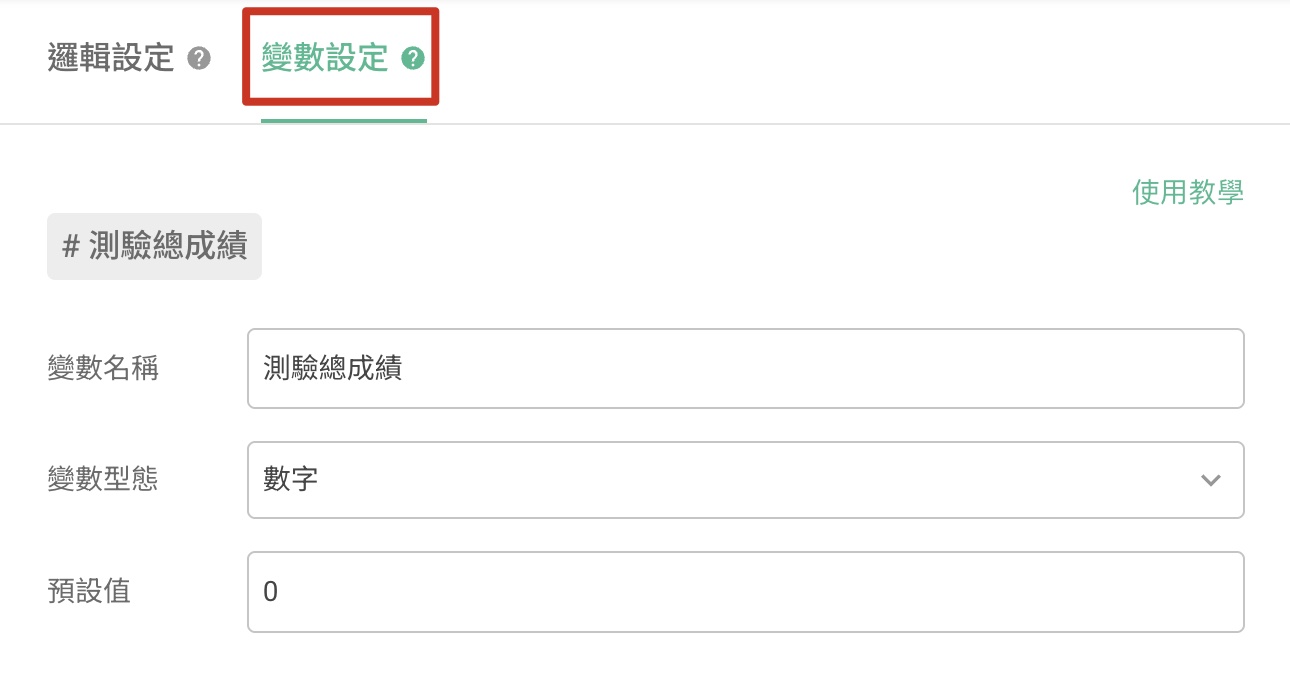
First, we will need to get to variable settings. Variables are the calculated results of the entire survey's value. You will have to set the Variable Name and Default Value.
If the survey is to be used for exams or tests, you may wish to set the variable name to "Total Test Score". If it is to be used to calculate the total amount of an order, you may wish to set the variable name to "Order Amount" to facilitate identification when designing the survey.
A default represents the starting value of the calculation. If Default is set to 0, the respondent's score will be calculated from the baseline of 0. By extension, if Default is set to 60, the system will start calculating using 60 as the starting value.
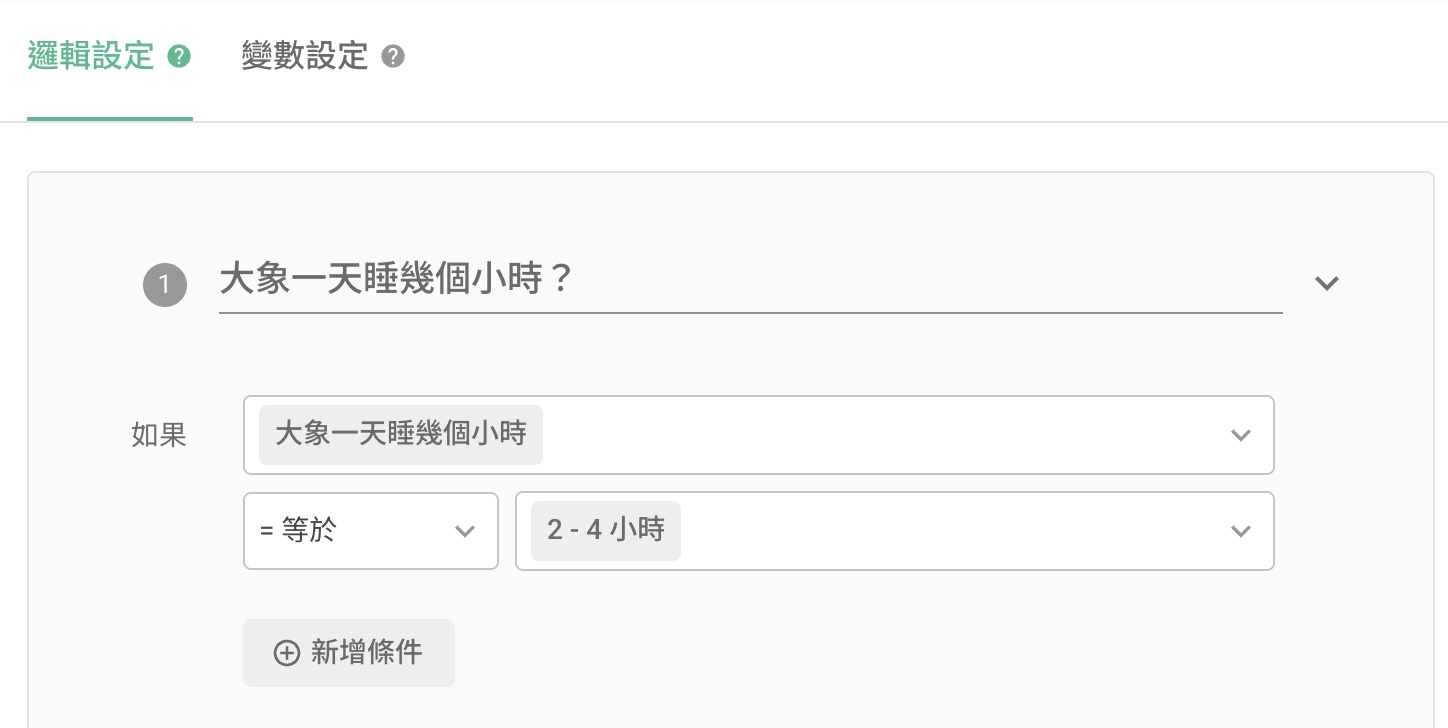
Logic settings allow variables or questions to be used as conditions. Operations and calculations are then performed on the variables.
Before setting the logic rules, ensure that you have created the relevant questions in Build. Let's use a "Multiple Choice Test" to show how Calculation Mode works. First, we add a multiple choice question and several options to the survey. These will serve as the test content.
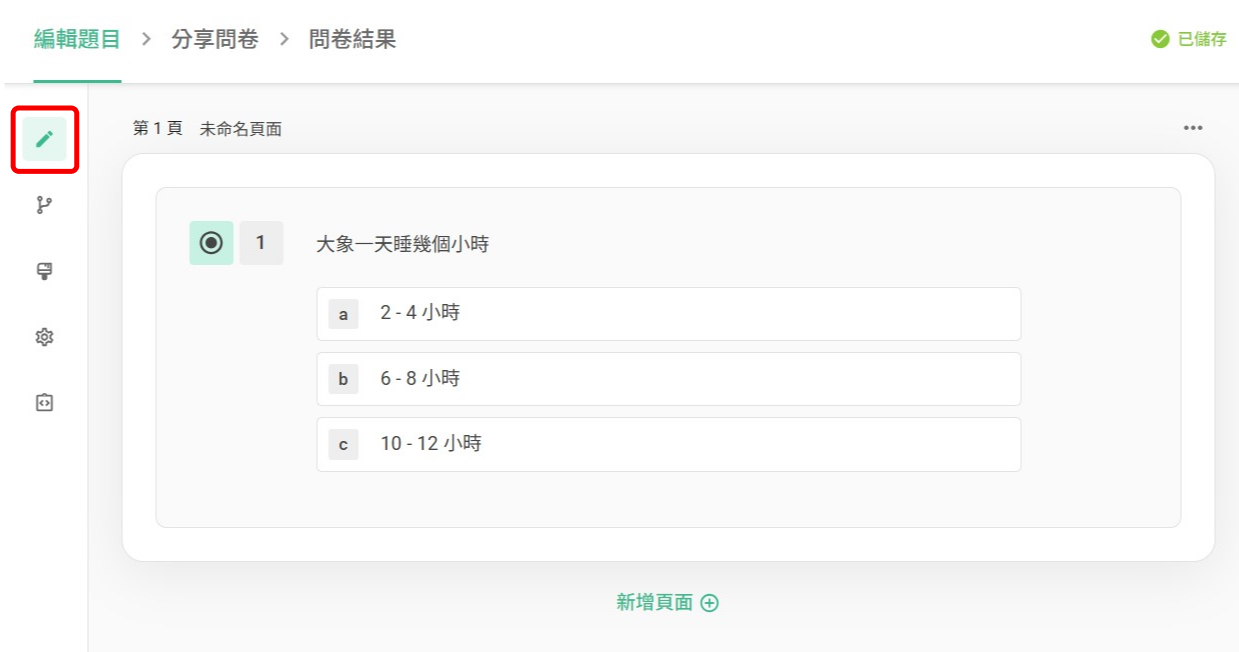
Once the question has been set, you will be able to enter Calculation Mode.
Suppose the question is, "How many hours does an elephant sleep a day?" and the correct answer is "2-4 hours". Select the category of "Questions with Answers" in the If section, and select "How many hours does an elephant sleep a day?" and set the correct answer as (equal to) "2-4 hours".
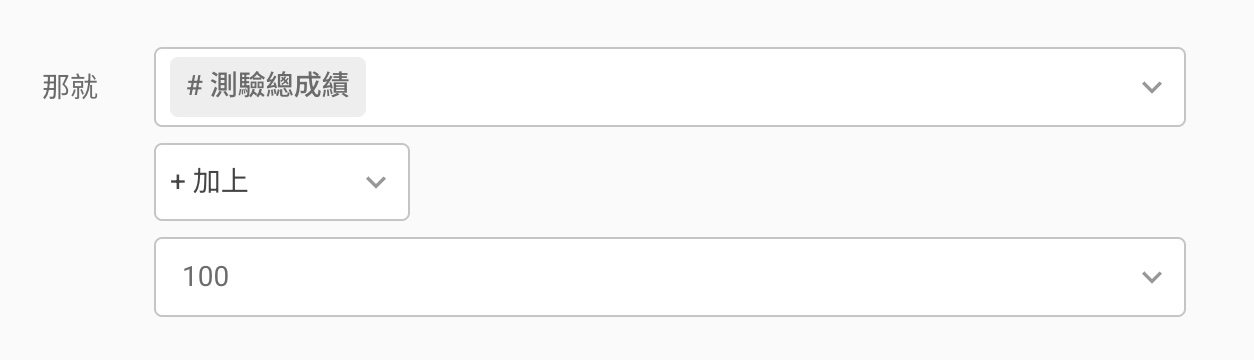
After setting the correct answer to this question, you can set the points to be received by the respondent in the Then section. If you want the respondent to get 100 points by answering this question correctly, just select Plus in the field below and enter 100. When the respondent answers the question correctly, they will get 100 points.
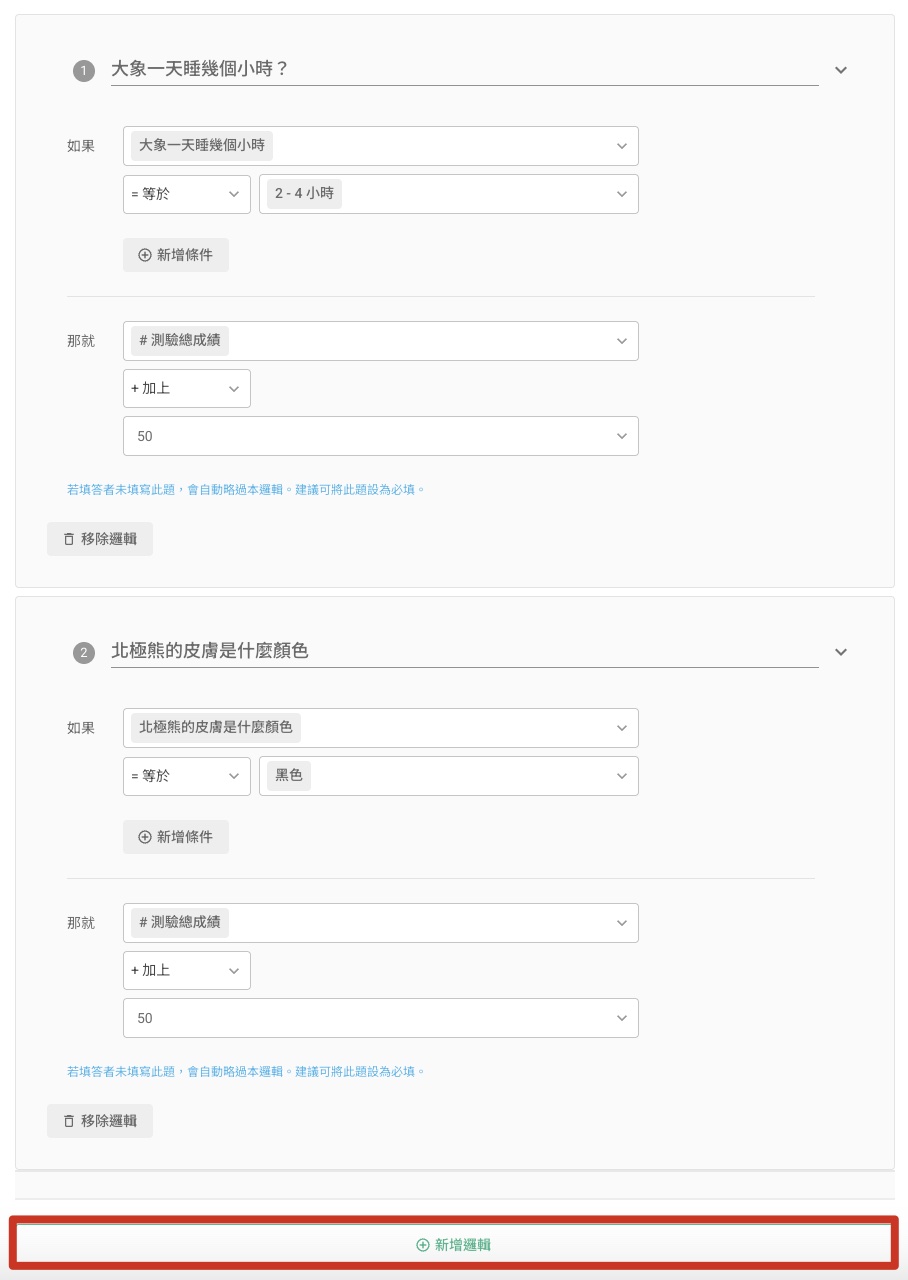
If your survey has two or more questions, don't worry! Just select Add Logic in the logic settings area to set the point values for multiple questions at the same time.
Take the following logic setting as an example. If the respondent answers one of the two questions correctly, they will get 50 points. If they answer both questions correctly, they will get 100 points.
In addition, the variable itself can also be used as a condition. If you would like the group purchase form to automatically calculate the total amount after discount (e.g 15% off on spending NT$1,000), all it takes is to set the logic and the survey will help you calculate the discounted amount!
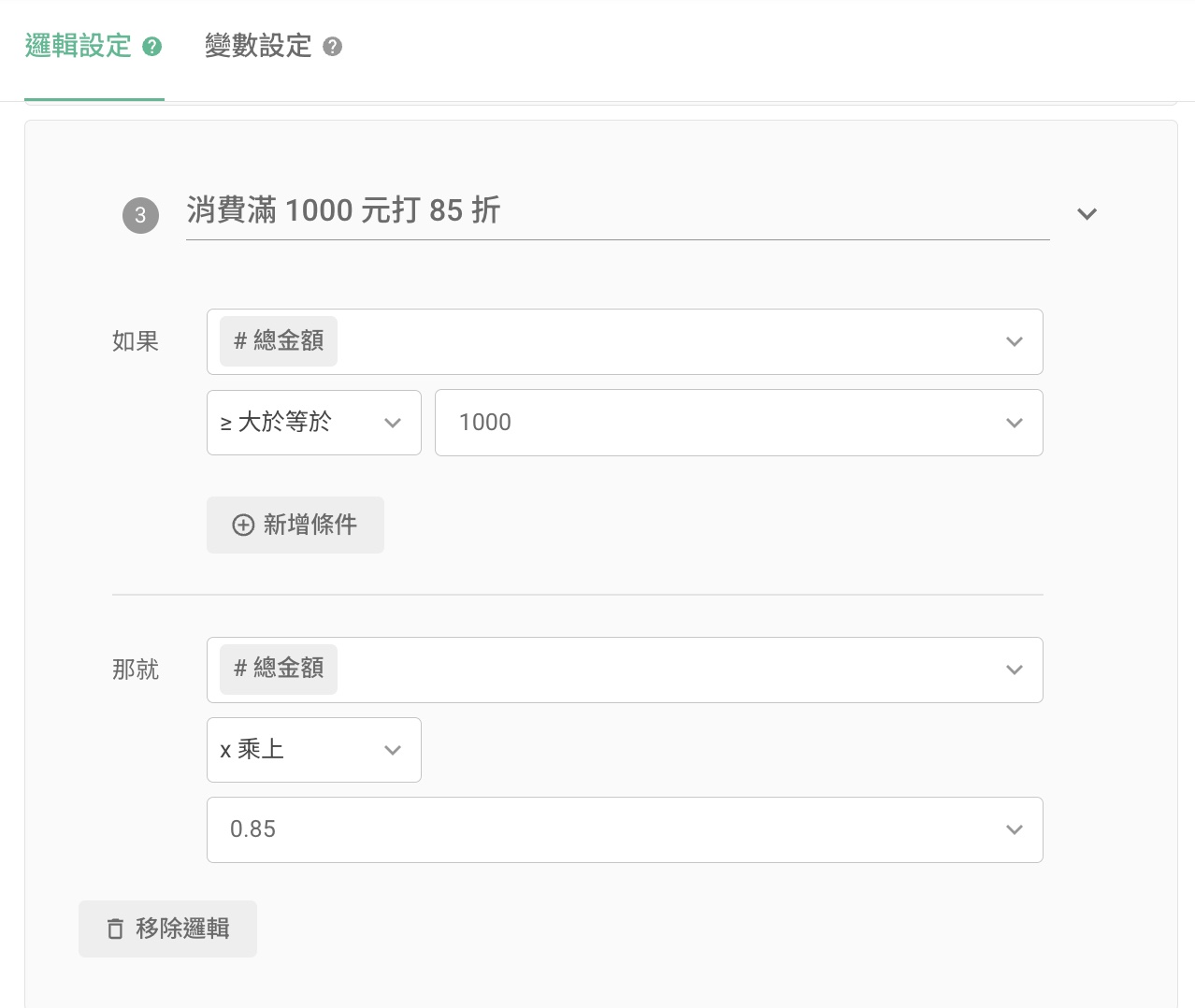
If the total amount is greater than or equal to NT$1,000, the total amount will be multiplied by a 15% discount
After setting the logic and variables, just enter the variables and you're done!
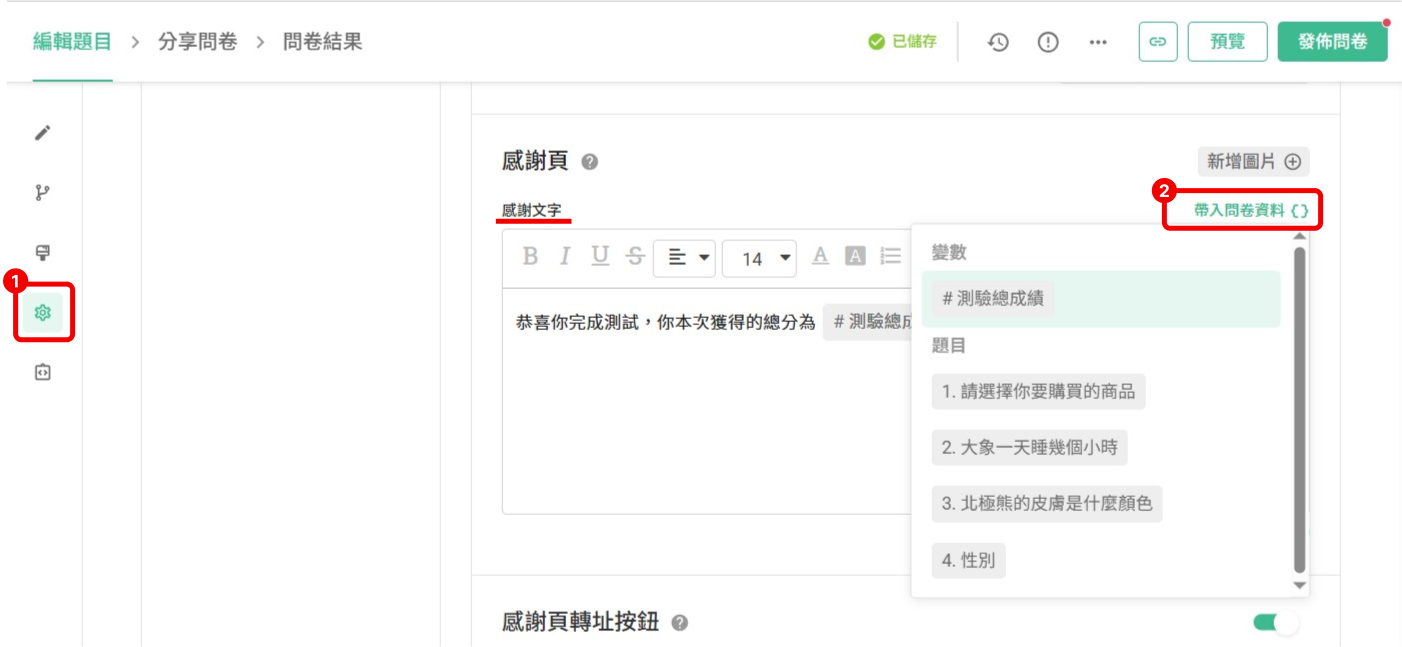
If you would like respondents to be able to see their test results in the Thank-you Page, navigate to the “Build” sidebar, select “Settings” then proceed to the “Welcome Page and Thank You Page” section. Scroll down to the “Thank You Message” field, enter your text, and click “Insert Dynamics Fields” to select the variables you've already set.

In addition to the Thank you page, you can also set variables in the Statement to allow respondents to check their current status!
FAQs
Can I multiply the quantity of items by their prices directly in the survey and calculate the total amount? (As shown below: First, the respondents will select the items to purchase, then manually enter the quantity, and finally, display the result in the Rich Text)
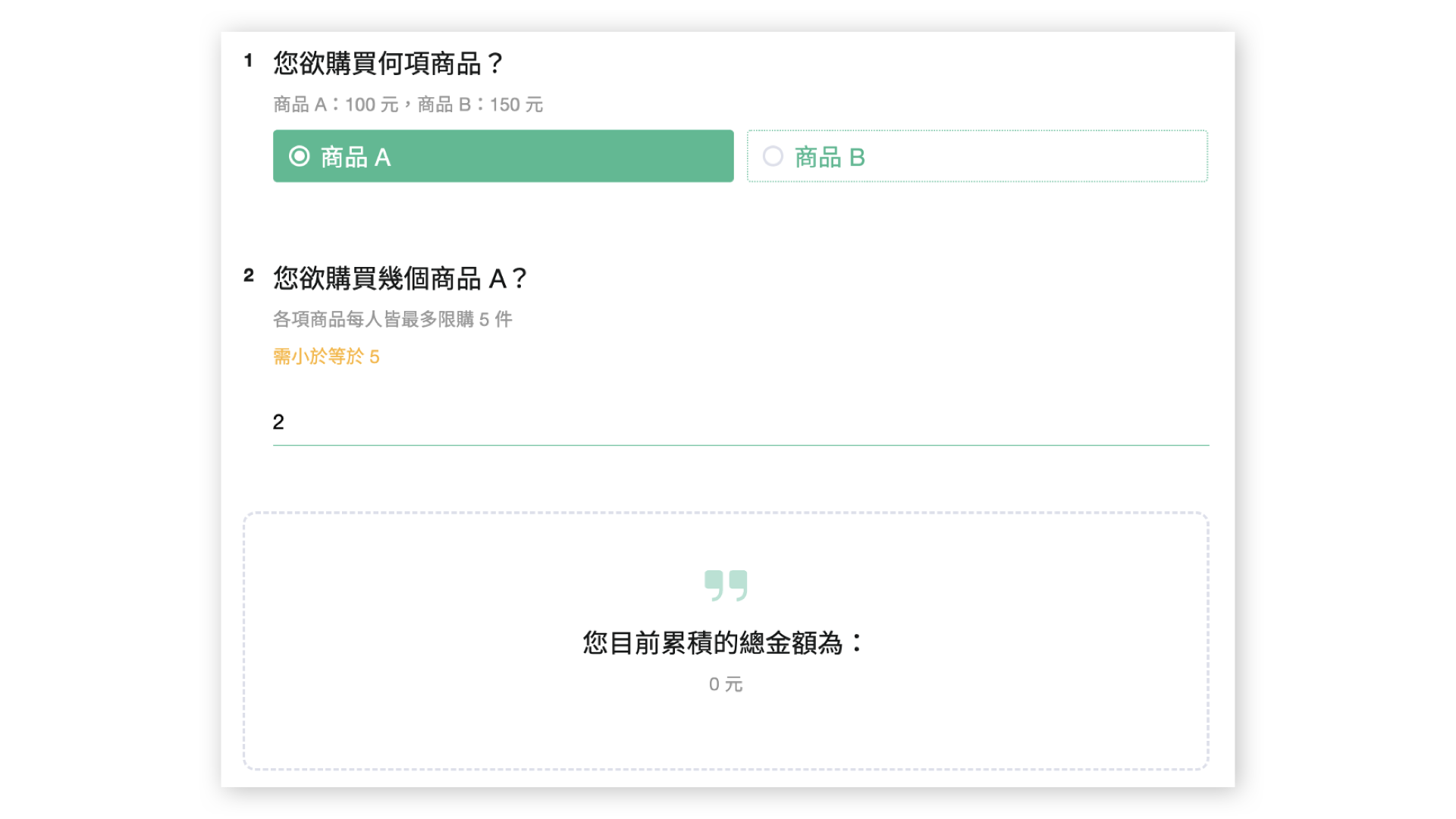
Since the current calculation mode doesn't allow direct multiplication of two question answers, it is recommended to add a Numeric Question for each item. Use the Conditional Branching feature to display the corresponding numeric question after an item is selected. Then, set up the logic within the numeric questions.
For example: We start by adding a multiple choice question for selecting items. Then, create a corresponding number of numeric questions based on the number of items (If there are 2 items, create 2 numeric questions, and so on). Next, set up the conditional branching for each item option to trigger the display of the respective numeric questions as follow-up questions.
If the quantity for each product is limited, you can set the Numerical Range for each question.
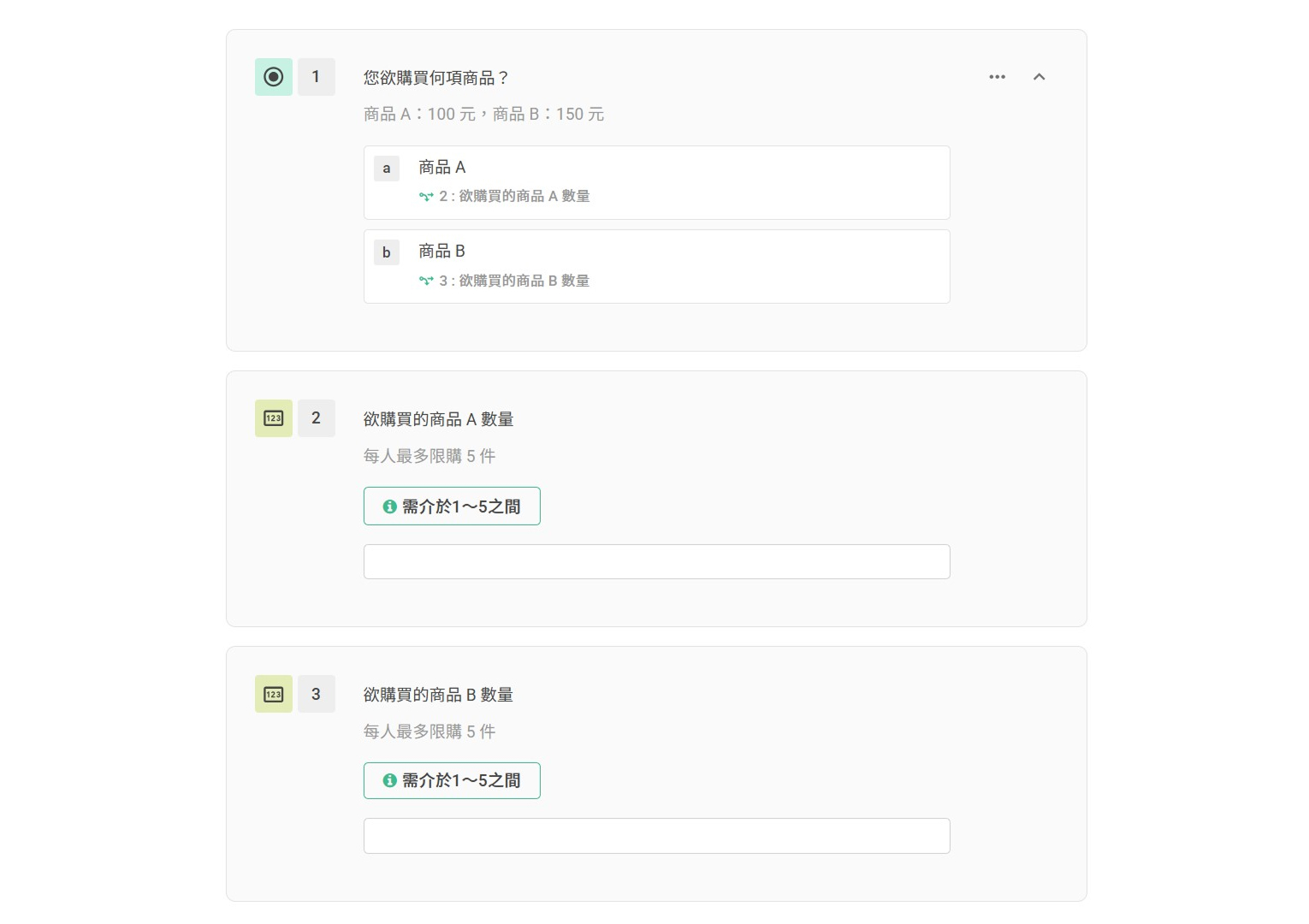
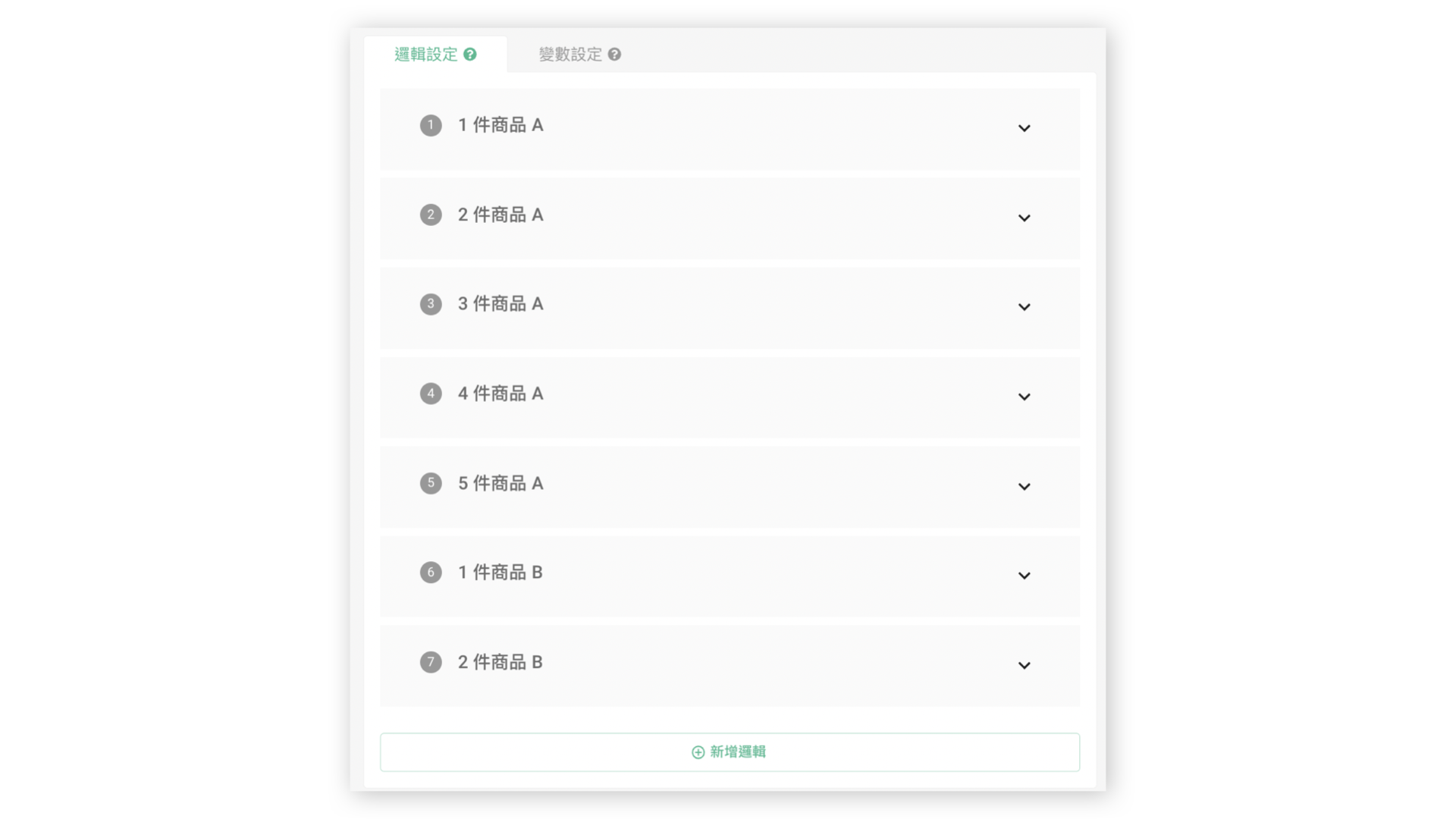
Next, within the calculation mode, proceed to set up logic for each quantity filled in the numeric questions.
For instance: If Product A allows purchasing between 1 to 5 items, it's necessary to establish specific logic for 1, 2, 3, 4, and 5 units of Product A. The same applies to Product B. Consequently, there will be a total of 10 logics for both products.
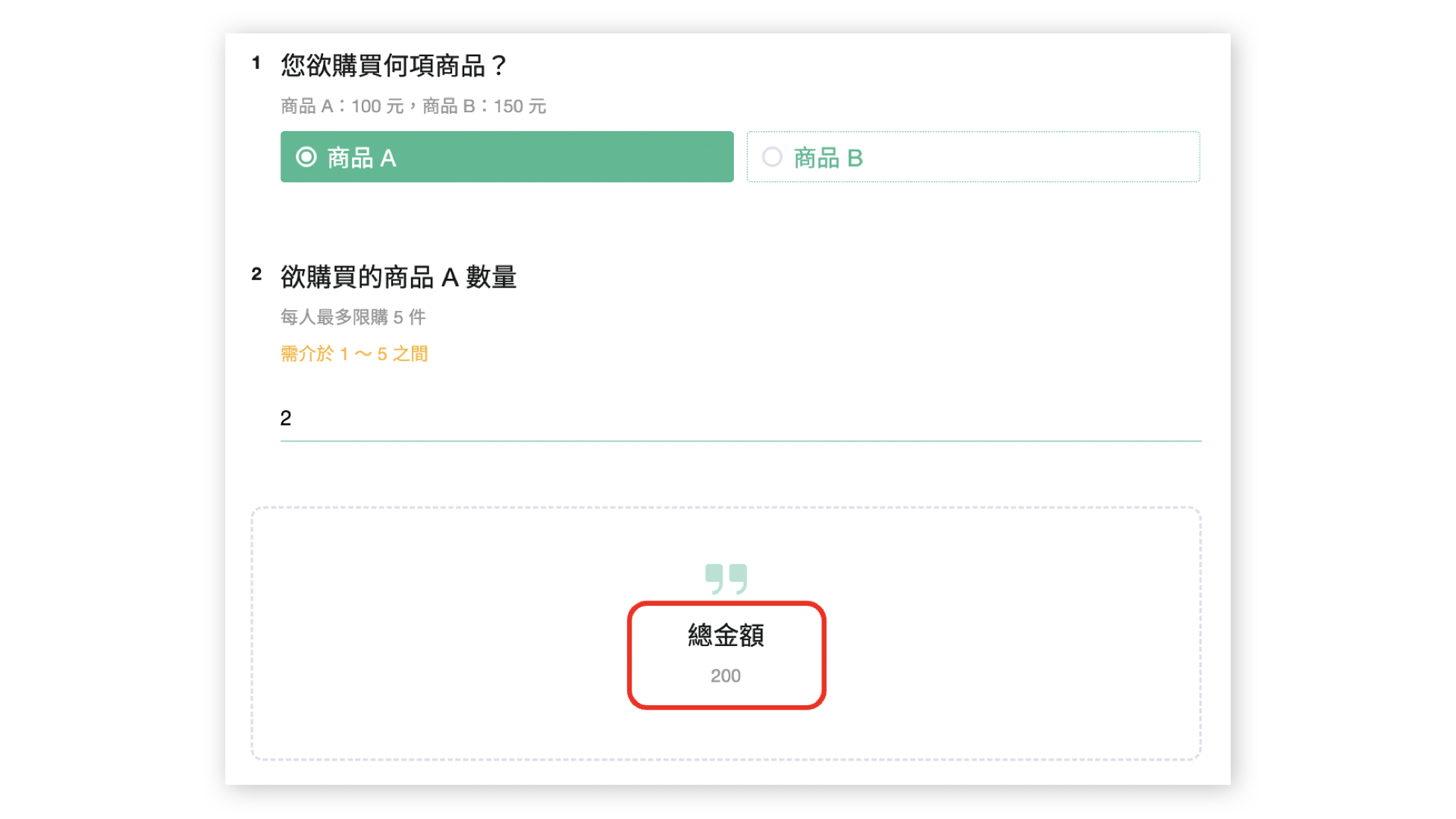
In this way, the questionnaire can present the calculation results based on the number of products filled in by the respondent!
Summary
Calculation Mode is very suitable for surveys that require the automatic calculation of total value, such as exams, tests, and online shopping. Respondents will be able to check their scores immediately after completing the survey!