Questionnaire design requires users to spend a significant amount of time and focus. Sometimes, due to interruptions or accidentally closing the page, carefully created questionnaires might not be saved. Through the "Auto Save" feature, all changes and designs made while editing questionnaires are automatically preserved, making the questionnaire creation process more convenient and time-efficient.
How does Auto Save work?
The system automatically saves your edited content while you are editing the questionnaire and when you leave the questionnaire editing page. Whenever the system auto-saves, a "Saved" notification appears in the top bar, letting you know that your changes have been successfully preserved.
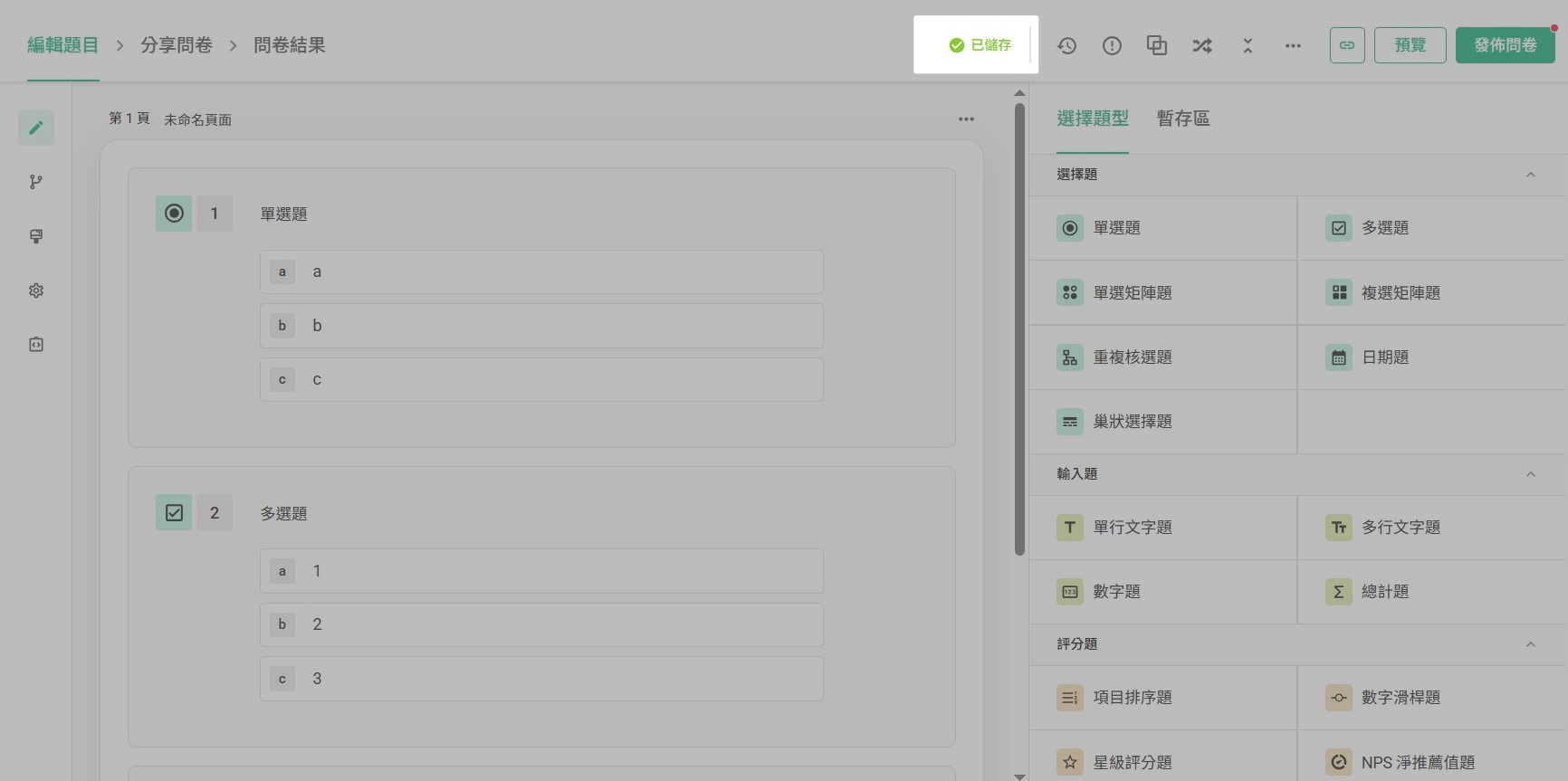
You can understand the auto-save feature as the concept of "draft questionnaire" and "published questionnaire":
Draft questionnaire: The auto-saved version, containing all your edits, but not yet officially published to respondents.
Published questionnaire: The questionnaire version that respondents actually see and answer, which requires you to manually click the "Publish" button to update.
The auto-save mechanism does not affect what respondents see. Respondents will only see the official questionnaire version after you click "Publish". Auto-saved content is only saved as a draft and does not affect the published questionnaire.
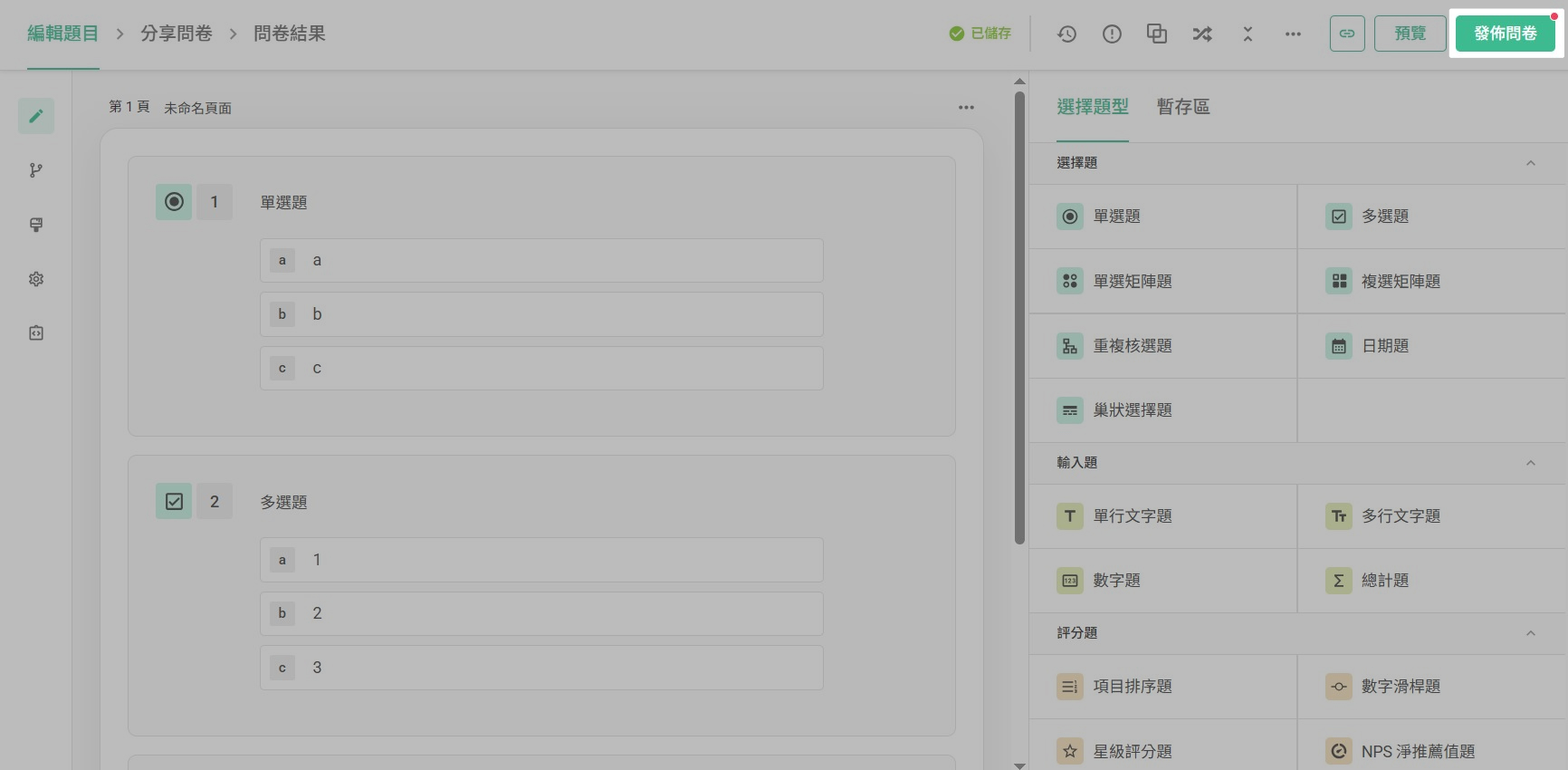
Edit History Feature
The edit history feature allows you to view the editing history of the questionnaire: Click on the "Edit History" option in the upper right corner of the questionnaire to open the edit history window.
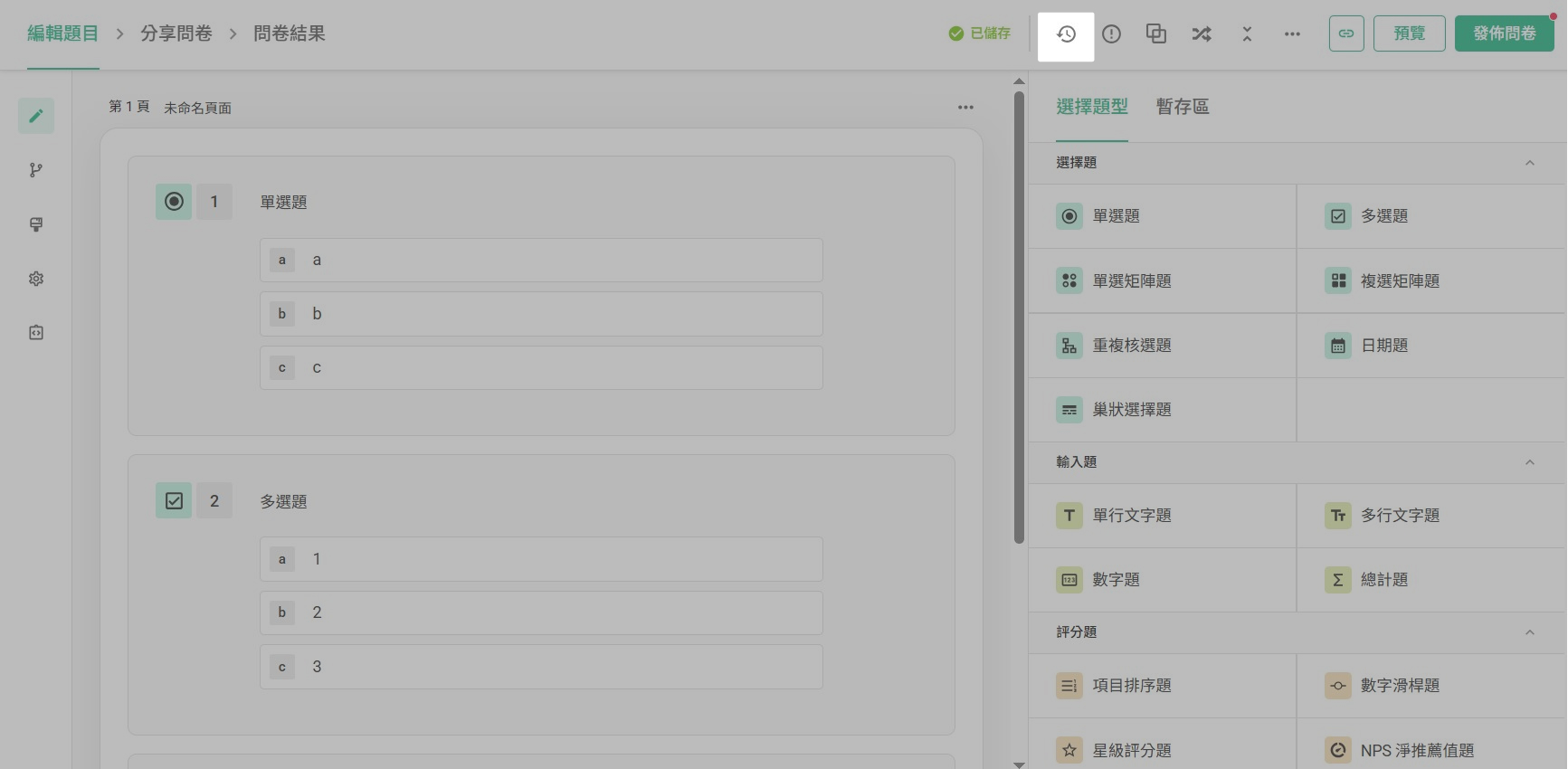
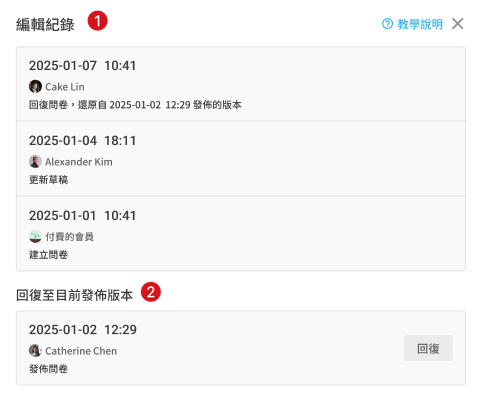
In the edit history, you can view:
Creation and update history of the questionnaire
Records of questionnaire publications
Records of questionnaire copying, moving, and other operations
If you are not satisfied with your current edits, you can revert to the currently published version. Please note the following before reverting:
If your current edited content has not been published, restoring will "clear the currently edited content"
Adding questions/options scenario:
Draft: Added "Question A" and "Option A"
Currently published version: Does not have "Question A" and "Option A"
After reversion: "Question A" and "Option A" will be removed from the draft
Deleting questions/options scenario:
Draft: Deleted "Question A" and "Option A"
Currently published version: Has "Question A" and "Option A"
After reversion: "Question A" and "Option A" will reappear in the draft
Editing questions/options scenario:
Draft: Modified the text of "Question A" and "Option A" to "Question B" and "Option B"
Currently published version: Shows "Question A" and "Option A"
After reversion: The draft will revert to showing "Question A" and "Option A"
Notes
Network Connection Issues
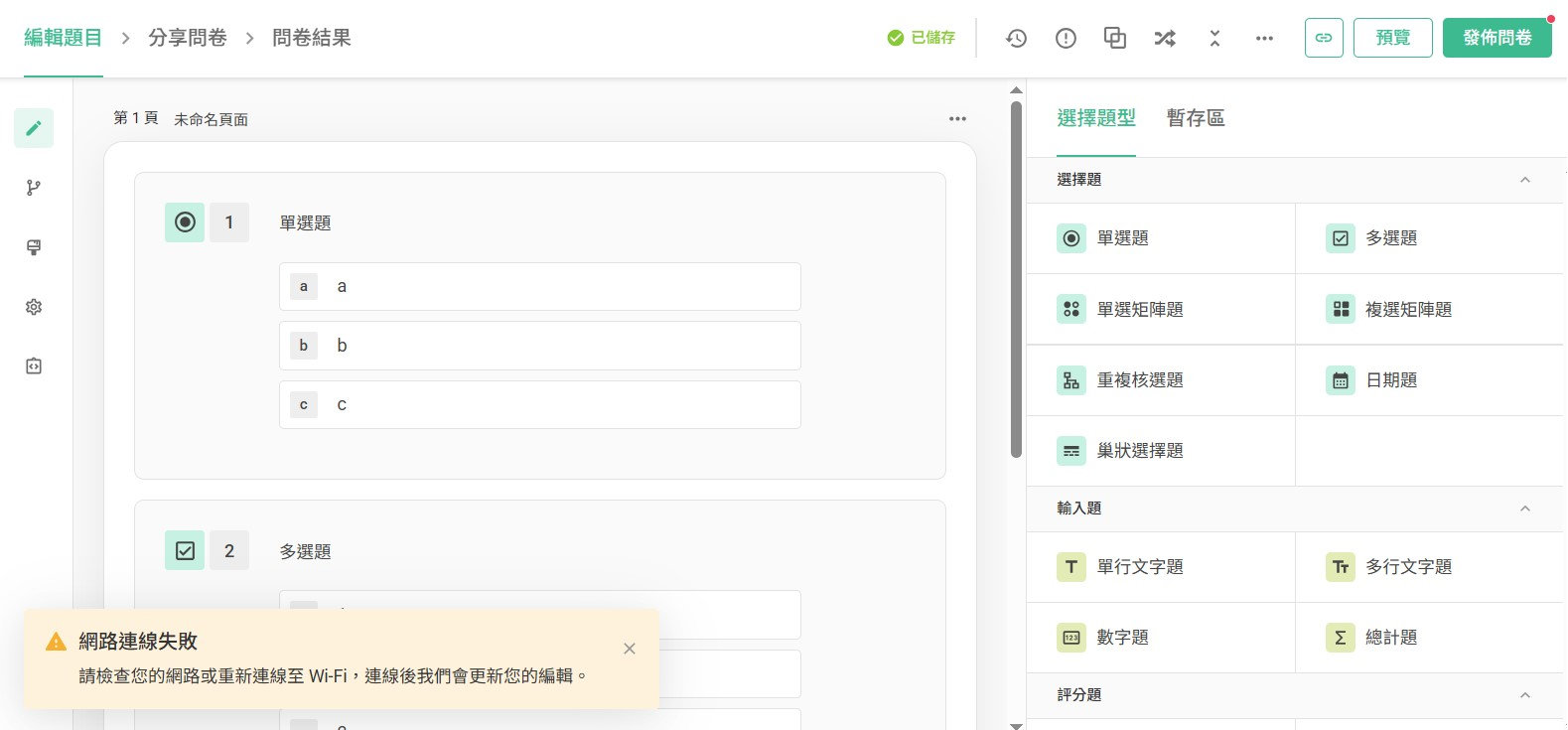
If you encounter network connectivity issues during editing, the system will display a warning message in the bottom left corner: "Network Connection Failed. Please check your network or reconnect to Wi-Fi. Your edits will be updated once connected.." After reconnecting, the system will automatically synchronize your edits.
Simultaneous Editing Alert
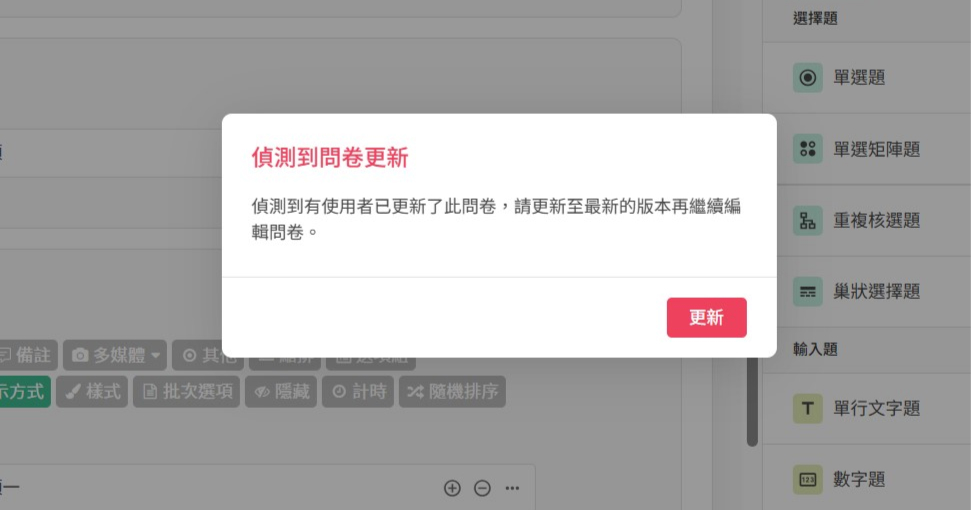
To avoid content conflicts, when the system detects the same questionnaire being edited by multiple people or in multiple windows simultaneously, it will display a reminder: "Survey Update Detected. Another user has updated this survey. Please refresh to the latest version before continuing." If another user has updated the questionnaire, the system will prompt you to update to the latest version before continuing to edit.
Summary
With the auto-save feature, you can focus more on questionnaire design without worrying about losing content due to accidentally closing the page.