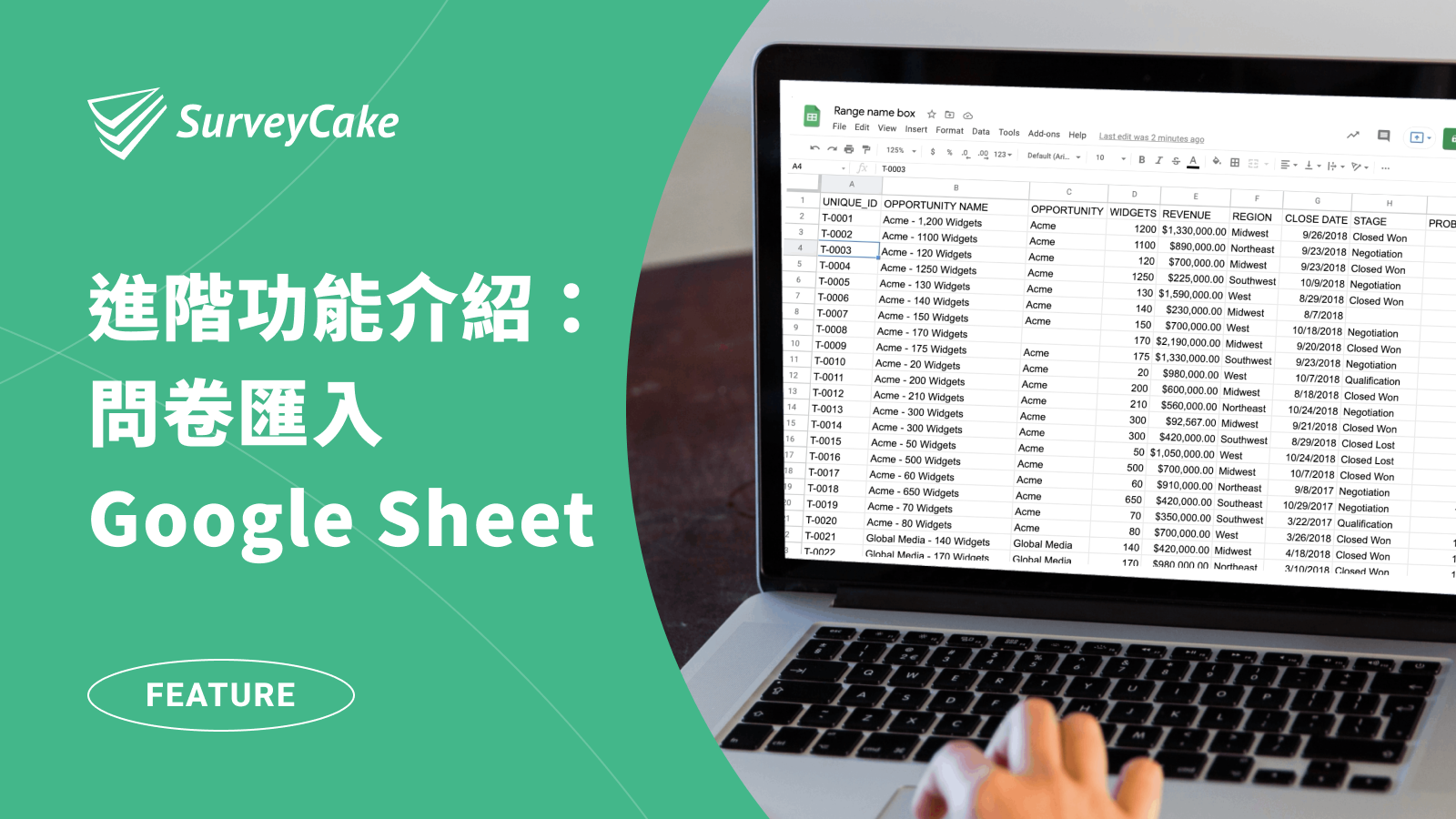
Easily Master SurveyCake Google Sheets Integration

Unlock the full potential of your SurveyCake with Google Sheets Integration!
Surveys are a powerful tool for collecting data and insights. But what do you do with all that data once you have it?
With Google Sheets, you can easily store, analyze, and share your survey results. This gives you the power to make better decisions, improve your products and services, and grow your business.
In this blog post, we’ll show you how to connect your surveys to Google Sheets. Once you’ve done this, you’ll be able to:
- Store your survey results in a single sheet
- Analyze your data using Google Sheets’ powerful tools
- Share your results with others
Step by step guide
1. Create a Google Spreadsheet
2. Set up the Google Spreadsheet App Script
3. Set up the SurveyCake Webhook Url
4. Test-submit twice
1. Create a Google Spreadsheet
To get started, you’ll need to create a survey using SurveyCake, obviously. Next, you’ll need to create a Google Sheets spreadsheet to store your survey results.
2. Set up the Google Spreadsheet App Script
To connect your survey to Google Sheets, you’ll need to set up a script.
2-1. Copy a prebuilt app script
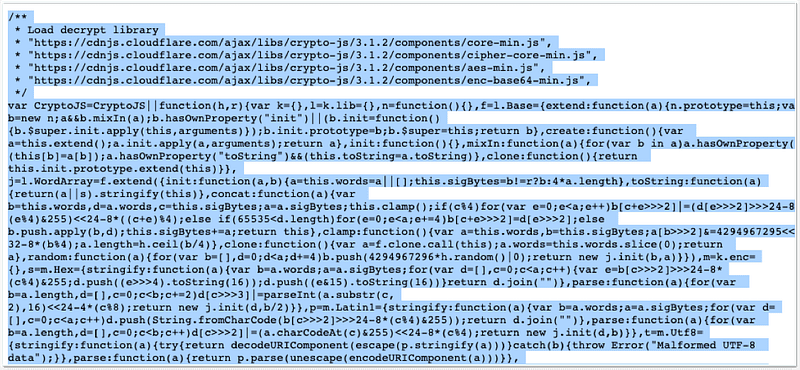
Now, you need to copy the script that will connect your survey to Google Sheets. Click HERE and this will open a new tab with the code. Select ALL of the code and copy it.
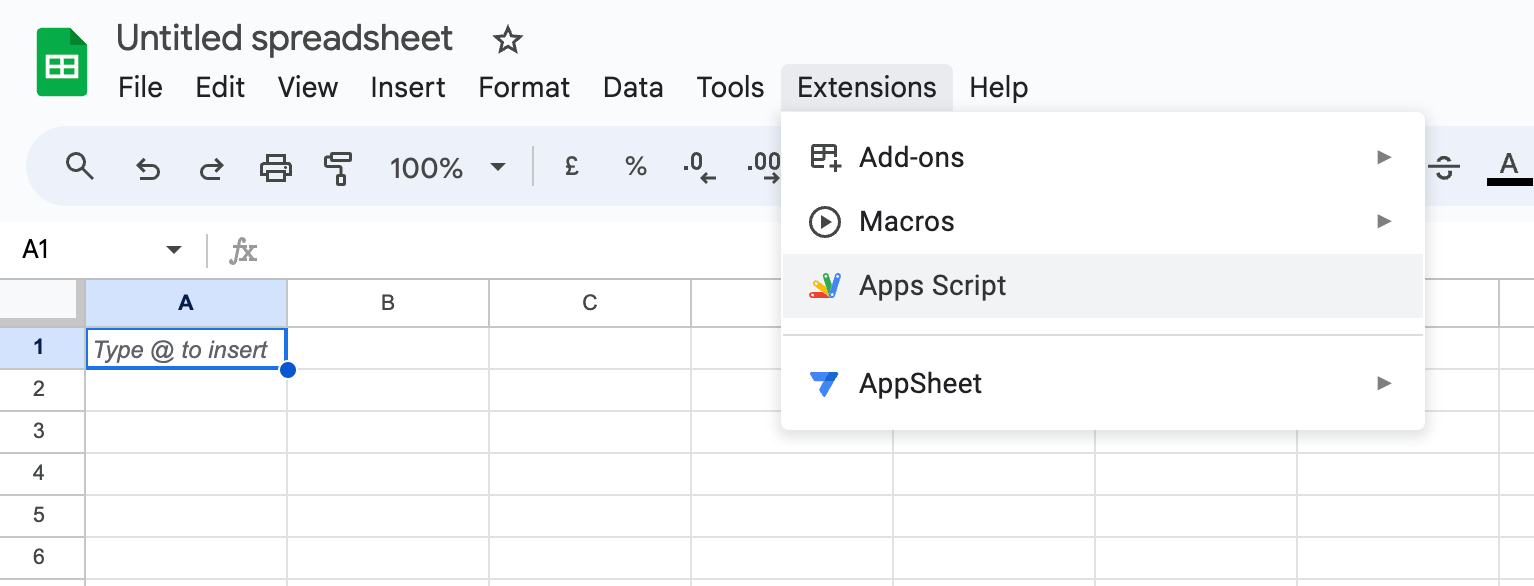
2-2. Go back to your Spreadsheet and click Extensions > Apps Script.
2-3. Paste the chunk of script you just copied
Delete ALL default script first.

Then paste the chunk of script you just copied from HERE.

2-4. Go back to SurveyCake admin panel
Go to Notification > Webhook to find the Hash key & IV key of your survey.
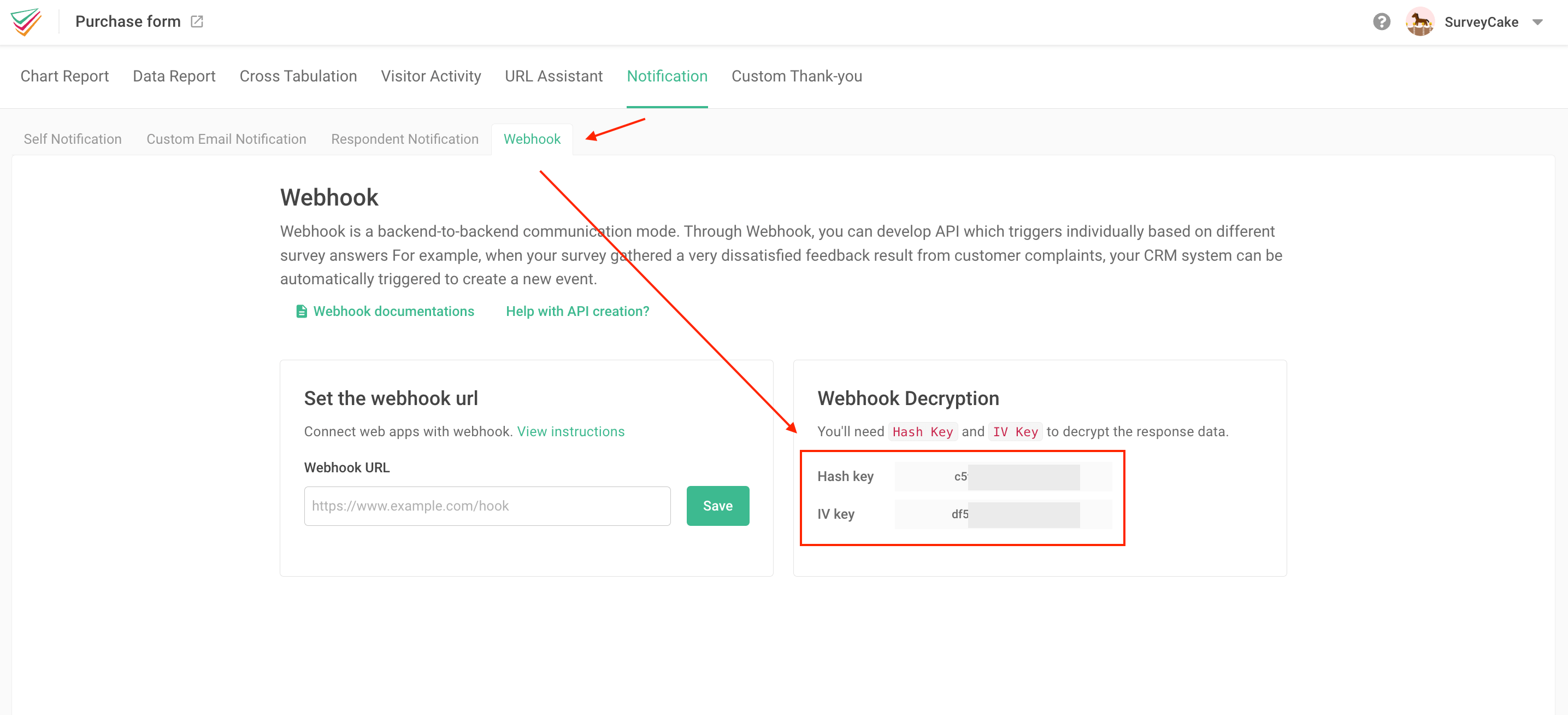
2-5. Replace the Hash key & IV key in the App Script
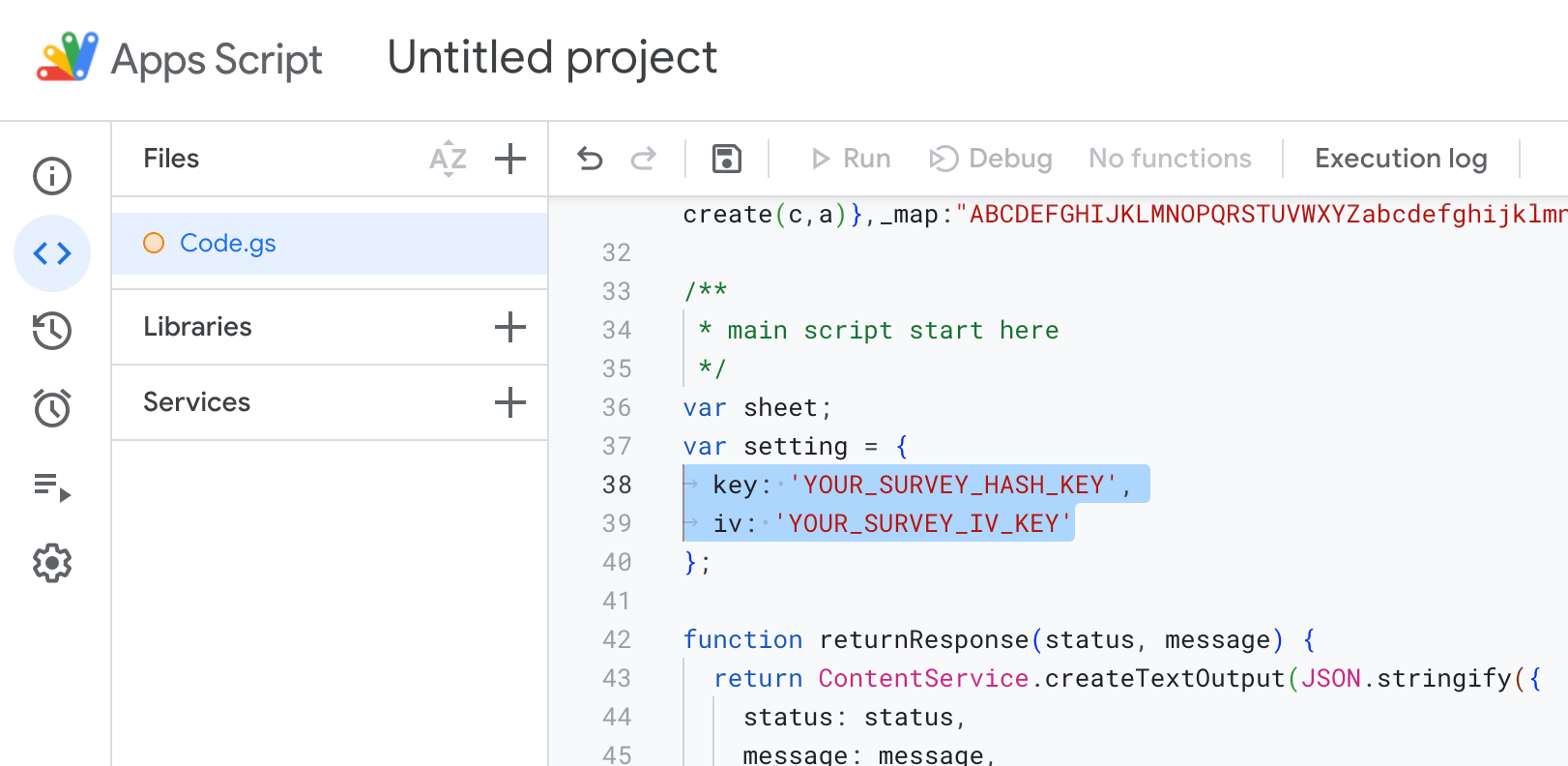
Now go back to your App Script. At row 38 & 39 you’ll find YOUR_SURVEY_HASH_KEY & YOUR_SURVEY_IV_KEY. Please replace the two parameters into the actual Hash Key & IV Key from your survey.
*P.S. Please do not delete the quotation mark. Please replace the text within quotation mark only.
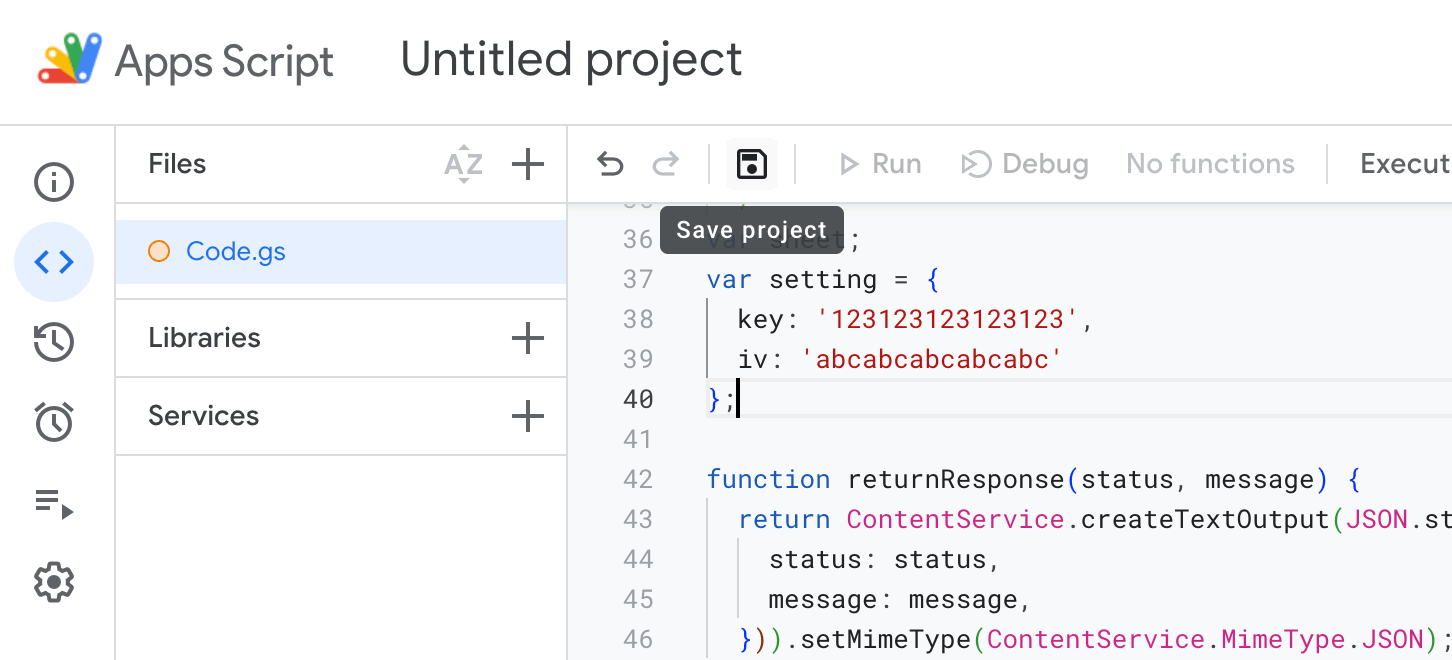
2-6. Click Save & Run
It’s important to click Save > Run by this order.
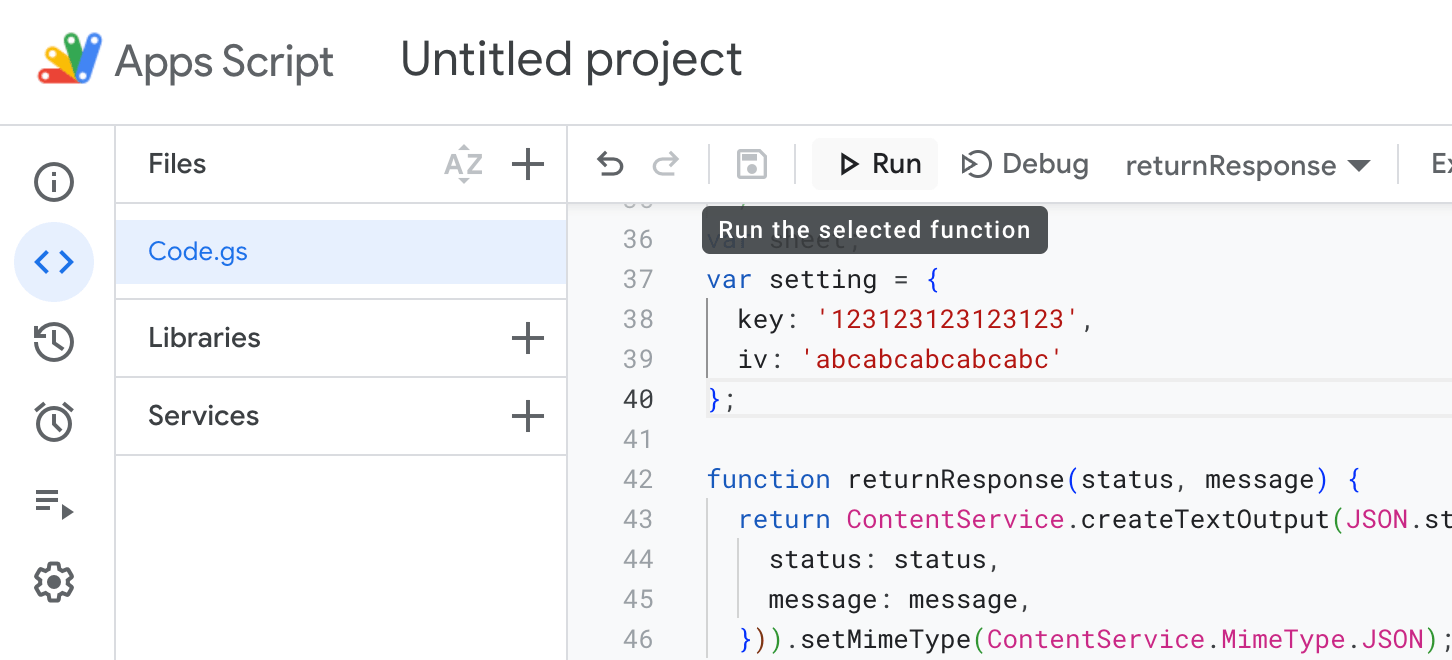
You may need to authorize your Google account during the process.

2-7. Deploy
- Select Deploy > New deployment
- Click the gear icon on the left, choose “Web App.”
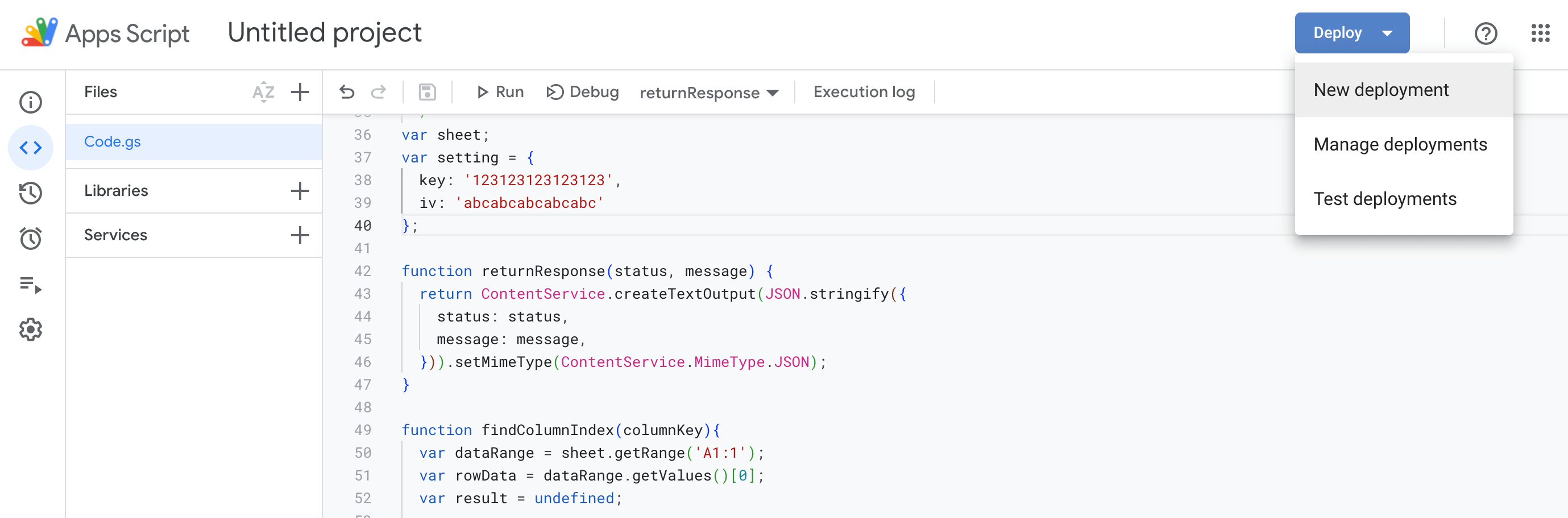
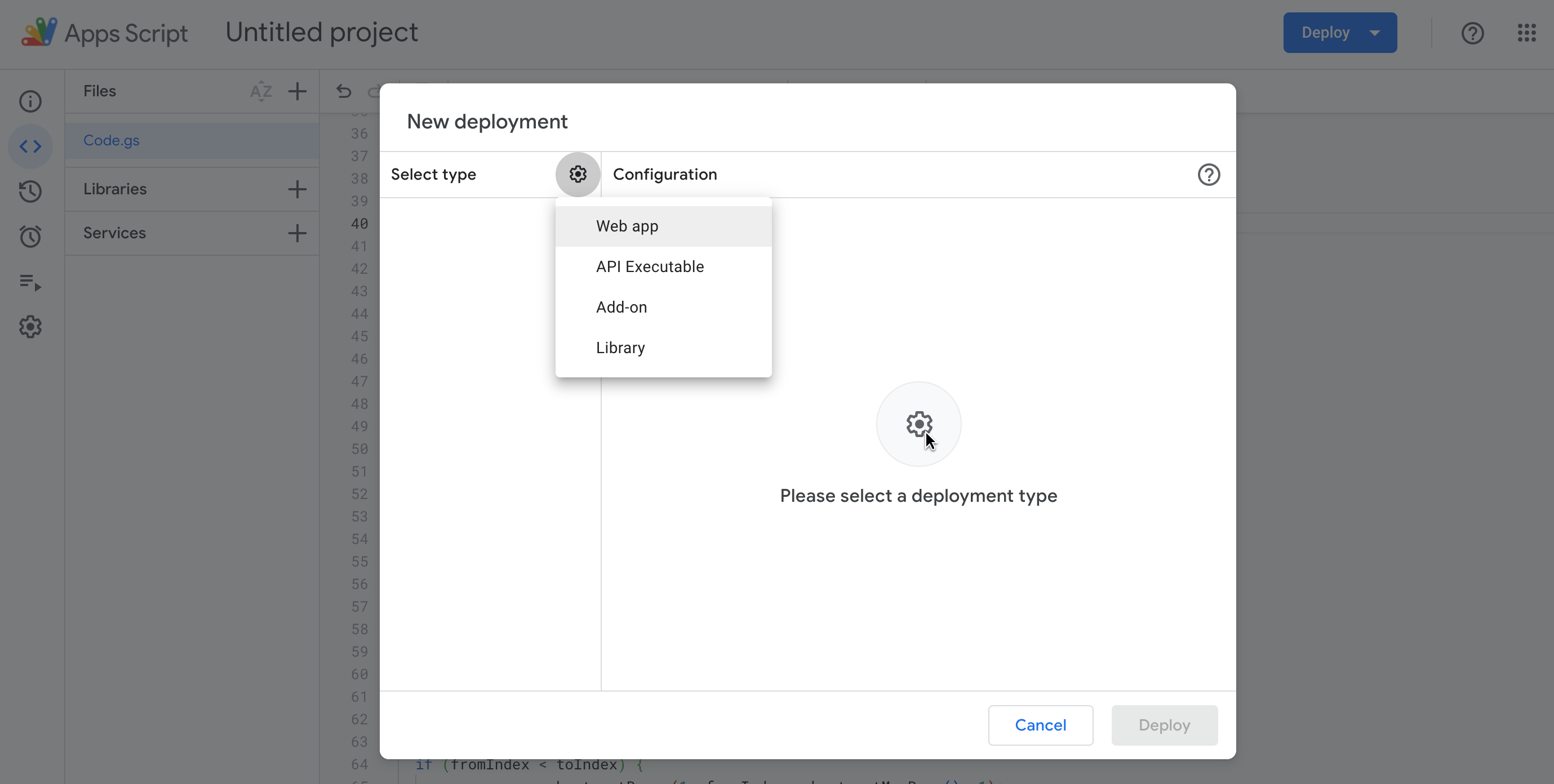
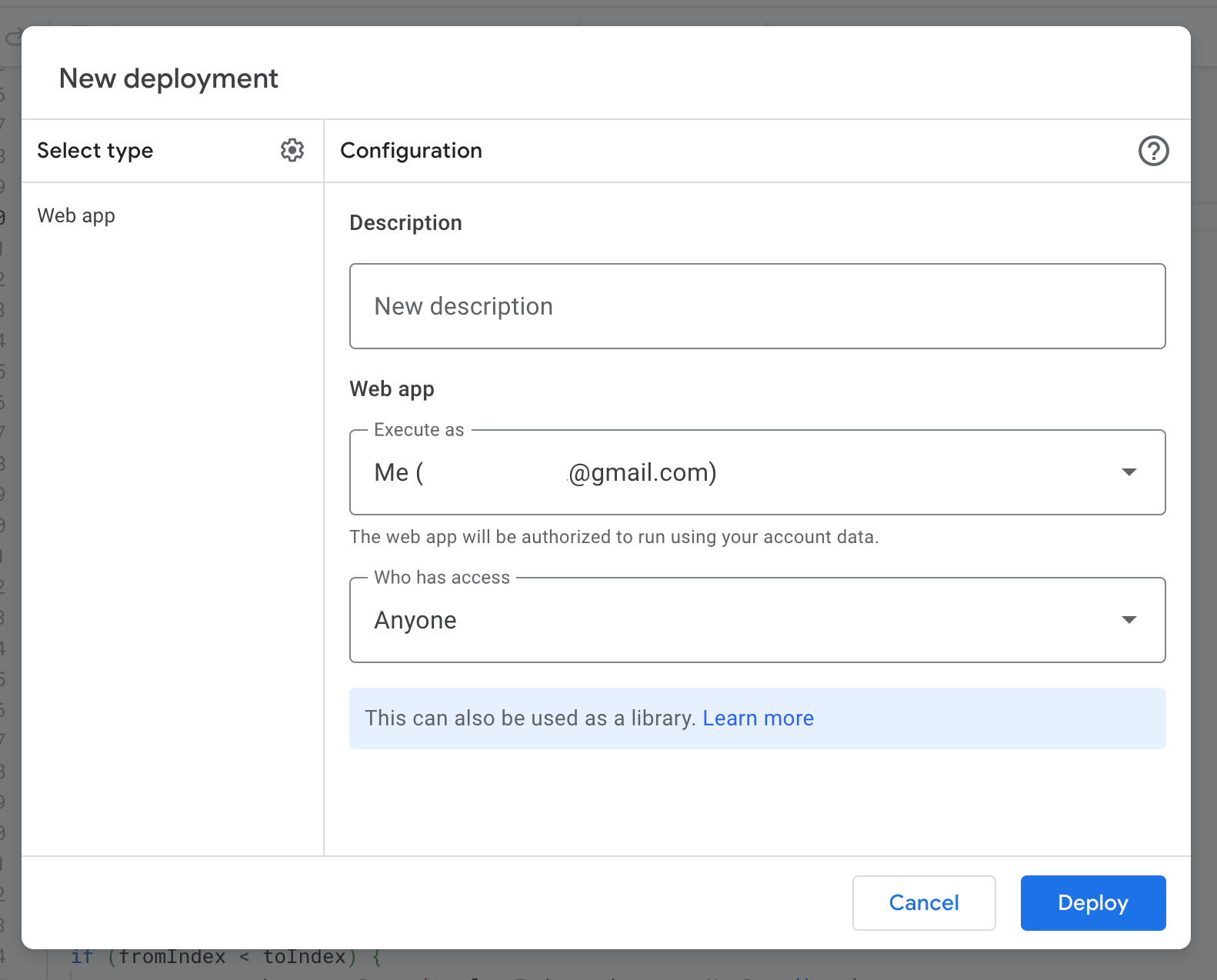
- Set “Execute as” to your Google account and “Who has access” to “Anyone.”
- Click the “Deploy” button.
- Once authorized, you’ll get a URL. Please copy that URL.
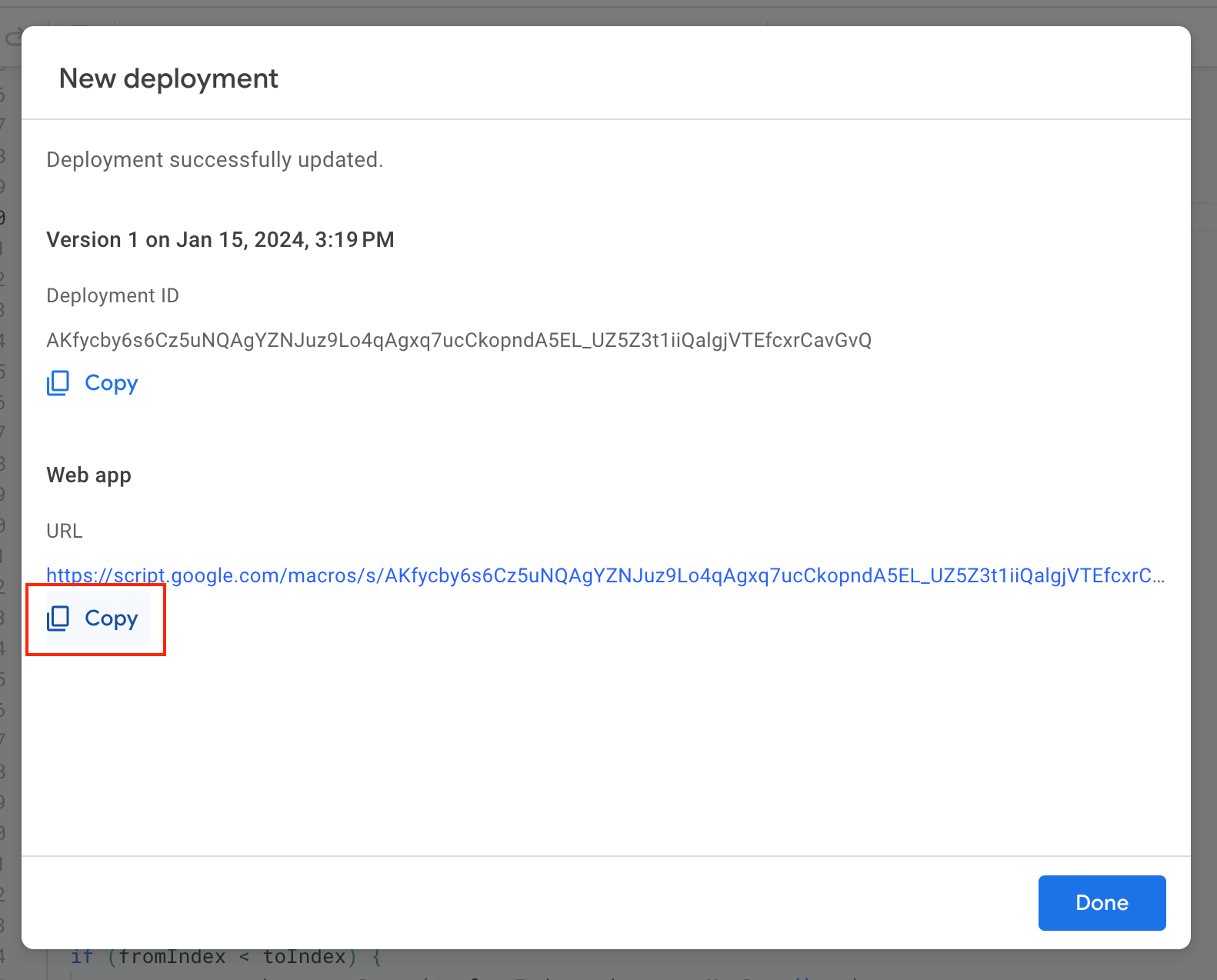
3. Set Up Survey Webhook URL
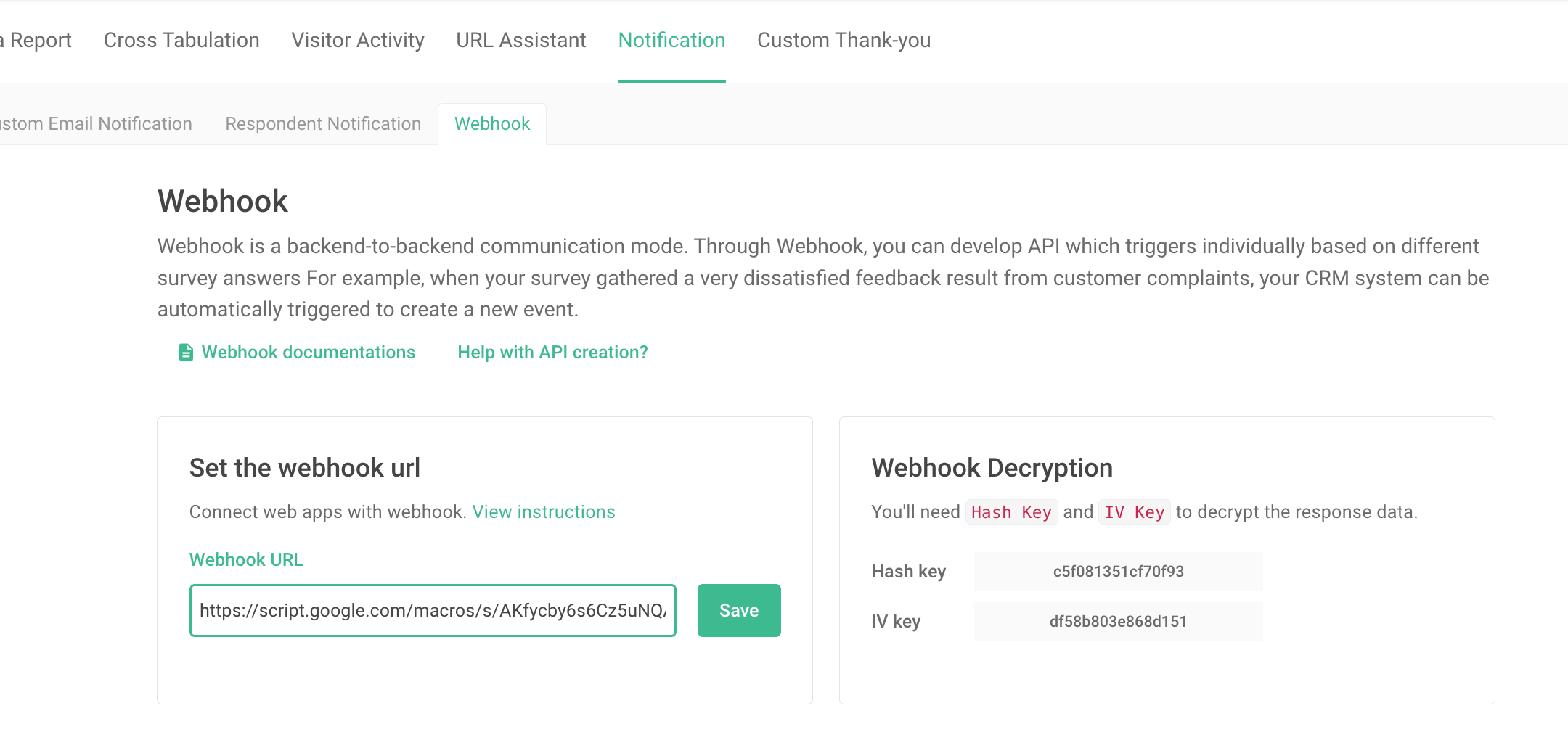
3-1. Paste the Webhook URL and click “Save.”
Go back to the Webhook page in SurveyCake admin panel (step 2-4). Paste the copied URL in the “Webhook URL” section (step 2-7).
* Don’t forget to click the save button in the top right corner; otherwise, the webhook URL won’t be saved!
4. Test by Responding Twice
4-1. Test-submit your survey for the first time.
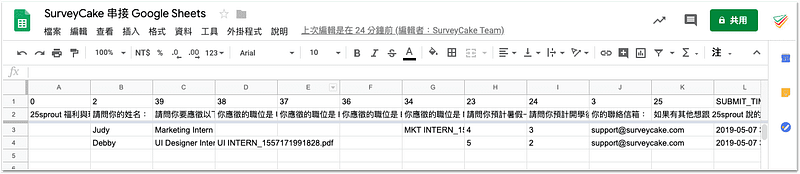
You’ll see the 2 rows of headers created in the Spreadsheet.
4-2. Test-submit the survey again
After the second submission, your Spreadsheet will be updated with the latest response.
【 Notice 】
- DO NOT manually modifying rows 1 and 2 in the spreadsheet. These are used as the system identification.
- If you edit the survey after the integration, the spreadsheet will adapt to the new question order. Deleted questions will move to the end.
- There might be a time-lag in the response timestamp between Google Sheets and SurveyCake due to the automatic adjustment of the webhook’s time zone. Users may need to manually adjust the time difference in Google Sheets.
【Usage Scenario: Resume Collection】
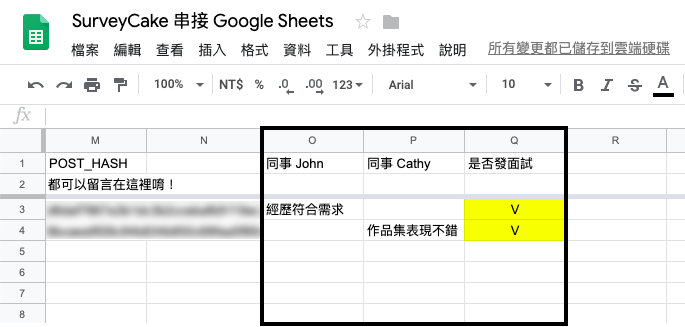
Departments within a company can efficiently collect resumes using a survey form. By integrating the survey form with Google Sheets, survey responses are automatically imported. This facilitates collaborative viewing and editing among colleagues. Each team member can easily review all applicants’ resumes and provide feedback. Supervisors can even tag candidates for interview stages, streamlining HR operations.
No amount of tutorials beats hands-on experience!
The steps to integrate survey responses into Google Sheets are outlined in this article.
Feel free to create a survey and try the integration yourself. You’ll discover that the process is simpler than you imagined, even for those who have no programming experience.